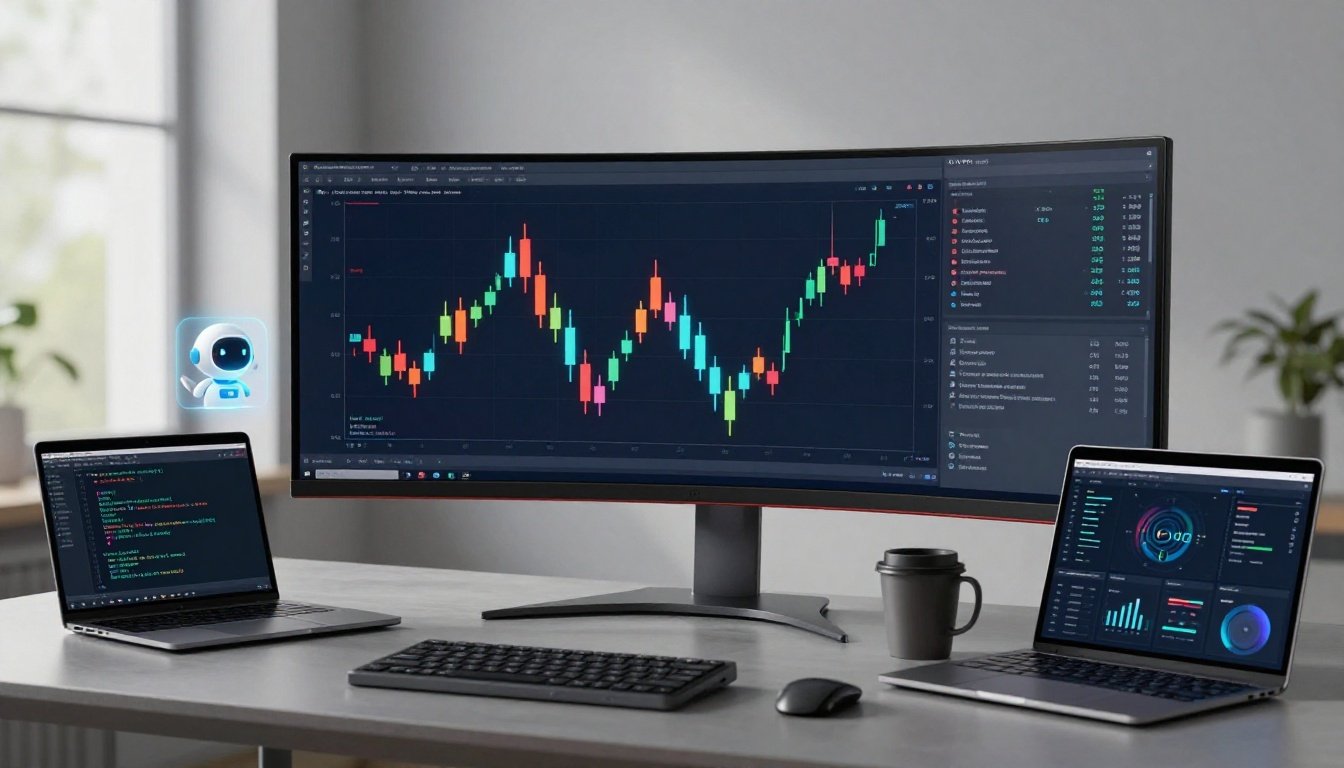
TradingView users want faster chart analysis, quicker screening, cleaner market research, and less time spent writing strategy code. The problem is that AI can speed up the workflow without making the underlying decisions safer, more accurate, or profitable.
As of August 2026, TradingView’s confirmed native AI feature is AI Chart Copilot, a public beta that works beside charts and can bring in news, earnings data, and fundamental metrics. Claims about a separate AI Screener or standalone document-summary tool need more scrutiny, while Pine Script remains useful for building and backtesting custom indicators and strategies. I treat AI as research support, not a signal generator, because bad data, weak assumptions, slippage, fees, and execution problems still belong to the trader.
If your workflow extends beyond charting, my reviews of AI research assistants for small teams and the AlphaSense AI research platform provide useful context. Next, I’ll separate TradingView’s confirmed AI features from community scripts, marketing claims, and practical limitations.
Key Takeaways
- TradingView’s confirmed native AI feature is AI Chart Copilot, a free public beta delivered through a browser side panel.
- It can support chart interpretation and research, but it doesn’t predict markets or remove trading risk.
- TradingView’s paid plans range from Plus at $12.95 monthly when billed annually to higher tiers, with limits on charts and layouts.
- Treat community scripts and third-party extensions as separate tools, not official TradingView AI features.
- For broader research workflows, compare AI research assistants rather than expecting one charting platform to do everything.
TradingView, AI Tools: Which Features Are Available Now?
TradingView’s current AI features focus on research assistance, not automated trading. The main tools reported in current coverage are a browser-based chart assistant, a plain-English stock screener, and AI summaries for selected market documents and news.

AI Chart Copilot for Plain-English Chart Work
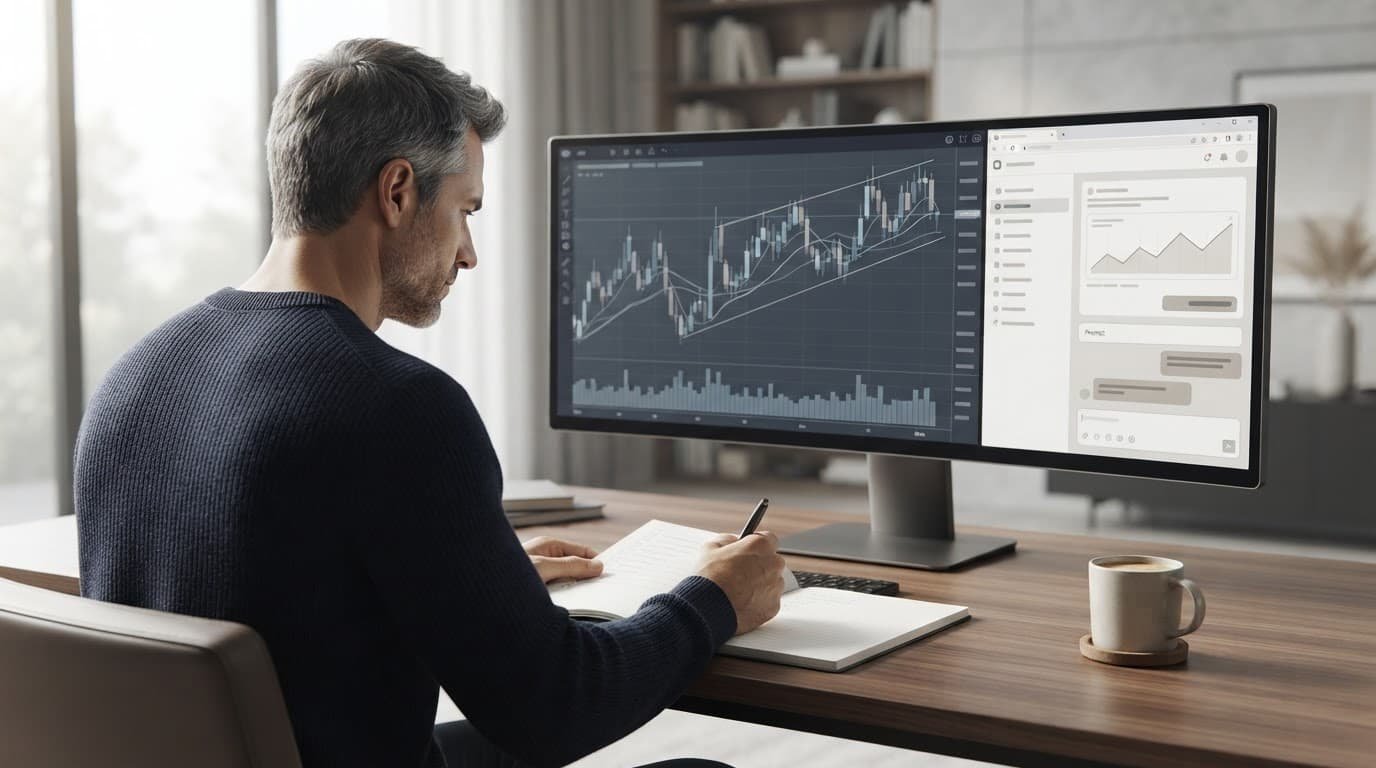
AI Chart Copilot is a public beta that runs in a browser side panel beside TradingView charts. TradingView says it supports Chrome and Chromium-based browsers, including Edge, Opera, Brave, and Vivaldi. Safari and Firefox aren’t listed as supported browsers, so compatibility matters before you build your workflow around it. You can read the official Chart Copilot announcement for the current access details.
Reported capabilities include:
- Analyzing an asset and explaining visible chart conditions.
- Changing chart settings and adding indicators.
- Drawing price levels or other chart objects.
- Comparing assets and testing hypothetical ideas.
- Exploring changes to a strategy or indicator setup.
These are useful jobs, but I wouldn’t treat a conversational response as a verified trading signal. Check every chart change, calculation, timeframe, and assumption. A confident explanation can still rely on incomplete data or misunderstand what you asked.
AI Screener for Faster Stock Discovery
The AI Screener is described as a public beta inside Stock Screener. You might ask for US stocks above a chosen market capitalization, with positive three-month price performance and a particular technical condition. The tool then translates that request into filters, columns, and sorting.
That saves setup time, but it doesn’t make the investment decision for you. The reported scope is Stock Screener only, so don’t assume the same plain-English workflow works for crypto, forex, or every other asset class.
Before acting on the results, inspect the selected filters, sort order, data date, and companies returned. I would also compare the output with a broader Elicit research assistant analysis when the decision requires more than price and technical data.
AI Summaries for Filings, News, and Earnings Research
TradingView’s reported AI coverage includes summaries for US corporate documents, SEC filings, earnings transcripts, and news events such as earnings, mergers, insider trading, and IPOs. Document coverage focuses on US companies and filings from June 2024 onward, although availability can vary by account.
Summaries are helpful for triage. They can help you decide which filing or transcript deserves a closer read, but they shouldn’t replace the original source. Verify numbers, dates, guidance, risk factors, and management quotes in the underlying document before relying on them.
How to Build a Safer TradingView AI Workflow
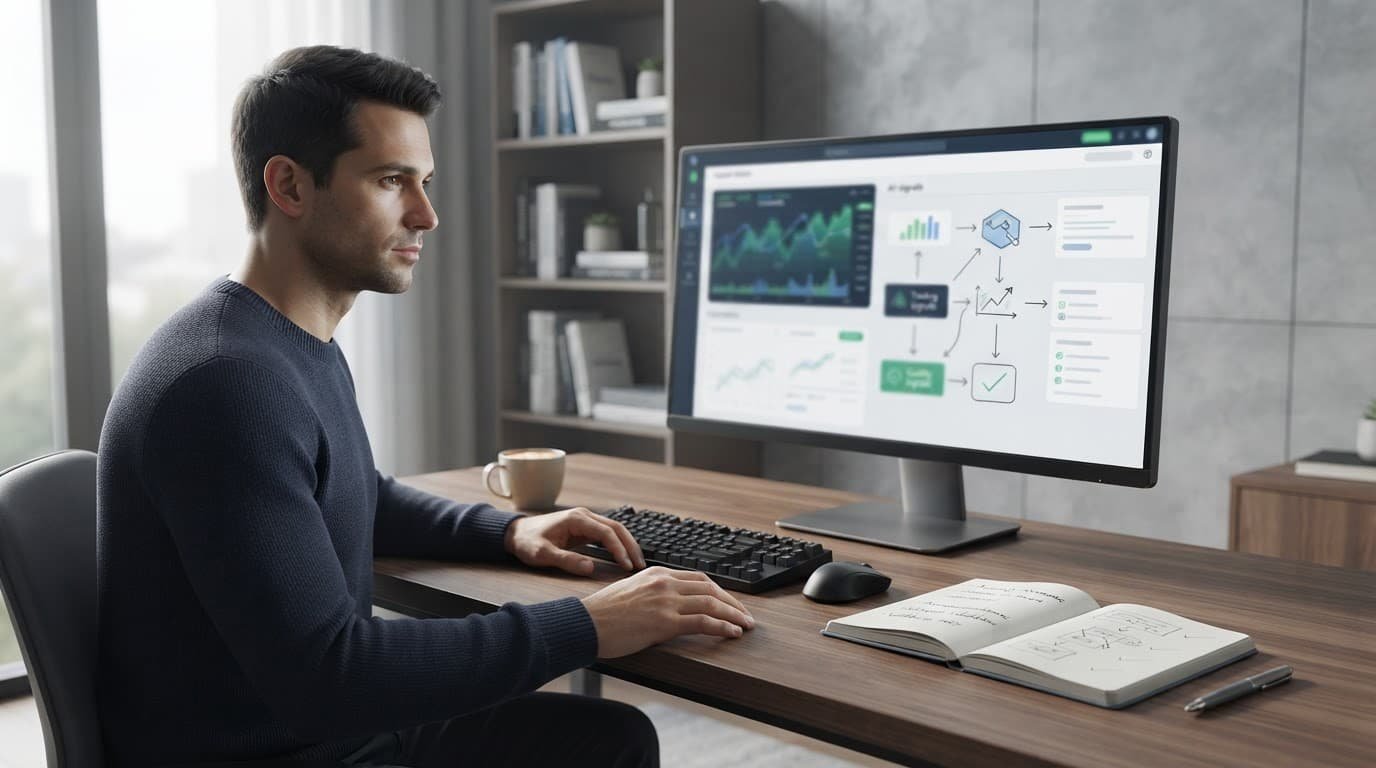
AI can speed up chart research, but I keep the final decision outside the chat window. A safer workflow moves through clear questions, evidence checks, historical testing, and paper trading before real capital is involved.
Turn a Trading Question Into a Testable Prompt
“Will this stock rise?” is too vague to test. I would ask for a defined market, ticker, timeframe, indicator settings, entry condition, exit condition, position size, and risk assumption.
For example: “For AAPL on the daily chart, identify cases where the 20-day moving average crosses above the 50-day moving average. Use a 2% stop loss, a 6% profit target, and include commissions and slippage. List every assumption and identify missing data.”
A precise prompt improves consistency, but it doesn’t make the answer correct. Ask the tool to separate observed data, calculations, assumptions, and interpretation. If it can’t explain which data it used, I treat the result as unverified. That standard matches my broader AI tool review methodology, where accuracy and repeatability matter more than fluent output.
Check AI Output Before It Reaches a Trade
Before acting, I check:
- The ticker, exchange, timeframe, and date range.
- Indicator names, settings, and calculation logic.
- Data freshness, splits, dividends, and other corporate actions.
- The original filings, news, or market data behind factual claims.
- The arithmetic, including percentages, returns, and risk-reward ratios.
- Whether the output is a signal, or only an interpretation.
For company research, I compare important details with SEC data and filings, not just an AI summary. I also reproduce chart findings directly in TradingView. Never paste generated Pine Script into a live strategy without reviewing every line, checking for look-ahead bias, and confirming that orders execute as intended. My AI evaluation criteria apply here too: a confident answer isn’t proof.
Use Backtesting as a Filter, Not Proof
A profitable backtest only shows how rules might have behaved in historical data. The SEC describes back-tested performance as hypothetical and warns that past performance can’t predict future results. See its performance claims bulletin.
I test on separate in-sample and out-of-sample periods, include fees, spreads, slippage, and realistic liquidity, then check bull, bear, and sideways markets. A small sample can produce a lucky result, while repeated edits can overfit the past. I save the original rules, data range, settings, and results before making changes. Then I paper trade the unchanged version and compare live behavior with the backtest. My AI agent testing workflow follows the same principle: preserve the baseline so improvements don’t quietly become hindsight.
TradingView AI Pricing, Plan Limits, and Total Cost
TradingView’s subscription value depends less on its AI label and more on how much charting capacity your workflow needs. As of late August 2026, the five tiers are Basic at $0, Essential at $12.95 per month annually, Plus at $29.95, Premium at $59.95, and Ultimate at $199.95.
These are annual-effective prices. Your final cost can change with monthly billing, regional currency, taxes, promotions, and future plan updates. Check the official TradingView pricing page before subscribing.
What the Free Plan Can and Cannot Cover
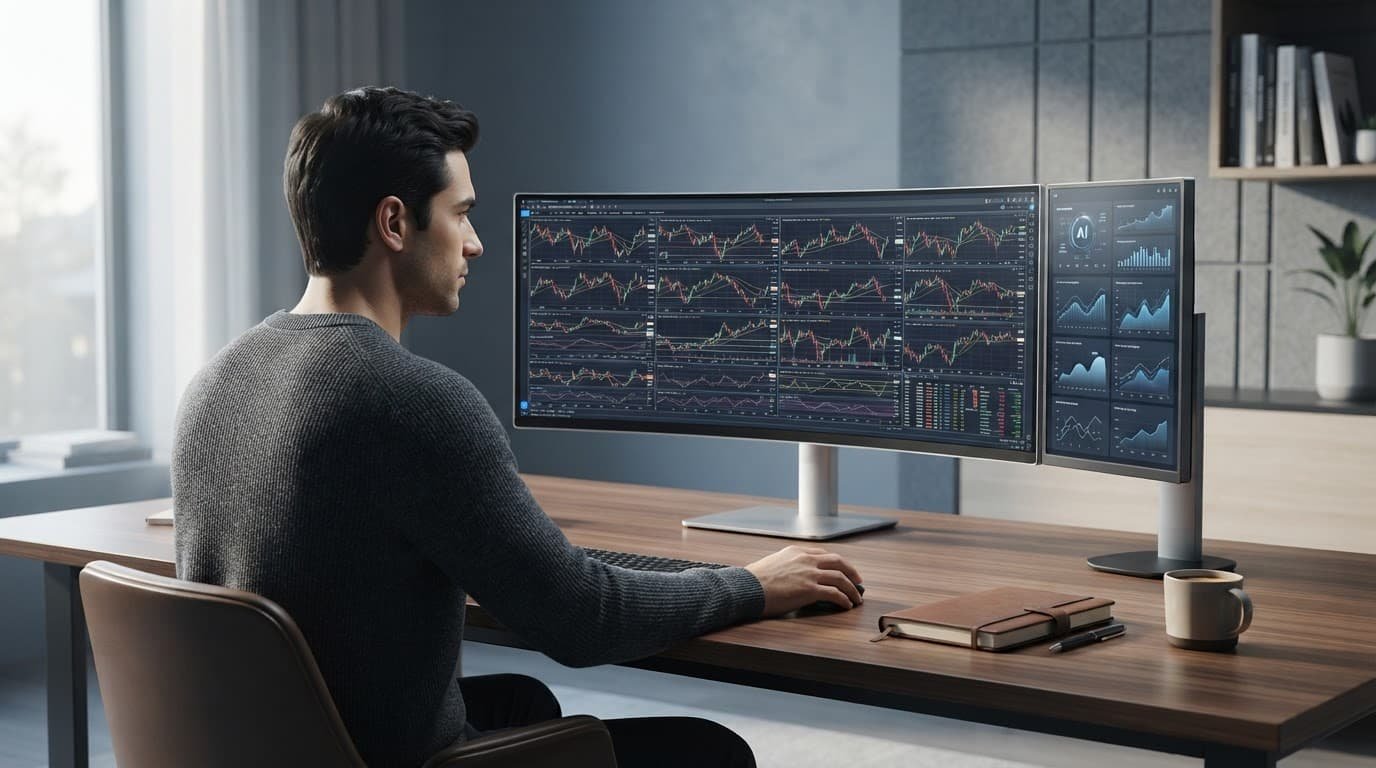
Basic can be enough for learning chart patterns, reviewing a few assets, and testing whether AI belongs in your process. You get one chart per tab, two indicators per chart, about 5,000 historical bars, and three active price alerts under the reported current limits.
That is workable for occasional review. It becomes restrictive when you need multiple layouts, several indicators, deeper history, or alerts running across a watchlist. Essential raises the starting capacity to two charts per tab, five indicators, 10,000 historical bars, and 20 price alerts.
AI Chart Copilot is reported as available to free users during its public beta, so paying isn’t automatically required for AI access. AI Screener is also reported as a public beta, but I wouldn’t assume every AI feature has identical access rules.
Before upgrading, identify the actual bottleneck. If you only want AI-generated buy and sell calls, a subscription is probably poor value. TradingView’s AI tools are mainly research and workflow aids, not reliable prediction engines.
When a Paid TradingView Tier Makes Sense
Paid plans make more sense when chart capacity affects your work every day. Plus, Premium, and Ultimate increase charts, indicators, historical bars, alerts, and parallel chart connections substantially. For example, the published limits reach 16 charts per tab, 50 indicators per chart, 40,000 historical bars, and 1,000 price alerts on Ultimate. Bar Replay access also varies by plan, as shown in TradingView’s historical data guidance.
| User type | Sensible starting point | Why |
|---|---|---|
| Free users | Basic | Learning and occasional chart checks |
| Active researchers | Essential or Plus | More layouts, indicators, and alerts |
| Strategy builders | Plus or Premium | Deeper testing and parallel monitoring |
| Professional teams | Premium or Ultimate | High alert volume and broad chart capacity |
I compare the subscription with other software using AI tool pricing comparisons. The key question is simple: does the plan remove a real workflow limit, or am I paying for features I won’t use?
Strengths, Weaknesses, and Limits of TradingView AI
TradingView AI is most useful when it removes repetitive work around charts, screening, and research. It becomes less reliable when you treat fluent answers as verified analysis. I see the platform as a research assistant inside a strong charting environment, not an autonomous trading system.

Where AI Saves Time Without Replacing Judgment
The safer use cases are the tasks that organize information or reduce setup time. You can start with a research idea and ask AI to turn it into screener filters, then inspect whether the chosen market cap, timeframe, performance, and technical conditions match your original question.
It can also summarize a long filing before you review the source, organize a watchlist around a stated theme, and explain what an indicator does in plain language. For Pine Script, AI may help draft a function, describe existing logic, or identify possible errors. I would still review each line and test the result against known chart conditions.
That distinction matters. The time savings come from fewer repetitive steps, not from discovering guaranteed winners. TradingView’s charting environment, broad indicator library, and community-script ecosystem give these assistants useful context, but the underlying data and rules still need review.
For broader automation, I apply the same access controls I would use with any connected AI workflow:
- Give browser extensions only the permissions they need.
- Avoid importing confidential trading rules or account information without a clear reason.
- Keep sensitive documents and credentials outside tools that don’t require them.
Where AI Can Create False Confidence
TradingView AI can produce a polished answer that contains a hallucinated fact, stale news, a missed filing detail, or incorrect indicator logic. A summary may omit a risk factor. A backtest explanation may highlight favorable periods while ignoring fees, slippage, liquidity, or losing trades.
Community scripts add another layer of uncertainty. An AI-labeled indicator may be useful for visualization, but quality varies widely, and some authors state that their scripts are analytical tools rather than financial advice. I don’t treat a script’s name as evidence of predictive ability. TradingView’s Pine Screener documentation also shows why technical limits can matter when custom scripts are used for scanning.
I recommend checking original sources, saving screenshots and settings, reproducing important calculations independently, and paper trading before risking capital. Keep a record of the prompt, data date, filters, and code version so you can audit the result later. For browser access and connected workflows, AI agent permission controls and AI agent sandboxing provide useful security principles.
TradingView confirms that Chart Copilot is a public beta browser extension for Chrome and Chromium-based browsers, including Edge, Opera, Brave, and Vivaldi. That limited rollout matters. There is also no confirmed evidence here of a separate official TradingView AI Pine Script generator. No AI assistant can predict markets reliably in every condition.
Who Should Use TradingView AI, and What Alternatives Fit Better?
TradingView AI is a reasonable fit when you already use TradingView and want help with chart navigation, screening, research summaries, or early strategy work. It makes less sense if you’re looking for an automated trading bot, broker execution system, or guaranteed signals.
Best Fit for Beginners, Active Traders, and Developers
Different users need different safeguards and workflows. I would use this matrix before choosing TradingView AI or an alternative:
| User type | What matters most | Best fit |
|---|---|---|
| Beginners | Education, clear assumptions, paper trading, and simple explanations | TradingView AI as a research aid, not a signal service |
| Active traders | Screening, alerts, multiple charts, and quick workflow changes | TradingView AI or a dedicated scanner |
| Developers | Pine Script documentation, reproducible tests, version control, and code review | TradingView plus a coding assistant |
| Teams | Permission controls, audit trails, privacy settings, and approved extensions | A governed platform that fits company security policy |
Beginners should ask whether the tool explains why it reached a conclusion. Paper trading also matters because you can test a workflow without immediately risking capital. Active traders may care more about fast screening and alert delivery than conversational explanations.
Developers can use AI to draft or explain Pine Script, but generated code still needs review. TradingView’s Pine Script v6 documentation and language reference manual should remain the source of truth. For broader coding workflows, compare AI coding assistants for Python and AI code review tools for SaaS teams.
Questions to Ask Before Paying for Any AI Trading Tool
Marketing claims are easy to publish. Evidence is harder. Before paying, I ask:
- What data source does the tool use, and what is the data timestamp?
- Does it cover your market, exchange, asset class, and timeframe?
- Can you inspect its assumptions, filters, calculations, and limitations?
- Does testing include commissions, spreads, slippage, liquidity, and realistic execution?
- How does the provider protect account data, credentials, prompts, and trading rules?
- Are cancellation terms and refunds clearly explained?
- Does the tool solve a repeated problem often enough to justify its monthly cost?
Choose alternatives by job, not by feature count. A dedicated stock scanner may be better for discovery, a broker-native tool may fit execution, and a general AI assistant may be better for brainstorming or code explanation. Specialized backtesting or automation platforms deserve consideration when you need systematic rules, APIs, or broker connections. Check those details, plus alert delivery, support, privacy, and total cost, before switching.
Frequently Asked Questions
TradingView’s AI features are useful, but the details matter. I separate official beta tools from community scripts, third-party extensions, and assumptions about what AI can actually do.
Does TradingView Have an AI Tool?
Yes. TradingView currently documents AI Chart Copilot and AI Screener as official AI features. Chart Copilot is a public beta browser assistant that works beside charts, while AI Screener turns natural-language requests into Stock Screener filters.
These aren’t one all-purpose AI trading system. Community indicators, scripts listed in TradingView’s AI script library, and third-party browser extensions are separate products. I would check the publisher, permissions, data access, and maintenance history before installing anything.
Is TradingView AI Free to Use?
AI Chart Copilot is reported as free for all TradingView users, although TradingView may limit daily usage while the feature remains in beta. AI Screener is different. Current TradingView guidance places it in public beta for paid users, with request limits tied to subscription tiers and subject to change.
That access question is separate from normal TradingView plan limits. Charts, indicators, alerts, historical data, layouts, and Bar Replay still depend on your subscription. My AI tool pricing comparisons can help when you’re comparing the wider software cost.
Can TradingView AI Predict Stock Prices?
No reliable tool can consistently predict future stock prices or remove trading risk. TradingView AI can analyze chart information, build screens, summarize research, and help test trading rules, but its output depends on data quality, assumptions, and market conditions.
I treat every response as a research input, not financial advice. Check the original data, reproduce important calculations, include fees and slippage, and paper trade before risking capital.
Can TradingView AI Write Pine Script?
TradingView’s official materials establish Pine Script as its scripting language and editor, but they don’t establish a separate native AI Pine Script generator. You may still find community tools, browser extensions, or general AI coding assistants for developers that can draft or explain Pine code.
Generated code needs line-by-line review. Test calculations, repainting behavior, look-ahead bias, alerts, and order execution before using a script in a live strategy.
Which TradingView Plan Is Best for AI Features?
Start with Basic when it covers your workflow. Upgrade only when a real limit affects your research, such as too few charts, indicators, alerts, or historical bars.
The best plan depends on your charting and screening workload, not simply on AI access. I wouldn’t pay for Premium or Ultimate just to use an assistant if Basic already handles your actual tasks.
Conclusion
TradingView’s AI tools can reduce the time spent interpreting charts, building stock screens, and reviewing market documents. That makes them useful for research, especially when you already use TradingView and understand how to verify filters, data, calculations, and generated Pine Script.
The strongest takeaway is that AI assistance is not trading automation. Chart Copilot remains a free public beta with browser and usage limits that may change. AI summaries and screening tools can also miss context or present incorrect conclusions, so original sources, realistic backtests, paper trading, fees, slippage, and execution checks still matter.
My verdict is straightforward: TradingView is worth considering for existing users who want practical help with chart tasks and market research. I wouldn’t recommend it to anyone expecting automatic profits or hands-off execution. Check current beta access, supported browsers, pricing, data coverage, and plan limits before relying on any TradingView AI feature.