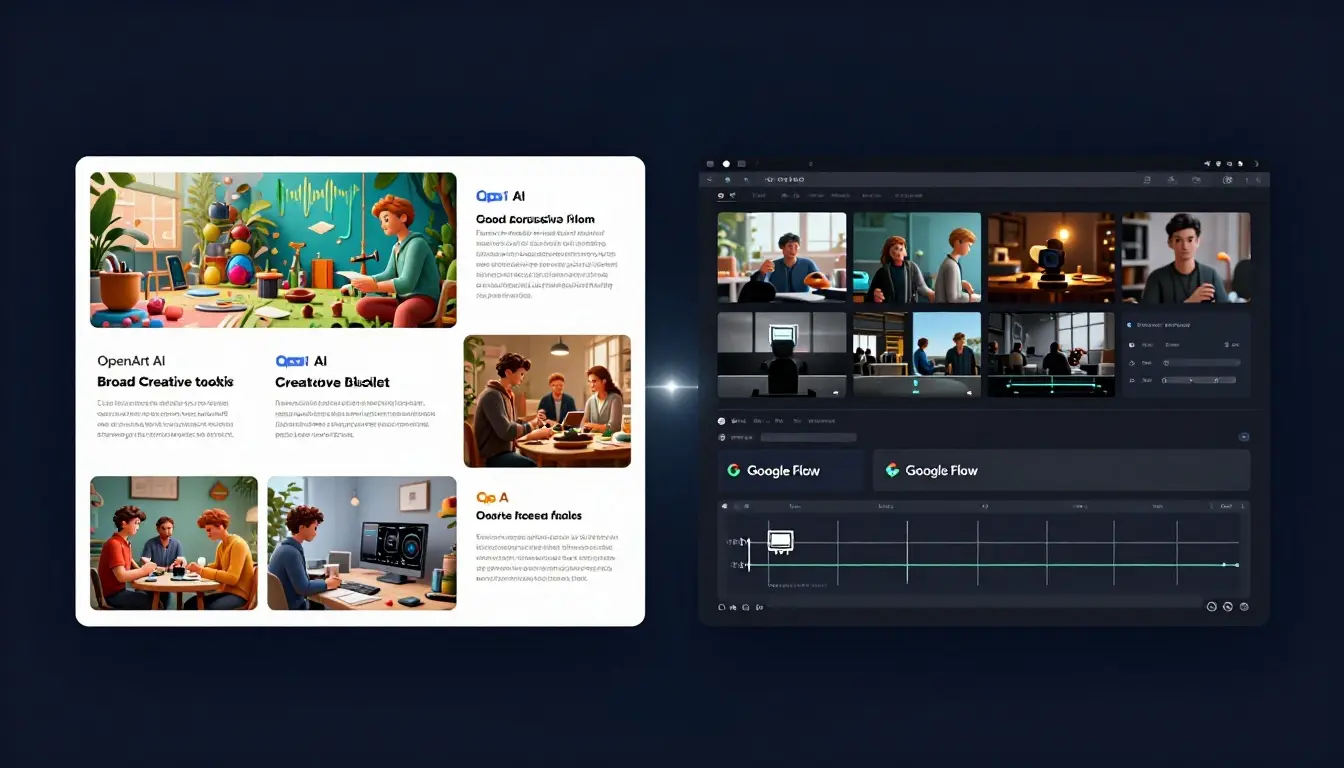
Choosing between OpenArt AI and Google Flow comes down to the work you need to get done: OpenArt offers a broader creative toolkit, while Flow focuses more closely on filmmaking with Google’s Veo models. This is a 2026 comparison, but I won’t present it as a firsthand test: the information available here doesn’t document the same prompts and tasks run in both products, so claims about which one produces better footage wouldn’t be justified.
The practical trade-offs are still clear. OpenArt may suit workflows that combine images, video, audio, and character tools; Flow may fit better when Veo-powered video is the main deliverable. For a closer look at their features and pricing, see my OpenArt vs Google Flow comparison, then consider how each platform’s controls, costs, and editing demands fit your production workflow.
Key Takeaways
- OpenArt AI vs Google Flow comes down to workflow fit, not a universal winner: OpenArt supports a broader mix of image, video, audio, character, and editing tasks.
- Flow is the more focused option when you mainly want to create video with Google’s models and prefer a narrower creative workspace.
- Both platforms use plan- and generation-dependent costs, so credit totals alone won’t tell you how many usable clips your budget will buy.
- I’d compare continuity, editing needs, generation limits, and post-production effort using your own projects. See the OpenArt AI review for more on its video workflow.
- Higher resolution or longer clips don’t automatically mean better footage, and available information doesn’t support a claim that one platform consistently produces better results.
OpenArt AI vs Google Flow: What a Fair Real-World Test Measures
A fair OpenArt AI vs Google Flow comparison starts with the same task and separates documented capabilities from observed results. Since I don’t have results from matching generations in both tools, I wouldn’t claim that one produced better footage. I can still define what a useful, repeatable test should measure.
Use the same creative brief in both tools
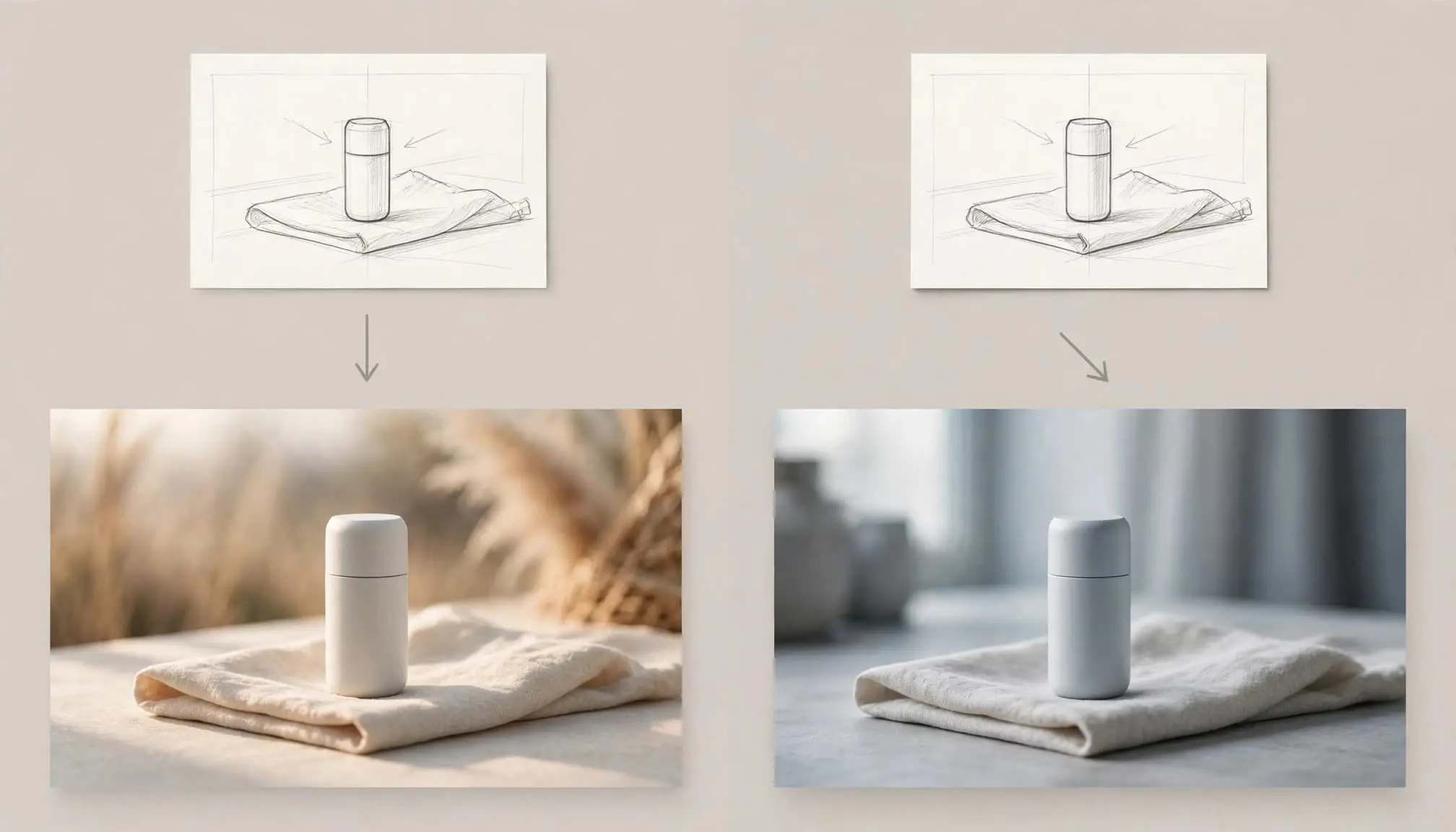
For a short product clip, the brief might specify a glass water bottle rotating on a sunlit kitchen counter, a hand placing it beside a glass, a slow camera push-in, a vertical 9:16 frame, and a calm, polished mood. That gives both tools the same subject, action, setting, framing, and tone to interpret.
A published test should also list what was actually entered: prompt, reference images, selected model, aspect ratio, duration, audio settings, and number of attempts. If a generation required prompt changes or a different model, disclose that. Otherwise, a clean-looking example can hide how much iteration it took to get there.
Judge motion and continuity, not just a striking frame
A still frame can look convincing while the motion around it falls apart. I’d review whether the bottle keeps its shape, the hand moves plausibly, the scene stays stable, and the camera move supports the product rather than distracting from it.
Duration, resolution, aspect ratio, audio, and camera controls also matter, but none is a quality score on its own. Google documents options such as aspect ratio, output count, and generation length in Flow; available controls can depend on the selected workflow. Its Veo 3.1 prompting guide offers useful context on specifying a video request. I’d also count editing and post-production work, since a longer or sharper clip may still need more fixes.
Separate observed results from product claims
I’d label feature descriptions as vendor-documented, reserve “observed” for outputs actually generated, and mark conclusions as editorial judgment. This comparison should be treated as research-based unless both tools are run with disclosed inputs and settings. State the model, access tier, attempt count, and test date, since those details limit how far a result can be generalized.
For projects involving several models, a multi-model AI video workflow may help clarify when model choice is part of the process rather than a controlled variable.
How OpenArt and Google Flow Fit Different Production Workflows
The practical difference in OpenArt AI vs Google Flow is the shape of the work each supports. OpenArt brings more media tools and model options into one workspace. Flow is organized around building video scenes with Google’s generative models. Neither approach removes the need to check continuity, edit weak outputs, or confirm what your plan actually includes.
OpenArt combines image, video, and editing tools
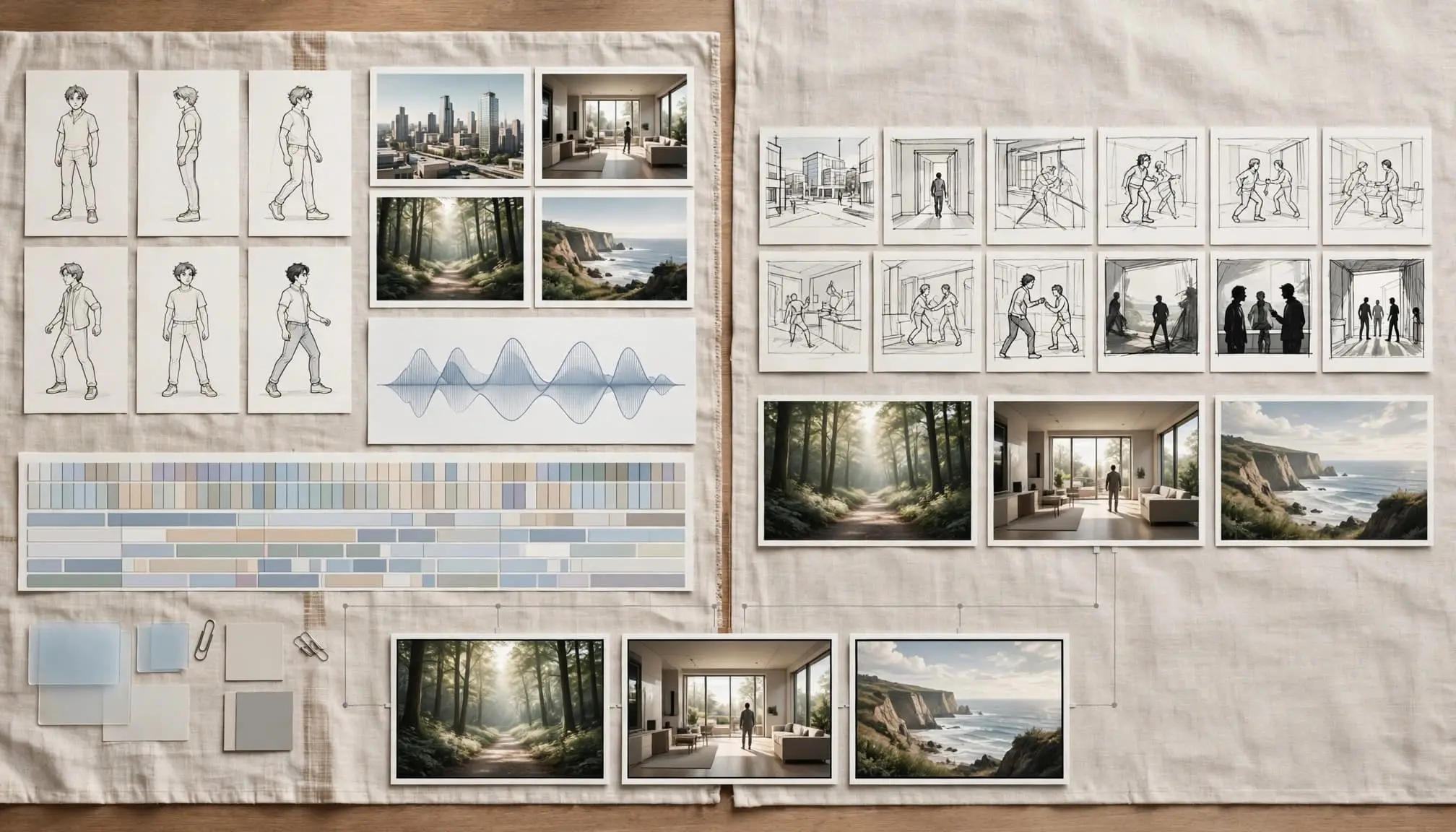
OpenArt groups image and video generation with image editing, character-focused tools, audio features, and other media options. Its current lineup also includes multiple third-party models, so you can choose a different model for a still image, an animated scene, or another task without moving to a separate service. That breadth can help with campaigns that need product images, recurring characters, short clips, and variations for different placements.
The trade-off is choice and change. Model availability, features, and credit costs can shift, so I’d verify the options tied to your plan before building a repeatable production process. For a broader look at campaign tools, see AI video tools for commercial production.
Google Flow centers the filmmaking process around Veo
Google Labs describes Flow as a filmmaking tool for creating and refining clips, scenes, and stories. It combines Veo video models with Imagen and Gemini capabilities, but available controls vary by model. Google’s Flow overview and help documentation distinguish the broader Flow workflow from features limited to newer models.
Audio needs particular care: Google identifies native audio as experimental and available with Veo 3 or Veo 3.1, not as a standard feature across every model. Check the selected model and access tier before planning around dialogue or sound effects.
Compare a finished workflow, not a feature checklist
| Production need | OpenArt | Google Flow |
|---|---|---|
| Best fit | Mixed image, video, character, and audio assets | Video-led scene creation |
| Model choice | Broad, multi-provider selection | Google models, including Veo |
| Image-to-video and continuity | Image animation and character-focused workflows | Scene refinement and consistency features vary by model |
| Editing and audio | Editing, lip sync, and audio tools are available | Native audio is limited to newer Veo models and remains experimental |
| Exports and integration | Check current tool and plan limits | Check model-specific controls and your Google workflow needs |
For a campaign with several asset types, OpenArt may reduce tool switching. For a Veo-centered video project, Flow offers a more focused path. In either case, judge the workflow by usable exports and post-production effort, not the feature list alone.
Where Output Quality, Editing, and Reliability Matter Most
For OpenArt AI vs Google Flow, a feature list won’t tell you whether a clip is usable. I’d assess whether the tool follows the brief across attempts, preserves scene details, and produces an export that fits the job. I don’t have results from matched generations in both products, so I can’t claim one is more reliable.
Check prompt adherence and scene continuity across attempts
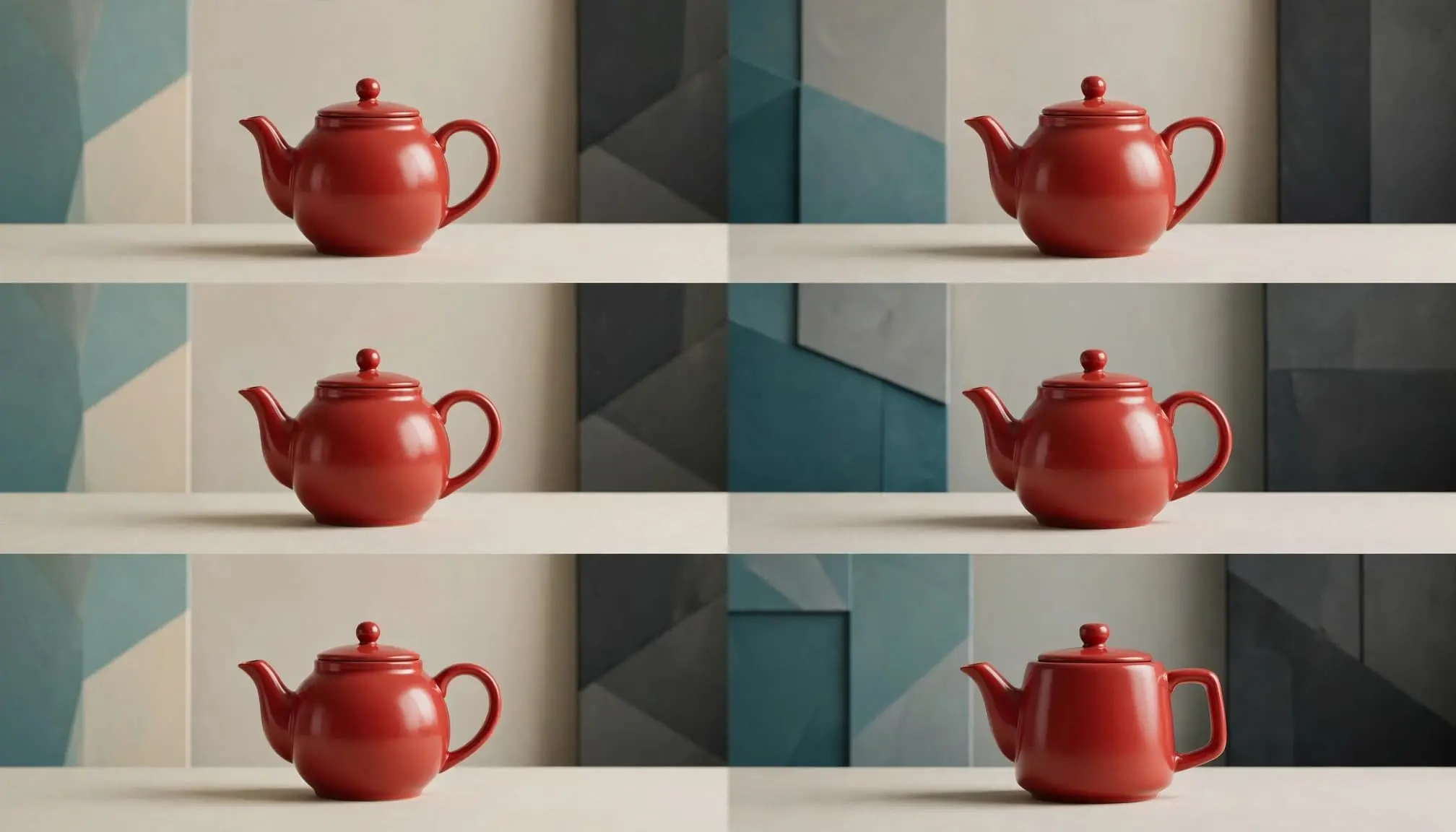
Review whether the subject, action, setting, and camera direction stay close to the prompt. Then check details that often drift: a character’s face or clothing, an object’s shape, the lighting, and the layout of the scene. One attractive frame doesn’t establish consistent performance.
OpenArt documents reference options for elements such as characters, props, and style, while Google Flow offers reference-based and frame-based video modes. Availability varies by model, and those controls don’t guarantee consistency. I’d check several generated takes, then review the strongest clip frame by frame. For more on this issue, see AI filmmaking tools for consistent video workflows.
Account for sound, clip length, and export needs
Duration and resolution depend on the selected model. Google Flow’s listed Veo 3.1 modes offer 4-, 6-, or 8-second clips for Lite and Fast, while Quality is listed at 8 seconds. OpenArt’s text-to-video information says most models support up to 15 seconds, with some allowing longer clips. These limits can change, so verify them in the model and plan you’ll use.
Audio also varies by model. OpenArt lists audio or dialogue options for some models, but that doesn’t make every output ready for publication. Check synchronization, pronunciation, aspect ratio, and export options before choosing a workflow. A short clip with convincing motion can be more useful than a longer, sharper one with continuity problems.
Include the time spent fixing generations
Generation speed alone doesn’t show which tool is more efficient. I’d count the attempts needed, time spent selecting usable takes, continuity review, edits, and final export checks. Rendering time belongs in the comparison only if it was measured under stated conditions.
That broader view matters: a tool that produces a promising first draft may still require substantial manual editing. Compare the finished assets and the effort they took, not just the time it took to generate a clip.
What Plans, Credits, and Usage Rights Mean in 2026
Pricing only helps if you can estimate the cost of finished assets. OpenArt spreads credits across a broader set of creative tools, while Google Flow ties access to Google AI plans and charges different amounts for different models. Since neither credit is a standard unit, I’d compare the number of usable clips your workflow produces, not the size of each credit balance.

Compare the cost of usable assets, not credit totals
OpenArt’s pricing page lists monthly per-seat plans at $13, $27, $44, and $175, with different credit allowances. Those credits can be used across its tools, so image generation, video, editing, and other tasks draw from a shared budget. Google Flow’s free access includes 50 daily credits, while Google AI plans add monthly Flow credits. The listed plan prices range from $4.99 and $19.99 to $99.99 or $199.99, depending on the offer or region. Check the current OpenArt plan details and Google Flow access and credit guidance before subscribing.
Flow’s credit cost varies by model and generation. For example, its help documentation lists Veo 3.1 Lite at 10 credits per generation for non-Ultra subscribers, while Quality costs 100 credits. That makes a raw comparison with OpenArt’s credit balance misleading. I’d track generations, revisions, and usable exports for a real project before estimating monthly cost. For broader business-video buying considerations, see my guide to AI video generators for small businesses.
Verify commercial use, watermarks, and export limits
A paid plan does not automatically mean every output is cleared for commercial use. I couldn’t verify current commercial-use, watermark, or export terms for both platforms from the available official documentation. Before using a clip in a client campaign, check the latest terms, plan restrictions, export settings, and rules for the specific model.
Watch for changing limits and conflicting plan details
Credit costs, model access, and plan details can change. Google’s documentation also describes Flow access for some Workspace subscribers, but eligibility and included credits depend on the plan. Check the current help page for your account type rather than relying on a credit figure copied elsewhere.
Which Tool Should You Choose for Your Next Project?
The OpenArt AI vs Google Flow decision depends on what you need to deliver. OpenArt may fit projects that mix visual formats; Flow is a more focused choice when Google’s video models are central. Neither one removes the need to check output quality, editing requirements, and plan limits.
Choose OpenArt for mixed-media campaigns and recurring assets
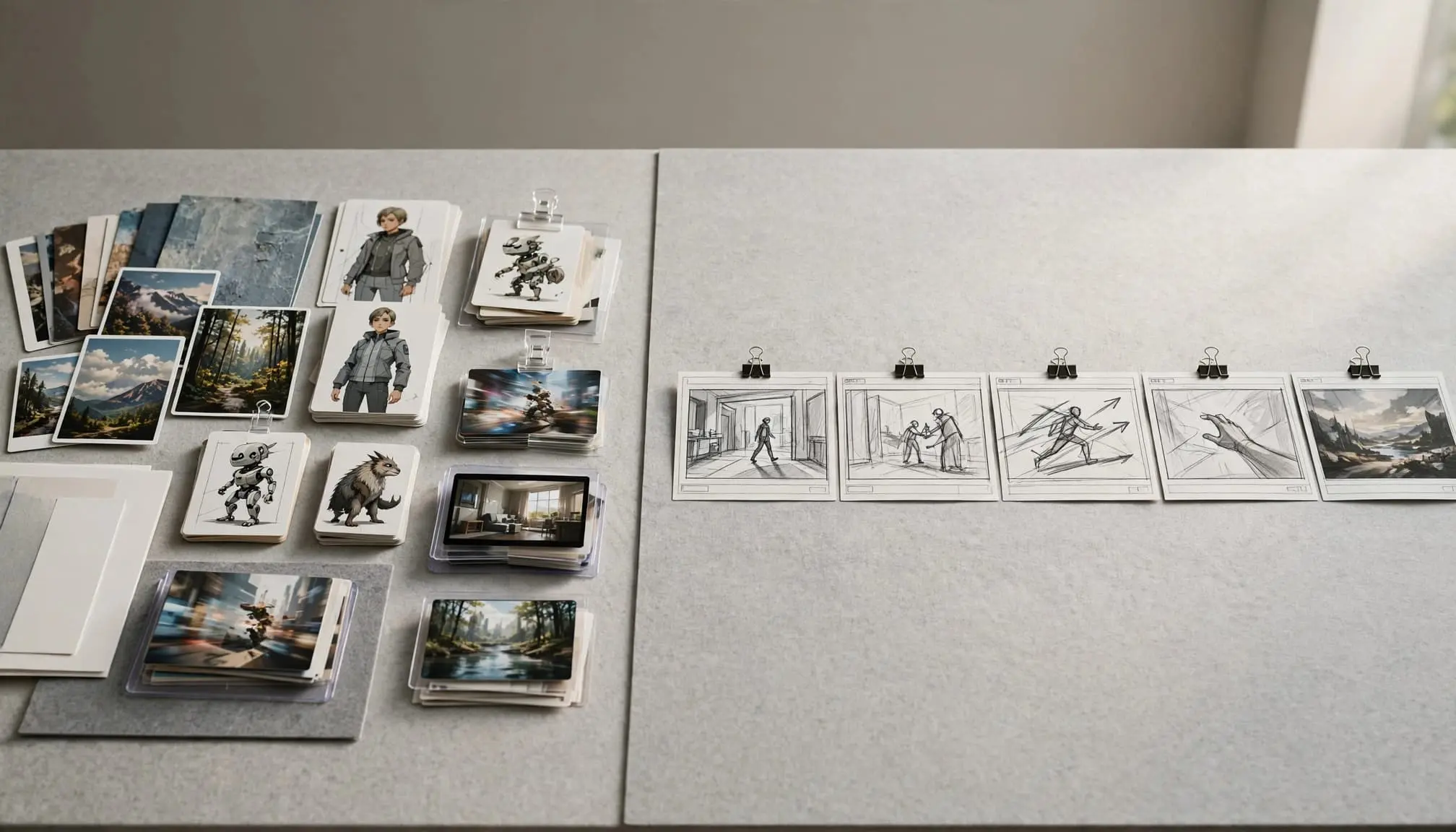
OpenArt’s broader workspace may suit a campaign that needs concept images, character references, and generated video in the same project. Character tools can help you reuse visual references, but I wouldn’t treat them as a guarantee of consistency across every clip. Check the current models and test the same character across several generations.
One distinction matters: OpenArt supports video generation, but its help center says direct video editing isn’t currently supported. If your workflow needs precise cuts, effects, or timeline edits, plan to finish in external editing software. Confirm export quality and commercial-use terms for your plan before building a client workflow around it.
Choose Flow for Veo-focused short-form filmmaking
Flow makes more sense when the deliverable is video and you specifically want Google’s generation workflow. Its credit costs and model access vary by plan and account, so check what’s available to you before estimating production volume. A credit balance alone won’t tell you how many usable clips you’ll get.
Audio and editing needs can change the fit. Confirm that your account has the model you need, then check whether its audio options and editing controls cover the project. If your workflow depends on detailed timeline work or audio finishing, budget for separate tools and post-production.
Use a small pilot before committing to a paid plan
I’d test a few representative tasks before scaling either workflow: one standard clip, one difficult continuity task, and one asset that needs revisions. Track generations, retries, review time, and editing effort. Then calculate the cost per usable asset, not per generation.
Check rights, export requirements, and any plan limits before publishing or delivering work to a client. A short pilot can expose costs and workflow gaps that a feature list won’t. For a structured trial, see my guide on how to run a two-week AI software trial.
Frequently Asked Questions
These answers focus on practical decisions the feature comparison alone may not settle. For related matchups, see the AI Flow Review comparison archive.
Are OpenArt and Google Flow the same kind of tool?
No. OpenArt combines image, video, audio, character, and editing-related tools, while Google Flow centers on building video scenes with Google’s generative models. I’d compare them by the assets and production steps you need, not by treating them as direct equivalents.
Can Google Flow replace OpenArt for a full campaign?
It may be enough when video is the main deliverable and your campaign needs only a small set of supporting assets. If you also need recurring character references, standalone images, or other media, OpenArt’s broader toolset may fit better; you may still need separate editing software for final assembly.
Are their credits directly comparable?
No. Credit costs vary by model and task, and each platform has its own plan allowances. Check the current Google Flow credit and model guidance, then estimate cost using the generations, revisions, and usable exports your project requires.
Which tool is better for consistent characters?
OpenArt documents a Consistent Character workflow using trained characters and reference images. That gives you explicit character-focused controls, but it doesn’t guarantee identical results across scenes. Flow’s available consistency controls vary by model, so test the same character across multiple clips before choosing either workflow.
Can I use generated work commercially?
Check the current provider terms, your plan rules, and restrictions attached to the specific model. OpenArt’s terms state that commercial use is available on Plus and higher plans; don’t assume a paid subscription automatically clears every asset, input, or use case. For Flow, verify the terms that apply to your account before publishing or delivering work.
Do higher resolution or longer clips guarantee better results?
No. A clip is only useful if its motion, continuity, and prompt fit hold up, and its sound and editing needs suit the final delivery. I’d judge the finished export against the project brief, not a single resolution or duration figure.
Conclusion
My main takeaway from this OpenArt AI vs Google Flow comparison is that the tools support overlapping but different creative jobs. Choose based on the assets you need, how much editing and post-production you can handle, and the total cost and usage rights you can verify for your project.
I can’t call this a completed side-by-side test without matched generations and disclosed settings. Before subscribing, check each platform’s current features, plan limits, pricing, and terms. For a wider view of the options, see my guide to best AI video and animation tools.