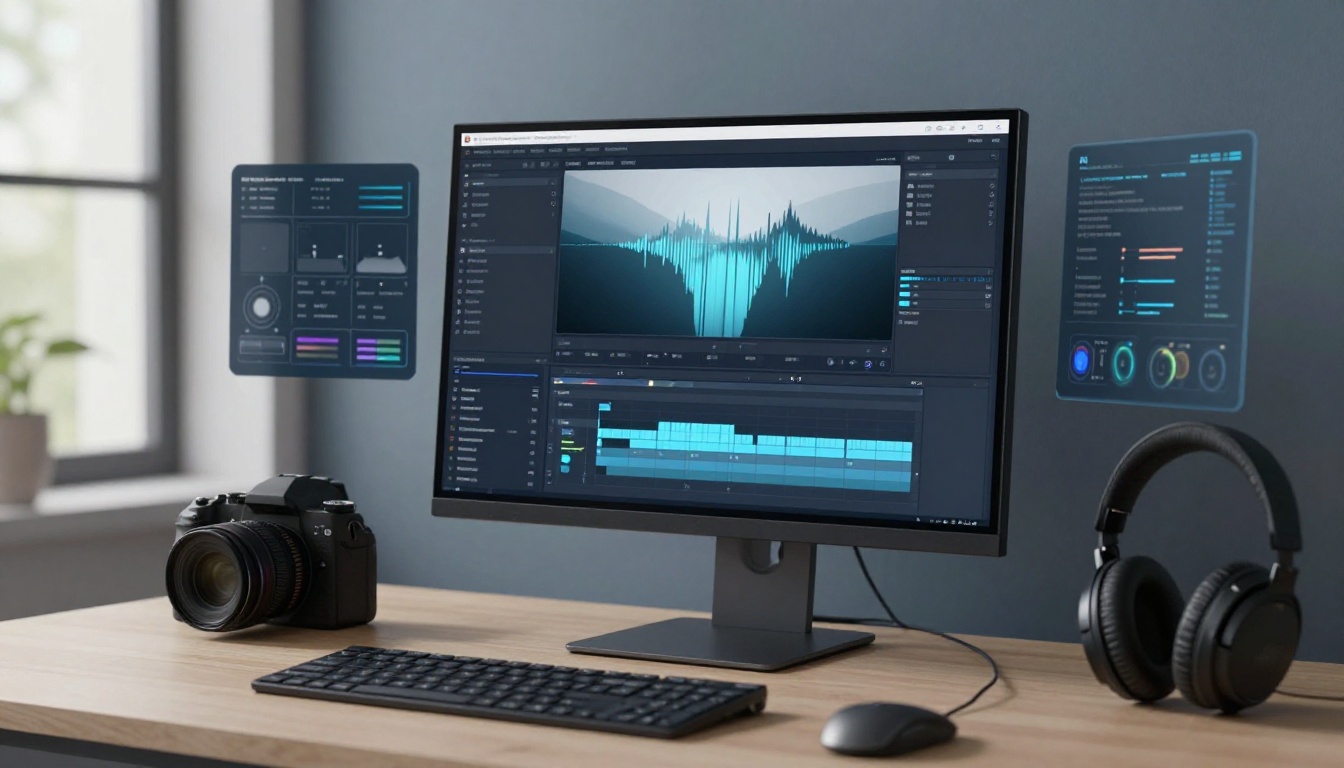
Video editing often takes longer than recording the footage itself. Editors need to review takes, remove mistakes, adjust pacing, add captions, improve audio, and prepare versions for different platforms. For creators and marketing teams publishing regularly, these repetitive tasks can slow down production and leave less time for creative decisions.
AI-powered video editing tools can help automate specific tasks or simplify larger parts of the editing process. Some focus on short-form content, while others support professional timeline editing, dialogue cleanup, or visual generation.
The right choice depends on your workflow, the type of videos you produce, and how much control you need over the final result. Here are six tools worth considering and the situations where each can be useful.
Key Takeaways
- InVideo Editor pairs an AI-assisted timeline with editable output, letting remote video editing AI agents handle assigned work while you retain creative control.
- CapCut suits short-form social videos; Adobe Premiere Pro fits professional post-production where detailed timeline control matters.
- Descript works well for podcasts and dialogue-heavy edits, with transcript-based editing that still needs human review.
- OpusClip focuses on repurposing long videos into short clips; VEED fits captioning and multilingual content, but review every cut and subtitle.
- I’d choose based on your editing bottleneck, not a universal winner, and weigh output quality, revision effort, limits, and cost.
Invideo Editor: For AI-Assisted Timeline Editing
Invideo Editor puts AI editing agents to work inside an editable timeline. That makes it a fit for creators who want help with repetitive editing tasks but still need to review and shape the final cut.

How the AI-assisted timeline works
An agent can review footage, find usable takes, remove repeated or unnecessary material, and assemble an initial cut on the timeline. For a project with several takes, false starts, or repeated sections, that can provide a useful starting point. You can inspect the edit, change the agent’s direction, and continue editing manually.
Through invideo remote agent, users can assign editing tasks to AI tools such as Claude, ChatGPT, and Cursor. These remote video editing AI agents make changes directly on the Invideo editor timeline, allowing users to review cuts, titles, and transitions, take over at any frame, and continue editing alongside the agent. Projects can also be exported for Premiere Pro, Final Cut Pro, or DaVinci Resolve.
Exporting the project for further editing
If the project needs more detailed post-production, Invideo supports editable-project exports for Adobe Premiere Pro, Final Cut Pro, and DaVinci Resolve. Some effects or settings may not transfer unchanged, so check the project after opening it in another editor. This workflow is most useful when you want an agent to handle early assembly, then keep working with a familiar editing setup. For a broader look at AI video production workflows, the same principle applies: automate the repetitive work, but review the creative decisions.
Best for: Creators and teams who want AI assistance with editing while retaining control over the timeline and final output.
CapCut: For Short-Form Social Media Videos
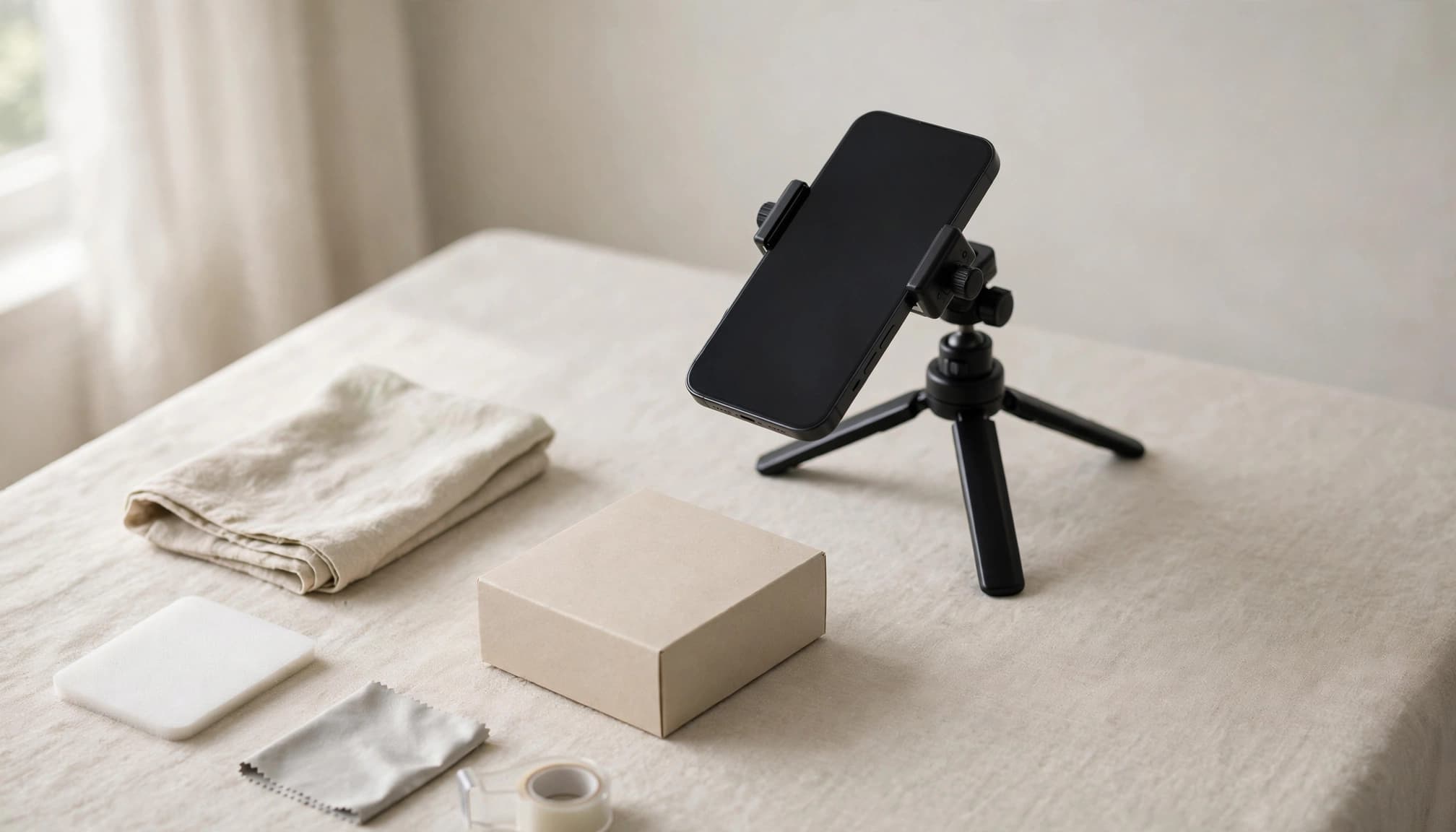
CapCut fits creators who need to turn existing footage into short social posts without building a complex edit. For a product demo, you could trim one clip, adapt it for TikTok, Instagram Reels, and YouTube Shorts, then add captions and remove a distracting background.
Adapting footage for vertical platforms
CapCut’s aspect-ratio tools can help resize and reframe footage for different social formats. Its video aspect ratio guide explains how to change a clip’s proportions, but resizing alone won’t guarantee the product stays centered or key details remain visible. Check the framing in each version, especially if the original footage was horizontal.
Background removal can help isolate a product when the original setting looks cluttered. Automatic captions can also reduce manual typing, but they may misread names or struggle with noisy audio. I’d review wording, timing, and line breaks before publishing.
Keep the final cut under review
AI-assisted tools can speed up routine edits, but they won’t decide which product detail matters most or whether the pacing feels right. For a product clip, check that the opening shows the item clearly, captions don’t cover it, and the final version makes sense without sound.
CapCut can be less suitable when you need strict brand consistency or detailed revisions across a larger campaign. See our CapCut AI review for more on its caption workflow, templates, and export considerations.
Best for: Social media creators and small marketing teams that need to produce short videos frequently.
Adobe Premiere Pro: For Professional Video Post-Production
Adobe Premiere Pro is a better fit when an edit needs detailed timeline control, multiple revisions, and careful finishing. Its AI features can help reduce specific editing tasks, but the editor still needs to shape the story and check the final cut.
Use text-based editing to find moments faster
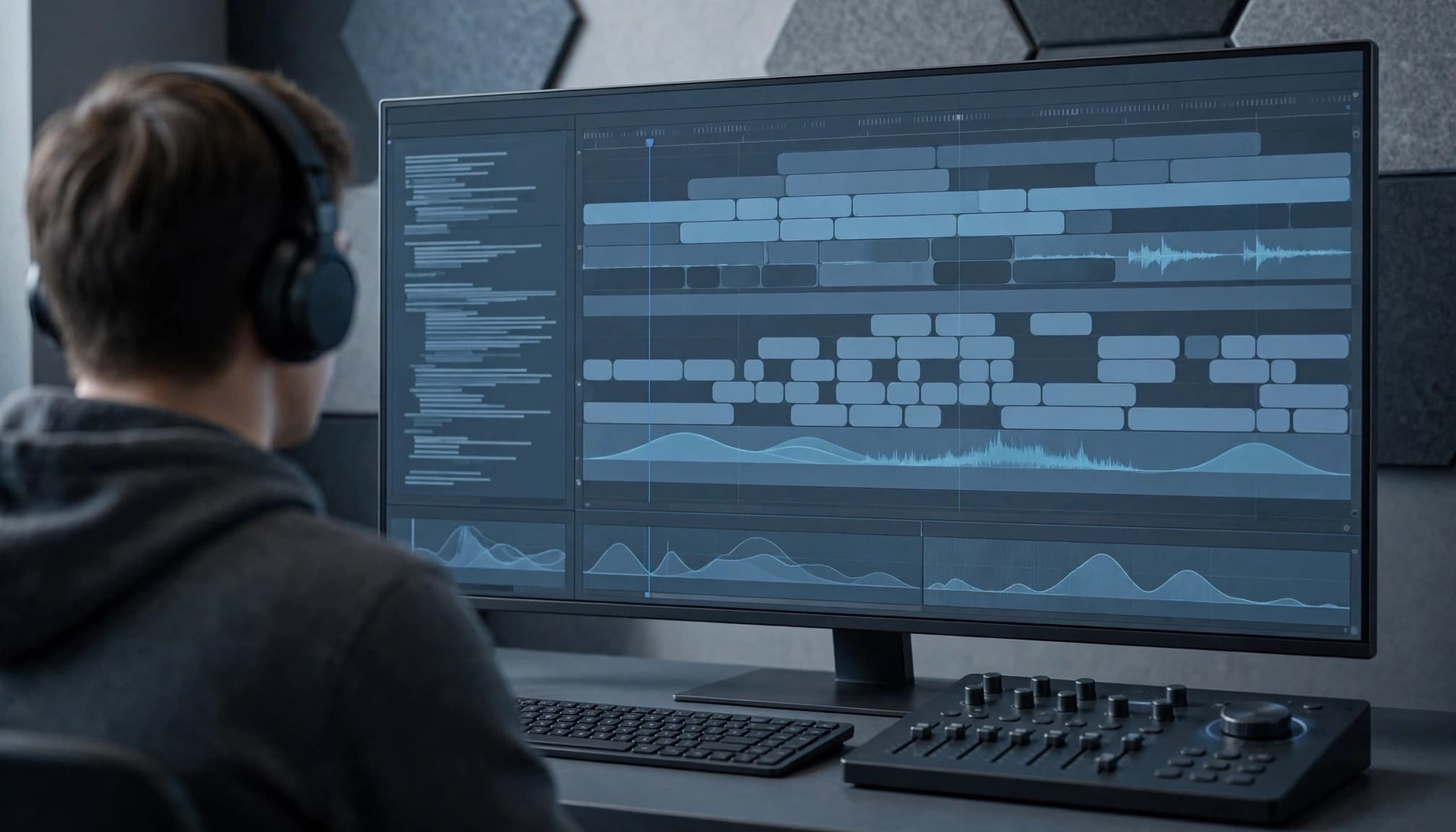
Premiere Pro can transcribe source footage and align spoken dialogue with timecodes. With text-based editing, you can work from the transcript to locate and edit dialogue, rather than scrubbing through the entire timeline. Adobe outlines the workflow in its Text-Based Editing overview.
For a long interview, I’d use the transcript to find the section where a guest explains a key idea, then review that moment in the footage before making the cut. This can speed up navigation, but a transcript won’t tell you whether the answer works in context, or whether the speaker’s delivery makes it the strongest take.
Keep the timeline and final review in your hands
Premiere Pro’s broader editing controls make sense for professional projects that need precise timing and ongoing revisions. They may be more than you need for an occasional, straightforward edit, especially if transcript navigation is the only AI-assisted task you want.
I’d treat AI features as ways to find and manage material, not as substitutes for reviewing pacing, continuity, audio, and picture. That review is still part of the work, even when the transcript makes the right moment easier to find.
Best for: Professional editors and experienced creators working on long-form videos, interviews, and complex projects.
Descript: For Podcasts and Dialogue-Heavy Videos
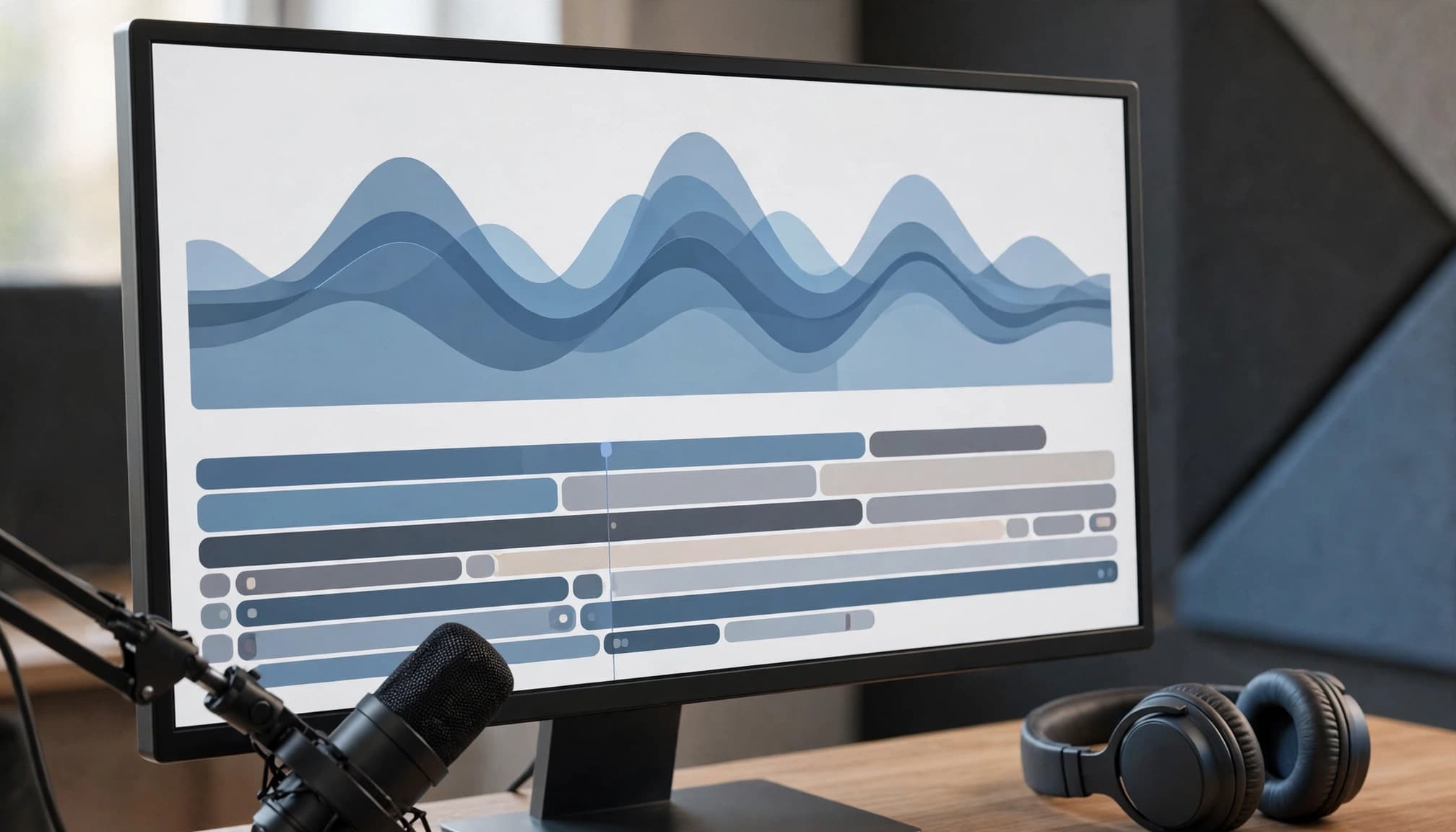
Descript is built for edits where spoken words carry the story. You can use its transcript-based workflow to locate dialogue and make changes by editing the text, instead of searching through the recording for every cut. Descript describes this approach in its official feature overview.
Edit dialogue through the transcript
For a podcast, you could remove a false start or repeated phrase by deleting the corresponding words from the transcript. That also removes the matching moment from the audio or video, which can save time on dialogue-heavy recordings. Descript can also create captions from the transcript, so edits to the spoken content can inform the captions.
I’d use this workflow to shape an interview or clean up a first draft, then replay each edit. Text alone can’t tell you whether a pause matters, whether a cut sounds abrupt, or whether removing a phrase changes the speaker’s meaning. Check timing and speech flow before you publish. For more detail on the workflow and its trade-offs, see our Descript review.
Transcript editing is less useful when a project depends on detailed visual pacing or extensive timeline work. It helps you find and revise dialogue, but it doesn’t replace a final review of the footage.
Best for: Podcasters, interview editors, educators, and creators producing talking-head videos.
OpusClip: For Repurposing Long Videos into Short Clips
OpusClip focuses on finding short-form moments in long recordings. It can help when you have a webinar, interview, or presentation worth sharing in smaller pieces, but manually searching the full video would take too long.

Find potential clips in a webinar
Upload a webinar recording and OpusClip analyzes it, then suggests segments that may work as short clips. You can review the suggestions, adjust the start and end points, and edit or export the results. The OpusClip clip-generation workflow gives you a starting point, rather than a finished set of posts ready to publish.
For example, a marketing team could use it to identify sections where a presenter explains a useful feature or answers a common customer question. That can make it easier to plan video repurposing workflows, especially when a long recording needs to support several social posts.
Review every suggested cut
Automated highlight selection can favor a punchy line while missing what came before or after it. I’d check that each clip presents a complete thought, keeps the speaker framed correctly, and has a clear opening and ending. A cut that sounds compelling in isolation may misrepresent the speaker’s point.
OpusClip is less useful when you need detailed control over the entire edit or when a clip depends on visual context the selection misses. Treat its suggestions as candidates, then make the final editorial call yourself.
Best for: Podcast teams, webinar hosts, and creators who regularly repurpose long-form recordings.
VEED: For Captions and Multilingual Video Content
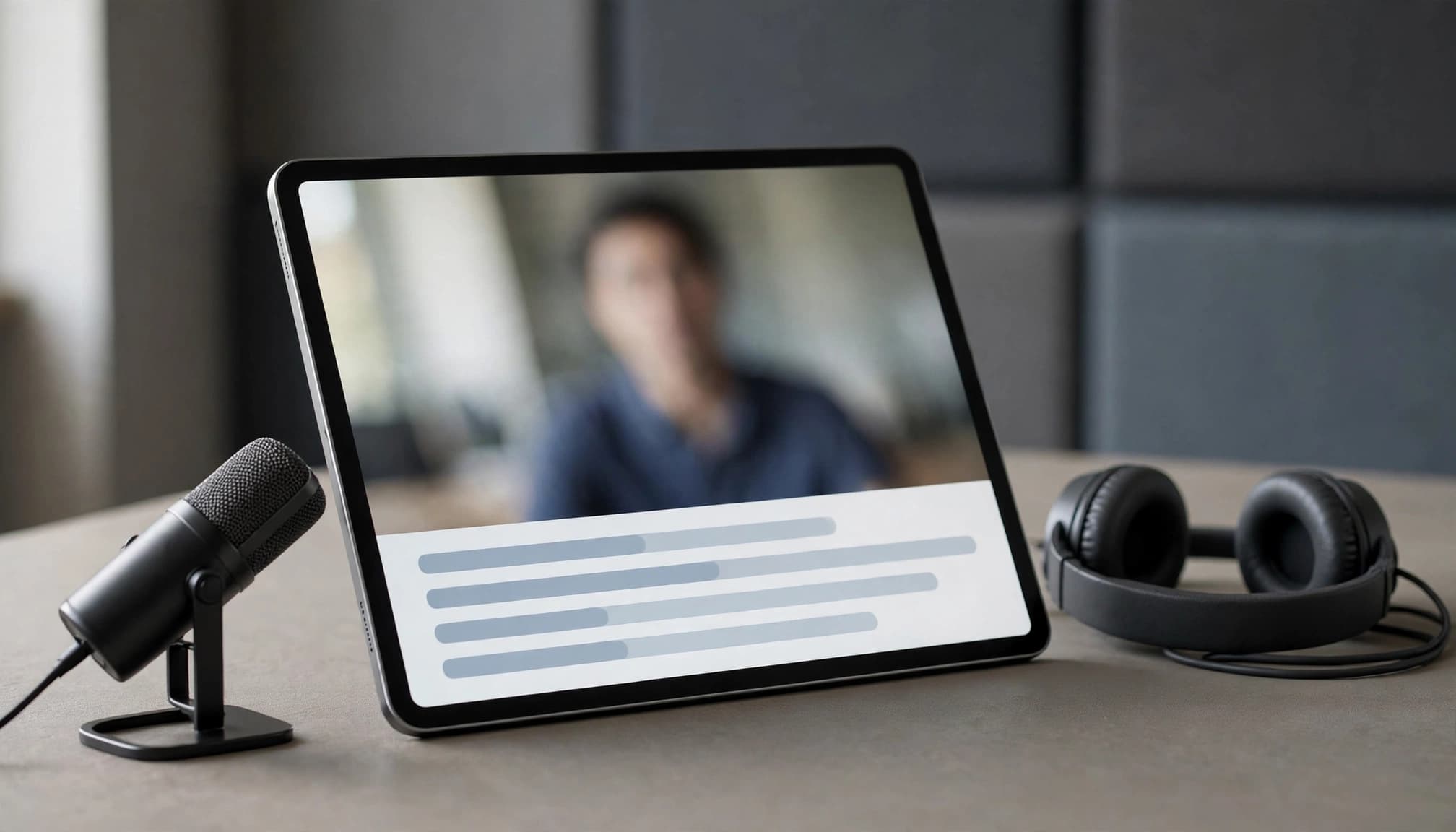
VEED is a practical option when captions and subtitle translation are part of your video workflow. Its editor can transcribe speech into subtitles, which you can then review and adjust.
Create and translate subtitles
For a product tutorial aimed at international audiences, I’d start by generating subtitles in the source language, then translate them for each target audience. VEED’s subtitle translation tool advertises support for more than 125 languages. Check the current language options and plan limits before building a larger localization workflow around it.
Automatic transcription can save time, but it still needs a careful edit. Review speaker names, product terms, and technical language, then check that subtitle timing and line breaks are easy to follow. For other options focused on caption workflows, see our guide to AI subtitle generators for YouTube.
Review meaning, not just wording
Translation can produce readable subtitles while changing the speaker’s intent. I’d compare each version with the original, especially around instructions, claims, and calls to action. Ask a fluent reviewer to check the phrasing when accuracy matters.
Subtitle translation also doesn’t automatically create a reviewed voice dub. If you need spoken audio in another language, treat that as a separate localization task and review pronunciation, tone, and timing.
Best for: Marketing teams and creators who frequently prepare captioned or translated videos for online audiences.
How to Choose the Right AI Video Editing Tool
The right AI video editing tool depends on where your workflow slows down. I’d start with the footage and task you handle most, then compare how much control and review each option requires.
Match the tool to your editing bottleneck
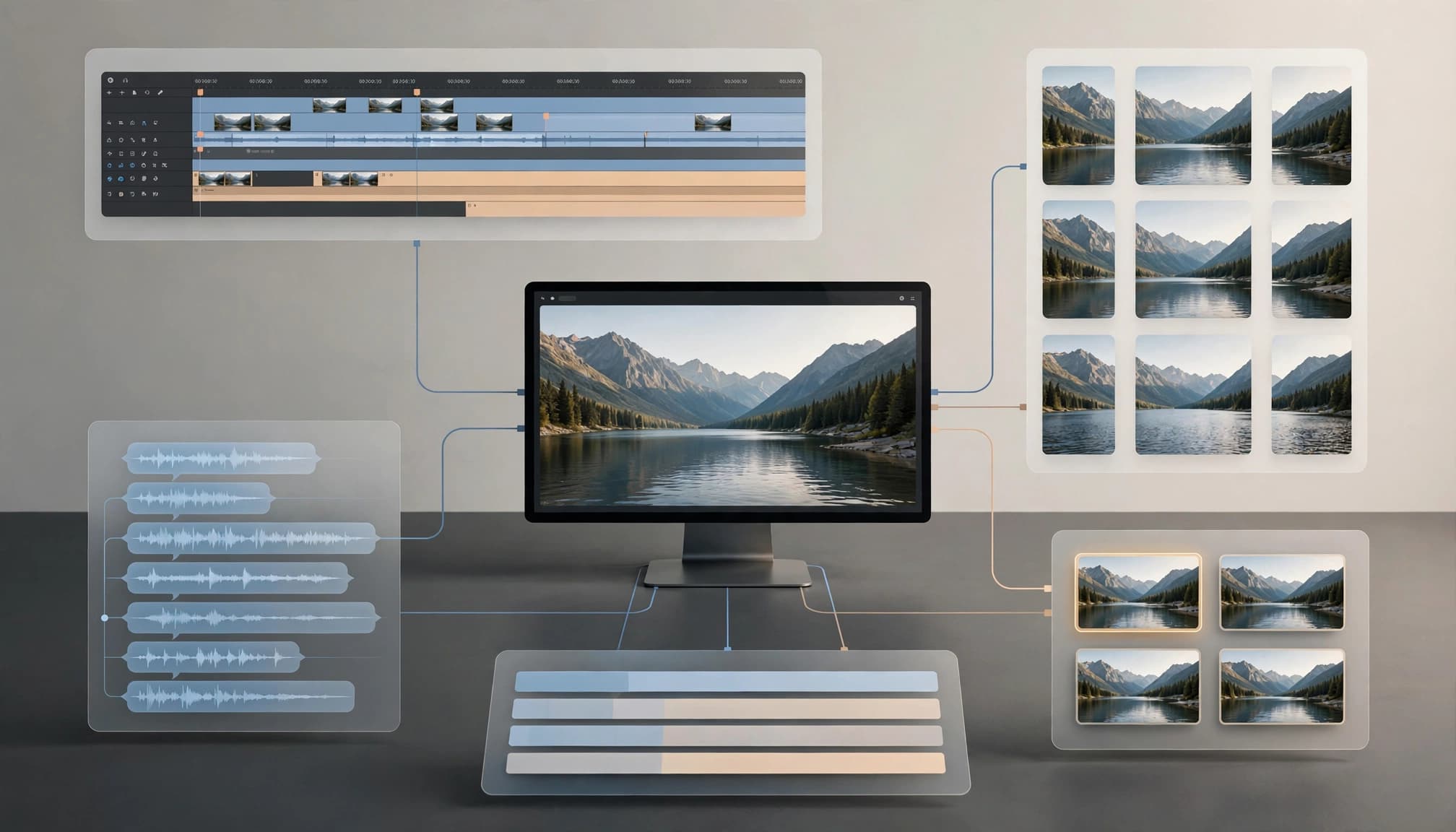
If you spend time assembling footage, look for an editable timeline and a clear handoff to your usual editor. Invideo Editor may suit workflows that use remote video editing AI agents to build an initial cut, while CapCut focuses on short social videos. Premiere Pro offers more room for detailed post-production. Descript targets dialogue-heavy edits, OpusClip suggests short clips from longer recordings, and VEED centers on captions and translation.
You can also compare AI video tools by workflow to see how different products fit distinct production needs.
Test with real project footage
Before committing, use a representative clip, not a polished demo. Check whether the tool preserves the moments you need, how easily you can correct its choices, and whether the exported result fits your publishing workflow. For transcript-based editing, Adobe’s guide to editing sequences with text shows how transcript edits can shape a rough cut.
I’d also factor in licensing, generation limits, rendering time, and the effort required for final checks. A tool that produces a quick first pass may still leave you with substantial work on pacing, continuity, audio, or captions. Choose the one that reduces your actual bottleneck without making review and revisions harder.
Frequently Asked Questions
AI editing can shorten repetitive tasks, but it doesn’t remove the need to review the finished video. The right level of oversight depends on what the tool changed and where the video will appear.
Can AI edit a video without human review?
I wouldn’t publish an AI-edited video without checking it first. Automated cuts can remove context or disrupt pacing, while captions and translations can misstate names, terminology, or the speaker’s meaning. Review the video, audio, subtitle timing, and translated phrasing before publishing.
Which tool is best for editing podcast video?
For a podcast built around conversation, Descript is a strong fit because its transcript-based workflow lets you edit dialogue by changing text. Replay each cut, though: a transcript can’t tell you whether a pause feels natural or an edit changes the speaker’s point.
Can an AI editor create short clips from a webinar?
Yes. Tools such as OpusClip can suggest highlights and speed up clip selection. I still check that each segment makes sense on its own, includes enough context, and ends cleanly. See our guide to AI content repurposing tools for small teams for more ways to adapt long recordings.
Can an AI-edited project be finished in another editor?
Some workflows support editable project exports for continued work in another editor. Effects and settings may not transfer exactly, so inspect the timeline and final render after the handoff.
How should you compare the cost of AI video editing tools?
I compare current plan terms, usage limits, export needs, and the time it takes to review or correct results. A lower subscription cost may not mean lower production costs if the tool leaves substantial editing work.
Conclusion
AI-powered video editing tools can reduce repetitive work, speed up content production, and help teams adapt videos for different audiences and platforms. Invideo editor is an option for AI-assisted timeline editing, while CapCut, Premiere Pro, Descript, OpusClip and VEED address different needs across social content, post-production, dialogue editing, repurposing, localization, and visual generation.
Start by identifying your biggest editing bottleneck and testing a tool against real footage. Evaluate the quality of the output, the time saved, and the amount of correction required. The goal is not to automate every creative decision, but to spend less time on routine tasks and more time making videos that communicate clearly.