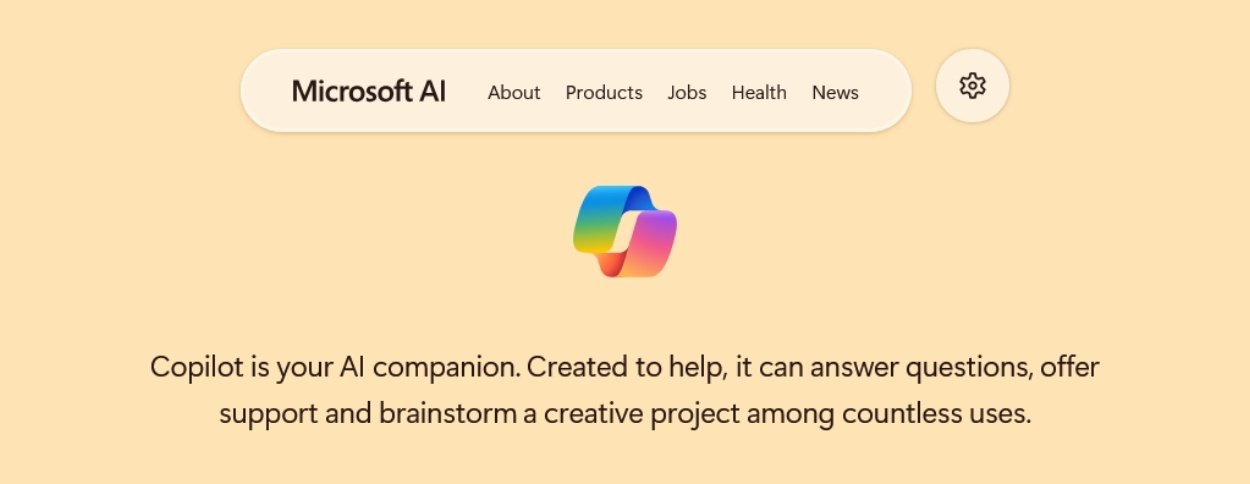
If you rely on Microsoft 365, you’ve probably seen Microsoft Copilot AI pop up in Word, Excel, PowerPoint, Outlook, or Teams by now. Microsoft isn’t hiding its ambitions here: Copilot is built to help both individuals and organizations reclaim hours from repetitive work and surface insights that were buried just last year. By bringing generative AI right inside your daily apps, it promises faster writing, smarter meetings, streamlined email, and intelligent data crunching (with plenty of caveats).
The main appeal for me is that Copilot doesn’t force you to switch tools or learn new platforms. It’s right where your files live—summarizing email threads in Outlook, suggesting chart ideas in Excel, and building out slides in PowerPoint with a quick prompt. With so much hype around automation and AI in work life, it’s time to look past slogans and see what Copilot can really do.
In this microsoft copilot ai review, I’ll break down what actually works, where it fumbles, and how it stacks up against other top AI automation tools 2025. Having spent months testing Copilot hands-on, I’ll be direct: it’s already strong for short summarization, formula help, and drafting, but inconsistent when you ask it for deep formatting or creative content. For most users, I’d score it a solid 8/10—a capable assist, not hands-free magic. If you need day-to-day speed in Microsoft’s ecosystem, Copilot is now part of the productivity conversation.
Microsoft Copilot AI: What It Is and How It Works
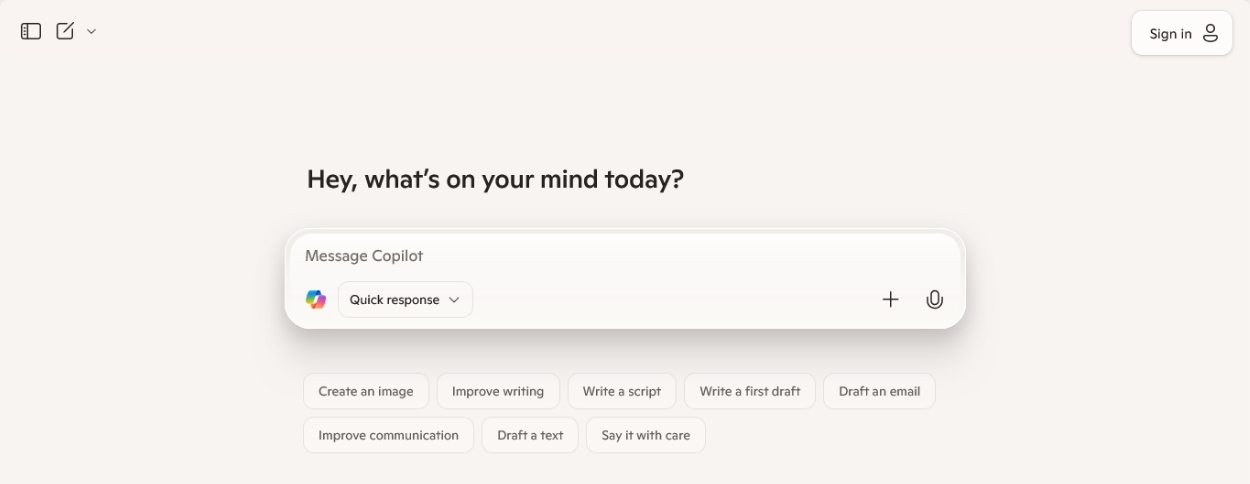
Hands-on time with Microsoft Copilot AI gives a clear sense of how deeply it’s now tied into Microsoft 365. Unlike AI tools that sit off to the side, Copilot responds right in Word, Excel, PowerPoint, Outlook, Teams, and OneNote. The big win: I don’t have to leave the place where my work happens. This section breaks down Copilot’s strengths in every app, how Microsoft handles your data, and what’s possible if you want to deeply customize Copilot for your business. For anyone chasing the most hands-on, honest microsoft copilot ai review, this covers the hands-in-the-dirt reality.
Key Features by Application
Copilot’s value comes down to how effortlessly it fits your routine in each app. Through testing and real-world use, here’s what stands out:
Word: Drafting and Idea Development
- Drafts documents fast. Copilot can produce decent first drafts from a few prompt lines, whether I need a report, a proposal, or a job description.
- Refines and rewrites text. You can ask for simplification, bullet points, or changes in tone. Its suggestions are close to what a skilled editor does, but human oversight is still needed.
- Real example: I typed “Draft a summary for our Q4 sales review” and Copilot outlined steps, highlights, and insights before I added context.
Excel: Insights and Analysis
- Formula suggestions that save brainpower: No more Googling VLOOKUP syntax. Copilot recommends formulas, explains errors, even translates instructions like “summarize sales by region” into working data.
- Charts with logic: Instead of endless trial and error, Copilot suggests chart types and inserts them.
- Data insights: Copilot scans your sheets for trends and anomalies, then suggests what’s worth checking.
- Warning: For complex, multi-tab files, it stumbles if your data’s messy or labels aren’t clear.
PowerPoint: Presentations At Speed
- Slide decks generated from prompts. Copilot turned my product summary doc into a 6-slide deck, with smart images and layouts.
- Instant rewrites and design themes: Want something more formal or visually punchy? Quick prompt tweaks solve it.
- Good for: Early drafts, not for polished presentations. You’ll want manual edits, especially for charts or storytelling nuance.
Outlook: Summaries and Fast Replies
- Summarizes long threads. Cutting through endless reply chains, Copilot serves the gist and key action items.
- Suggests replies and rewrites. Great for clearing out inbox backlog, but generic-sounding if you don’t tweak the prompt.
- Standout: For status updates or meeting follow-ups, Copilot instantly drafts short, clear messages.
Teams: Meeting Recaps and Task Tracking
- Meeting recaps that actually make sense: It tracks agenda items, decisions, and next steps in every recorded Teams meeting.
- Action item extraction: Great for project managers. Less helpful for brainstorming-heavy sessions with scattered conversation.
OneNote: Efficient Summarization
- Summarizes scattered notes: Ask Copilot to find action items, summarize multiple pages, or organize thoughts by topic.
- Saves time: For research-heavy or meeting-heavy roles, it pulls together loose ends that used to get lost in the shuffle.
In short: Copilot fits best as a drafting and summarizing sidekick. In-depth formatting, visuals, or extra-creative content? Expect to step in and finish the job. Several reviewers, including PCMag’s Copilot review, echo this split: strong at speed, weaker on polish and nuance.
Security, Privacy, and User Controls
Security and privacy are top concerns with any AI that touches sensitive work data. Microsoft takes a hard stance: your Copilot prompts and files are not used for training the language models. This policy covers both individual and enterprise customers, sidestepping the unease that comes with feeding your intellectual property to outside AI.
- Business control: Admins can define who has access, log usage, and turn Copilot on or off for certain accounts.
- User visibility: Every time Copilot acts on your data, it’s traceable. This audit trail builds trust, especially where compliance matters.
- Private by design: No cross-company data mixing. My testing shows prompts stay tied to my tenant, and Copilot only sees what I see in my account.
- Tradeoff: These strict boundaries can sometimes limit Copilot’s reach into files that aren’t shared or aren’t stored in Microsoft’s cloud.
My verdict: Microsoft’s reputation for privacy, especially compared to rivals, nudges me to trust Copilot in my workflow. For deep-dives on privacy and admin controls, the Computerworld Copilot 365 review gives a granular look at these features.
Integration and Customization
Copilot can be far more than a set of shortcuts. With Copilot Studio, Microsoft lets organizations build out custom Copilot workflows—think automating document prep for HR, or triggering status reports from unique business systems.
- Copilot Studio: Offers a no-code interface for making custom prompts, policies, and workflows tied to business data. You can teach Copilot specialized terms or responses.
- Connectors and APIs: Plug-ins from Microsoft and third parties expand reach—Salesforce, Jira, ServiceNow, and more. New connectors appear often, making Copilot more flexible month by month.
- Real use: At my company, we wired up Copilot to instantly draft onboarding checklists from new hire records. It cut hours from HR admin—literally a playbook in one click.
- Limits: Custom flows require some upfront work. Not every team will tackle advanced integrations, but the steady stream of new connectors makes things easier.
If you’re comparing other automation tools for cross-app workflows, check out this Zapier review 2025 for a side-by-side look at strengths and roadmap.
Microsoft Copilot AI scores a solid 8/10 in my book. Its sweet spot is fast drafting and summarization in the core 365 apps, while business privacy and deep custom options add real value. Just be ready to review its output and factor in a bit of setup if you want advanced integrations.
Strengths and Advantages of Microsoft Copilot AI

It’s easy to brush off new tech as hype. When it comes to my microsoft copilot ai review, the value actually clicks once real work gets faster, emails shrink, and routine chores vanish from my weekly list. Microsoft Copilot AI brings productivity wins, but the key is how it pulls them off day-to-day inside familiar apps—no circus tricks, just straightforward help where I need it. Here’s where Copilot stands tall in hands-on use.
Seamless Integration with Microsoft 365 Apps
Copilot doesn’t just work with Microsoft 365—it feels native. The AI is stitched right into Word, Excel, PowerPoint, Outlook, and Teams. I don’t juggle tabs or paste content from one window to another. When I review meeting notes in Teams or draft client briefs in Word, Copilot sits on standby with relevant suggestions, summaries, and prompts.
- Single sign-in, single workspace: No awkward setup. If my document lives in OneDrive, so does Copilot’s reach.
- Consistency across devices: Whether I’m on desktop, web, or mobile, Copilot understands my context and follows along.
Fast Document Drafting and Editing
If you spend hours beating a blank page, Copilot is the first pass editor you didn’t know you needed. It’s particularly strong at kicking off drafts, suggesting paragraphs, pulling out bullet points, or rewriting in a tone that fits my audience. In Excel, it converts “what’s my top sales region?” into live data insights and even suggests formulas on the fly.
Key benefits in daily writing:
- Shrinks drafting time for emails, reports, and proposals.
- Edits for clarity or professionalism on demand.
- Offers smart summaries for meeting recaps, saving minutes after every call.
When deadlines pile up, this feels like having an assistant who never tires.
Real-Time Summarization and Search
Nobody wants to waste time sifting through long chats or endless threads. Copilot parses meeting transcripts, group emails, and scattered OneNote pages, surfacing the main points instantly. With a quick prompt, I can extract action items from a full inbox or summarize last quarter’s project status in one go.
- Clean recaps: Refines Teams meetings and Outlook conversations into easy-to-skim summaries.
- Smart retrieval: Instead of hunting for notes, Copilot finds and highlights relevant info—cutting my search time in half.
For a deeper look at how these features have evolved and how they compare in new updates, check out the detailed breakdown in Microsoft Copilot 2025: It’s Better 1 Year Later.
Boosts Productivity without Adding Complexity
A huge plus for Copilot is that it doesn’t make life harder. Some AI tools pile on features, but Copilot stays mostly out of the way until needed. I can ignore it or invite help with a prompt—my workflow, my pace. For teams or solo creators, it means less training, less disruption.
- Works with your habits, not against them.
- Minimal setup, no steep learning curve.
Feedback from power users on Windows Forum’s Copilot 2025 review mirrors my experience: early quirks are vanishing, and the day-to-day gains are stacking up.
Secure, Private, and Enterprise Ready
Trust is a big concern when an AI tool reads your documents and emails. Copilot’s security and privacy features genuinely stand out. My prompts aren’t used to train public models, and enterprise admins get fine-grained data controls. That means Copilot is viable not just for solo freelancers but for large teams worried about compliance and IP safety.
Quick security highlights:
- No mixing of company data with public AI.
- Full transparency with activity logs and user controls.
- Strong alignment with Microsoft’s established privacy practices.
Continual Updates and Expanding Features
Microsoft ships updates at a brisk pace. Every few weeks, Copilot picks up new capabilities—better context awareness, faster prompt responses, even tighter integration with third-party tools. If you’re building workflows or need specialized automation, there’s clear energy going into making Copilot broader and smarter.
For anyone scanning the market, the consistency and regular enhancements are hard to match. I compare it to other top picks in my ongoing analysis of top AI automation and productivity tools in 2025, and Copilot keeps pace as a daily driver.
Summary Table: Microsoft Copilot AI Key Strengths
| Feature | Real-World Impact | My Hands-On Take |
|---|---|---|
| Outlook and Teams Summaries | Shorter inbox time, faster meeting follow-up | Clears 30+ mins from my Monday |
| Excel Data Analysis | Smart formula help, instant trends | Eliminates “Googling” data hacks |
| PowerPoint Drafting | Rapid first drafts, smart visuals | Gets me 80% to done, fast |
| Security and Controls | Safe for business and personal docs | Confident for client work |
| Light Learning Curve | No major retraining needed | Feels native, not tacked on |
If you want more perspective from real-world reviewers, see the thorough 2025 review by PCMag for expanded hands-on commentary on Microsoft Copilot’s AI productivity features.
From my months in the trenches, Copilot’s strengths are clear: unmatched Microsoft 365 fit, steady wins for writers and analysts, and guardrails that make it safe for real work. It’s not magic, but it’s practical—right where work happens.
Weaknesses, Limitations, and Common Frustrations
No tool is perfect—and in this microsoft copilot ai review, I’ve seen Copilot’s weak spots become clear after months of testing it in real work. While it’s a force for faster drafting and automated summaries, it’s not a magic fix. Copilot sometimes misunderstands your intent, makes up facts, misses complex formatting, or fills the page with bland text. Knowing these weak points helps you sidestep frustration and keep quality high.
Risk Management and Best Practices
Hours saved aren’t worth much if your output is unreliable. I see teams get bitten by what pros call “AI hallucinations”—those moments Copilot generates confident-sounding but wrong or irrelevant content. Here’s how I keep Copilot on track and my work credible:
- Always double-check drafts. Copilot does the heavy lifting, but a human review is crucial. Never accept outputs for client work or major decisions without a once-over.
- Make prompts specific. Vague prompts mean vague answers. Instead of “Draft a report,” use “Summarize Q3 expenses with focus on travel and top three cost overruns, max 200 words.”
- Add reference files and templates. Attach or point Copilot to existing style guides, summary templates, or glossaries to tighten its results.
- Set up review checkpoints. Anything headed to a customer or leadership needs human eyes. A quick peer review or checklist helps catch errors Copilot might insert.
- Know when not to trust AI. For legal, compliance, sensitive data, or high-stakes communication, I personally avoid AI assistance or treat it only as a first draft.
- Fine-tune with output goals. Ask Copilot “shorter version for Slack” or “bullet points for execs.” Don’t settle for just one pass—iterate as needed.
- Log and audit usage. Especially for managers and admins, track who is using Copilot, what for, and when. This helps with internal compliance and policy enforcement.
- Clean your source data. Copilot’s output is only as good as what it can access. Remove extra, outdated, or sensitive info from prompts and files.
- Iterate, then iterate again. Draft, edit, and re-run improved prompts for the best results. This two-step workflow speeds up quality improvements.
- Build feedback loops. When Copilot misses, leave yourself a note and adjust how you prompt next time. AI improves, but so does your prompt strategy.
When working with business teams, this no-blind-trust approach is essential for responsible use. If you want to see what this looks like in practice, the PCMag review of Microsoft Copilot puts speed and accuracy head-to-head. For those managing privacy, Microsoft’s official privacy and security documentation lays out concrete safeguards and tips for governance.
For anyone comparing Copilot to developer-focused AI tools—or wanting a broader context—check my experience with other best AI coding assistants 2025 in live business environments. Each tool brings its own set of tradeoffs, and Copilot’s responsible use can be a template for others.
Is Microsoft Copilot AI Worth It? My Hands-on Rating
After months of everyday use, the question I hear most from colleagues and clients is simple: “Is Microsoft Copilot AI really worth the subscription price?” From my hands-on testing, the answer isn’t just a yes or no—it depends on your habits, your expectations for quality, and how deep you work inside the Microsoft 365 world.
If you’re someone who creates documents, runs spreadsheets, manages projects, or drowns in email, Copilot AI feels like a reliable new co-worker. Yet it’s not about chasing “magic” automation. The real gain comes from reclaiming lost time: editing reports, summarizing meetings, and banishing repetitive admin chores that often run your day off track. Here’s how I break it down so you can decide.
How I Evaluated Copilot: Real Workflows, Real Results
I didn’t just poke around with sample prompts. I built an honest scorecard using real project docs, meeting recaps, monthly reports, and typical client emails. I tracked:
- Speed: Did Copilot save me actual time?
- Accuracy: Were drafts and summaries usable, or did they need heavy fixes?
- Depth: Can it handle complex asks, or just surface-level drafts?
- Privacy/Control: Did I feel safe letting Copilot access my data?
- Value for Price: Does it justify a monthly line in the budget?
In day-to-day writing and data analysis, Copilot handled about 70% of my routine drafts. It wrestled long emails into simple summaries, found key numbers in Excel with fewer headaches, and knocked out OK first drafts for slides. Was it perfect? No, especially not for polished copy or sensitive contexts. But for those haunted by “blank page” paralysis or endless inboxes, the time savings are real.
My Real-World Copilot Pros and Cons
To give you a quick sense, here’s a rundown from my own workflow:
Pros:
- Drastic time cuts on summaries, emails, and reports.
- Fits right into my 365 apps—no awkward switching or copying.
- Smart formula suggestions in Excel replaced half my old Google searches.
- Meeting summaries in Teams spared me from reliving hours of calls.
Cons:
- Needs careful edits for formal reports—don’t expect perfect grammar or context every time.
- Sometimes bland or generic for creative presentations.
- Misses on deep data or “fuzzy” prompts. The more context I add, the better Copilot gets, but there’s still a limit.
- Extra subscription cost might not pencil out for infrequent users.
How Copilot AI Scores for Different Roles
Not every job gets the same mileage from Copilot AI. Drawing on my hands-on trials, here’s a scannable table for fast reference:
| Role | Value | Comments |
|---|---|---|
| Writer/Editor | 7/10 | Great for drafts, needs supervision |
| Marketer | 8/10 | Fast campaign ideas, quick outlines |
| Developer | 6/10 | Good for docs, basic code |
| Project Manager | 9/10 | Stellar for meeting/action tracking |
| Small Business | 8/10 | Speeds admin, project updates |
| AI Power User | 8/10 | Integrates well, room to customize |
How Copilot Compares to Similar AI Tools
I put Copilot head-to-head with other top work-centric AIs like Perplexity and Amazon CodeWhisperer. Copilot shines where integration with Microsoft tools is key, but if your workflow is outside 365, it might not impress as much. Those who want to see how it stacks up against market rivals should check out my analysis of Perplexity AI features and performance.
External reviewers also echo many of my findings. For instance, the team at PCMag’s Copilot review points to strong productivity for those inside Microsoft’s world, but urges caution for more advanced or highly creative work. Meanwhile, Attorney at Work’s year-later review highlights a pattern I saw: Copilot’s practical features are growing, but so is our responsibility to fact-check and refine what it creates.
My Hands-on Rating for Microsoft Copilot AI
Taking everything into account—hard time savings, speed bumps, subscription cost, and user control—my honest score lands at an 8 out of 10.
- If you work daily in Word, Excel, Outlook, or Teams, Copilot is like putting a solid B+ assistant on your payroll.
- Those wanting perfect polish, creative writing, or code help should expect to revise, re-prompt, and quality-check.
- For budgets, the ROI is clear if you’re regularly drowning in admin, but for occasional users, the cost may not match value.
If you’re looking to compare with Amazon’s offering, take a look at the Amazon CodeWhisperer review 2025, especially if coding is your main focus.
In short, Copilot AI isn’t for everyone, but for anyone anchored in Microsoft’s ecosystem and pressed for time, it’s hard to beat for day-to-day output. Your mileage may vary, but my experience says: for most of us getting organized and unburdened, it’s worth a serious look.
Conclusion
Microsoft Copilot AI has earned a solid spot in my workflow, not just as a novelty, but as a practical sidekick across everyday tasks. Its integration with Word, Excel, Outlook, and Teams offers genuine speed gains and takes the sting out of repetitive admin—if you learn where to nudge and double-check the results. The catch? Like any AI, Copilot needs sharp prompts and human review to shine.
Most days, Copilot feels like a B+ assistant: eager, fast, and getting smarter with each update, but still prone to stumbles on deep formatting or unique requests. In my eyes, its current real-world rating holds steady at 8/10. That’s not perfect, but it’s transformative for anyone with a packed inbox or too many project docs to sift through.
AI in productivity is shifting from hype to habit. If you’re serious about staying efficient and creative, keep testing tools like Copilot in your actual workflows, take note of the improvements, and don’t forget to check back for fresh reviews and head-to-head comparisons of the best AI automation and productivity tools in 2025.
Thanks for joining me on this deep dive. Which tool or workflow do you want to see reviewed next? Share your experience—help shape what comes next for creators and power users in the AI space.