
Cowork Claude Code is the phrase I keep seeing when people talk about Anthropic’s newest wave of “do it for me” automation. In January 2026, the naming is a little messy in the wild. Some folks say “Cowork” like it’s a full product line, others call it “Claude Cowork,” and plenty still mean Claude Code, Anthropic’s agent that can operate in your project files and run real commands. The core idea stays the same: an AI that can take actions, not just chat.
What matters to me is what it changes for normal work. I’ll break down what Claude Code (and the Cowork-style experience around it) actually does, who it helps (yes, including non-coders), what it can automate, how I try it without breaking things, and where it fits compared to classic no-code tools. When I test automation tools, I look for safety rails first.

What Claude Code is, and why people are calling it a non-coder automation tool
Claude Code is an AI agent you can run where real work happens. It can read a codebase or folder, propose a plan, edit files, run commands, and help debug when something fails. Anthropic positions it as a “build and ship” helper, but the bigger story is that it’s also a general automation engine when the task lives in files and repeatable steps.
You can see the official positioning on Anthropic’s page for Claude Code. It’s developer-friendly, but it’s not developer-only.
So why do people call this a non-coder tool?
Because the hard part often isn’t typing code. The hard part is knowing what you want, spotting risk, and checking the output. With Cowork Claude Code style workflows, I can describe the outcome in plain English, then let the agent do the mechanical work. I still review, but I don’t have to write every line.
The tasks it’s best at, in my experience and from early reports, look like this:
- Debugging and fixing small bugs, especially when errors have clues in logs
- Adding small features that touch a few files, not half the repo
- Writing docs, changelogs, and “what changed” notes for a PR
- One-off scripts (rename files, clean data, convert formats)
- PR help (summaries, risk notes, test suggestions)
What it’s not: magic. It can misunderstand context, pick the wrong command, or change more than you wanted. The win comes when you treat it like a fast junior teammate: helpful, tireless, and in need of review.
Some coverage also mentions big internal gains when Anthropic staff run multiple parallel agent sessions for larger jobs (think several Claude Code instances working at once). The numbers vary by task, but the pattern is believable: parallel planning plus fast edits can shrink work that used to take hours into a shorter loop of approve, run, verify.
If you’ve ever said, “I wish this task could do itself,” this is for you.
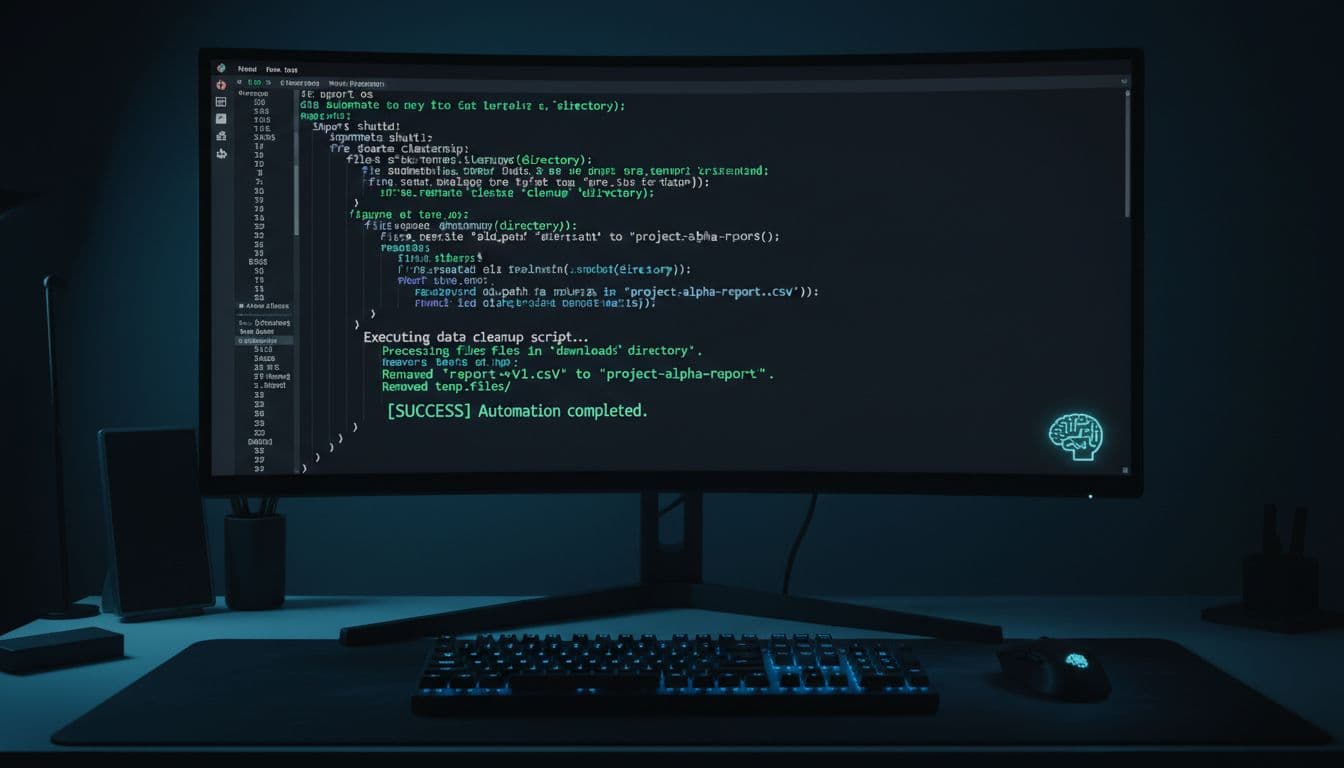
The key idea: I describe the outcome, Claude handles the steps
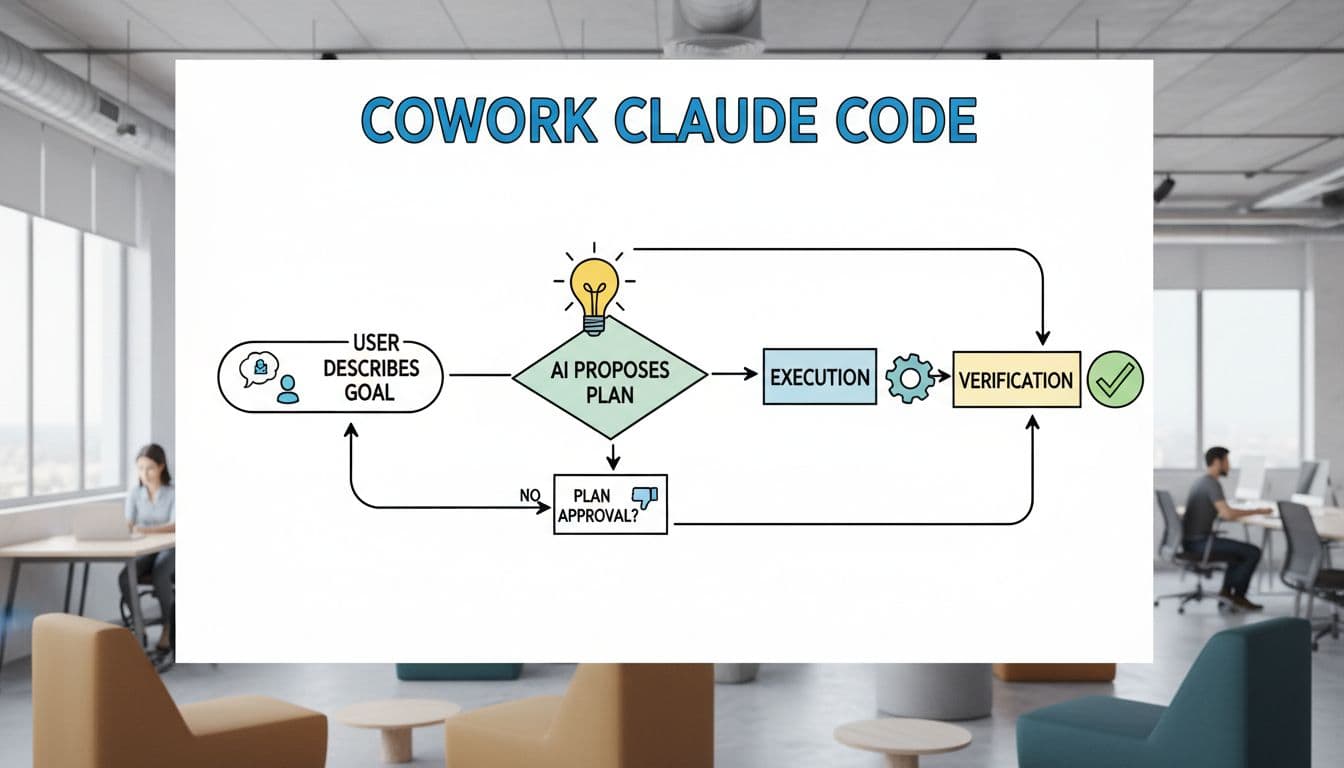
My favorite way to explain Cowork Claude Code is simple: I keep the steering wheel, the agent handles the pedals.
Here’s the loop I use:
I describe the goal. Claude proposes a plan. I approve it. Claude executes. I verify the results.
A plain example: “Rename all images to match the product SKUs, then update references in the markdown docs.” I don’t need to know the exact rename command or every place the references live. I need to know what “correct” looks like, and I need to review the diff.
Another example: “Create a small script that removes blank rows from this CSV, normalizes dates to YYYY-MM-DD, and outputs a clean file.” Same idea. I’m picking the outcome, not writing the script from scratch.
Where it fits in the Claude lineup, and what the name confusion means
Right now, the “Cowork” label often reads like shorthand for “an AI coworker that works in your stuff.” Public coverage and hands-on posts use a mix of terms, including “Claude Cowork” and “Cowork.” For example, VentureBeat’s launch coverage frames it as a desktop agent that works in your files, while Simon Willison’s first impressions digs into how it behaves like a general agent.
Practically, I focus on the capabilities that match the Cowork idea: agentic automation, repeatable skills, guardrails, and shared context. If you want the broader product context before you commit, my starting point is usually a model-level overview like this in-depth Claude AI review, then I map the features to my real tasks.
The features that make Cowork Claude Code feel like a real teammate
A lot of “AI automation” tools still feel like fancy autocomplete. Cowork Claude Code feels different because it can plan and act in a controlled space, then show you what changed.
Before we go deeper, one quick grounding term: a terminal is part of a command-line interface, which is just a text-based way to run commands on your computer. You don’t need to love the command line to benefit from it, but you should respect it, because it can change real files fast.
Here are the features I look for when I want safe automation (and why they matter):
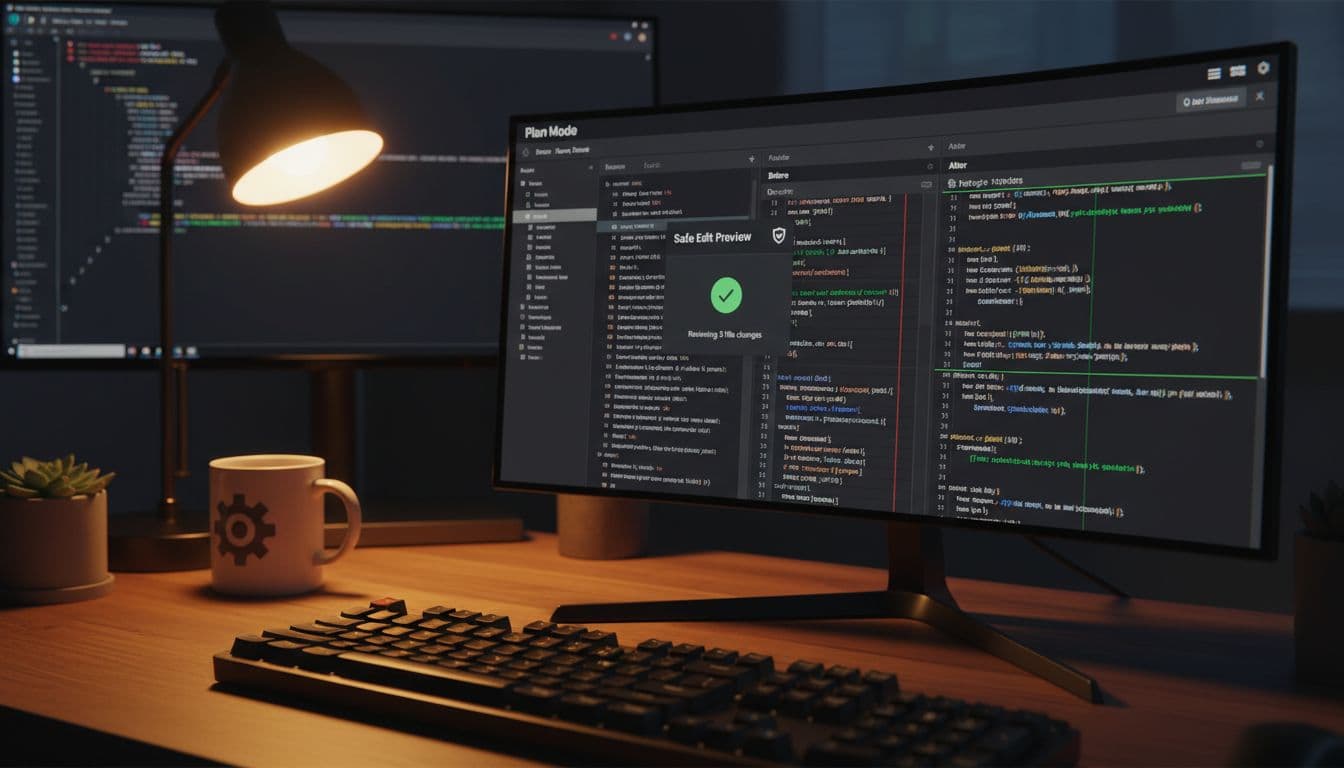
- Plan Mode (Shift+Tab twice): I get a proposed plan before anything changes.
- Agents and skills: I can reuse routines instead of re-explaining tasks each time.
- Hooks: Automatic checks can run after edits, like tests or linting.
- Memory and shared context: The agent can carry project rules forward, so I don’t repeat myself.
- Multiple instances: For big jobs, parallel sessions can speed things up (with oversight).
- CLAUDE.md guidance file: A simple “house rules” doc inside the repo helps keep outputs consistent.
If you’re comparing agent-style tools across the market, this roundup of top AI agents of 2025 for productivity is a useful reference point for what “agent” should mean in practice.
Plan Mode keeps me in control before anything changes
Plan Mode is the difference between “helpful” and “scary.” The shortcut matters: Shift+Tab twice.
For non-coders, this is the best safety feature because it forces a pause. You see intent before execution. I always start in Plan Mode on a new project, and I go back to it anytime the task sounds risky.
My quick plan check is simple:
Files to change: Are these the files I expected, or did it wander?
Commands to run: Do they look safe for my machine and folder?
Risks: Did it call out deletes, migrations, or irreversible steps?
If the plan is vague, I push it to be specific before I approve anything.
Agents, skills, hooks, and memory, the building blocks of repeatable automation
These terms can sound abstract, so here’s how I explain them to a friend.
Agents are specialized helpers, like “test runner agent” or “docs agent,” each tuned for a role.
Skills are repeatable routines, often defined in simple files, so the agent can run the same play again next week.
Hooks are automatic actions after a change, like “run unit tests after editing code” or “lint markdown after updating docs.”
Memory is shared context, so it remembers your project rules and doesn’t ask the same setup questions every time.
Automation is getting better fast, but it’s still not perfect. I treat outputs as drafts until I verify them.
How I would use it as a non-coder, quick start workflows that actually save time
This is the section I wish existed when I first tried agentic tools. The win comes from picking workflows that are small, common, and easy to verify.
One note on access: early coverage says Cowork-style experiences are rolling out as a research preview with higher-tier plans and waitlists for broader access, and you may hit usage limits on free tiers. I don’t obsess over pricing, I just plan around limits by starting small.
Here are four beginner workflows I’d actually use.
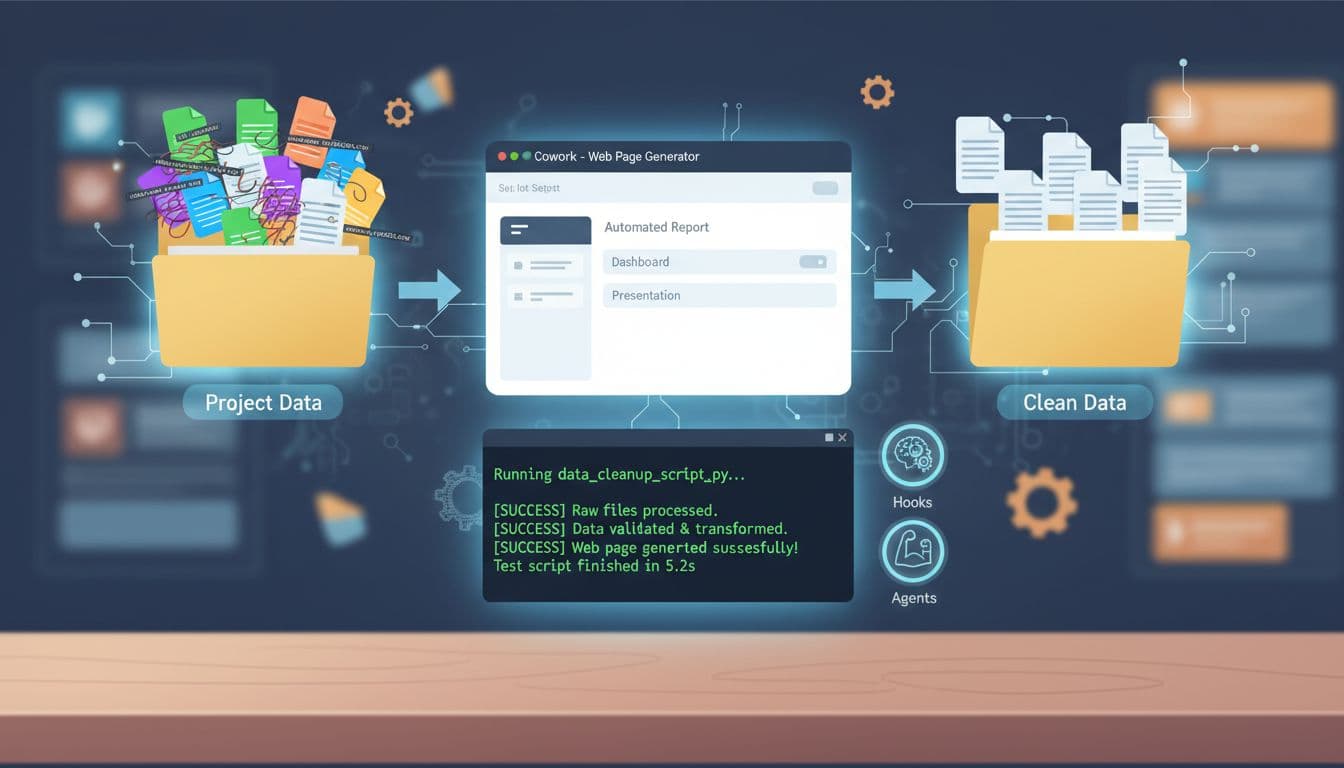
Workflow 1: Clean a messy CSV and summarize it
Goal: Fix formatting and get a human-readable summary.
Prompt I’d give: “In Plan Mode, clean sales_raw.csv: remove empty rows, normalize dates, trim whitespace, and output sales_clean.csv. Then summarize key totals and anomalies in summary.md.”
Step 1: Approve a plan that only touches those files.
Step 2: Review the diff on the cleaned CSV (spot check 20 rows).
Step 3: Verify summary numbers with a quick re-check (even simple totals).
Safety note: Never paste customer PII into prompts if you don’t have a policy for it.
Workflow 2: Generate a simple web page, then iterate with small changes
Goal: Get a working page without fighting tooling.
Prompt I’d give: “Create a simple landing page in this folder with a clean layout, a pricing section, and a contact form placeholder. Keep it static. Use short, readable HTML/CSS. Show the plan first.”
Step 1: Approve file list (I expect HTML/CSS, maybe a small assets folder).
Step 2: Run locally, check layout, then request one change at a time.
Step 3: Ask for an accessibility pass (labels, contrast, headings).
If you’re also comparing coding helpers for this kind of work, I keep this hub bookmarked: 2025 AI coding assistants review.
Workflow 3: Triage an error log and propose fixes
Goal: Turn a scary log into a short action list.
Prompt I’d give: “Read error.log, group errors by root cause, and write triage.md with probable causes, files involved, and the next command to run to confirm each theory.”
Step 1: Let it summarize first, without changing anything.
Step 2: Approve only safe read-only commands.
Step 3: Apply fixes one small patch at a time.
Workflow 4: Create docs from code and keep them current
Goal: Ship clearer docs without a week of writing.
Prompt I’d give: “Scan this repo and draft README.md sections for setup, common commands, and troubleshooting. Don’t invent features. Link to existing scripts and configs.”
Step 1: Check for made-up claims, then trim.
Step 2: Run the setup steps exactly as written.
Step 3: Add a hook later that warns when docs drift from scripts.
If your automation work happens in the browser too, you may also like this related guide on Claude Sonnet 4.5 browser agent overview, since browser-based actions and file-based actions often pair well.
My 15 minute setup: a simple project brief and a CLAUDE.md file
I start with a one-page brief, even for small jobs:
Goal, constraints, tech stack, success criteria, and a short “do not do” list (like “don’t delete files,” “don’t change prod configs,” “don’t add new dependencies”).
Then I add a CLAUDE.md file that repeats the rules in plain language. It keeps the agent consistent, and it cuts down on back-and-forth.

Common mistakes I see when people try agentic automation for the first time
Skipping Plan Mode: Fix it by forcing “plan first” as your default habit.
Vague prompts: Fix it by naming inputs, outputs, and what “done” means.
Changing too many files at once: Fix it by scoping to one folder or one feature.
Not running tests (or any checks): Fix it by adding a hook or at least a manual test step.
Trusting generated commands blindly: Fix it by asking what the command does before running it.
Mixing environments: Fix it by stating “local only” or “staging only,” and sticking to it.
Forgetting permissions: Fix it by using the least access needed, then expanding only if required.
Should you try it now, plus the limits and trust checks I use
I decide based on role and risk, not hype.
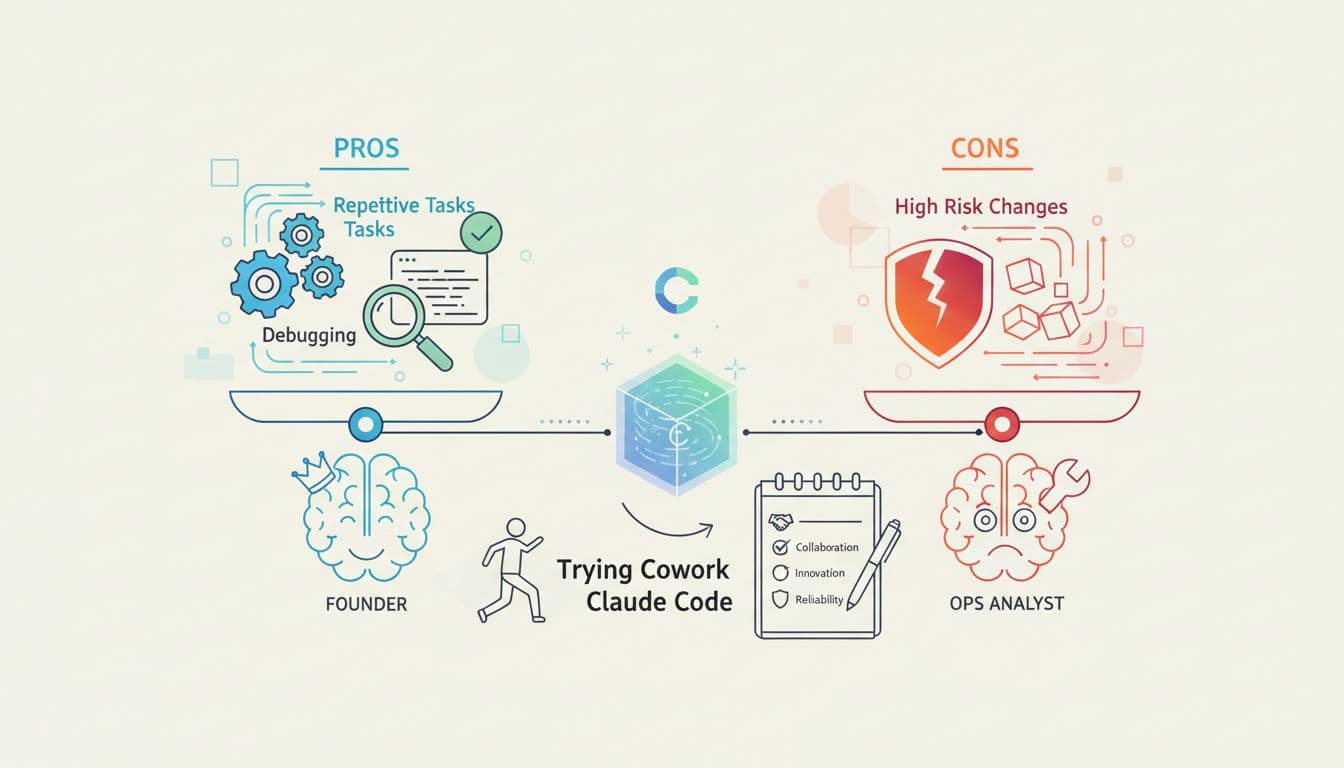
If you’re a founder or ops lead, Cowork Claude Code shines when you’re drowning in repeatable chores that live in documents, folders, and small scripts. If you’re an analyst, it’s great for cleanup and reporting workflows that you can verify fast. If you’re an engineer, it can speed up fixes and docs, especially when you run parallel sessions for separate tasks (tests, refactors, and summaries). If you’re a hobbyist, it’s a fun way to ship small projects without getting stuck.
Limits are real: the agent can miss context, misread intent, or produce changes that look right but break later. Skills and hooks can fail to trigger the way you expected. Free tiers can cap usage at the worst time. Privacy and security also matter, because “works in your files” means you need clear boundaries.
Here’s the trust checklist I follow:
Least privilege access, no secrets in prompts, audit file diffs, keep logs of what ran, and keep a human approval gate for anything destructive or production-related.
For more background on the launch framing, I’d skim TechCrunch’s coverage of Cowork and compare it with Anthropic’s own language on Claude Code. When third-party takes disagree, it usually means the feature is real but the UX is still evolving.
My quick decision guide: best use cases vs times I would not use it
Best for: repetitive file work, cleanup tasks, drafting docs from a real repo, quick debugging loops, and small automation scripts that you can test in minutes.
Not for: high-risk production changes without review, confidential data you can’t share under policy, anything that needs perfect accuracy, and tasks where you can’t easily verify the outcome.
Where I land
Even if you call it Cowork, Claude Cowork, or just Claude Code, the real shift is simple: Cowork Claude Code brings agent-style automation closer to people who don’t want to code all day. Start with one small workflow, run it in Plan Mode, and review every change like you would for a human teammate. Want a practical challenge, what’s the first task you’d automate this week?