

A spreadsheet that spots a problem but tells no one is half a workflow.
When I set up AI spreadsheet integrations, I don’t start with the model. I start with the message path. What should trigger an alert, who should get it, and what action should follow?
That sounds basic, but it’s where most setups fail. Once the routing is clear, connecting Slack and email becomes much easier.
Start with the alert, not the tool
I split these workflows into two lanes.
Slack is for exceptions, ownership, and quick reaction. Email is for scheduled digests, longer context, and anything I may need to forward or archive later. If a team sends every update to both places, they create noise fast.
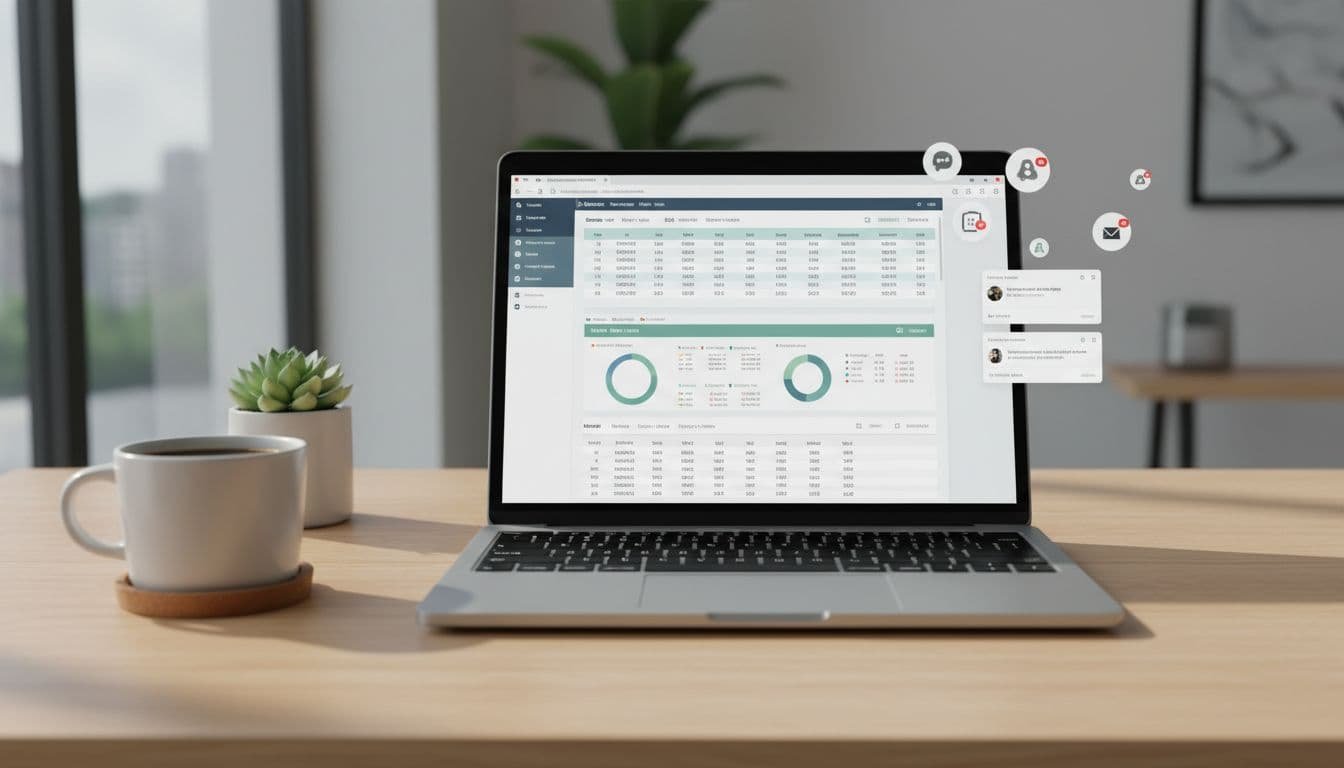
Before I connect anything, I define three fields inside the sheet itself: the trigger condition, the owner, and the message summary. That gives the automation layer something stable to read. It also keeps the AI focused on analysis, cleanup, or summarization, instead of inventing delivery logic on the fly.
If you’re still choosing the base spreadsheet layer, my review of AI spreadsheet assistants for Excel and Sheets is a useful starting point. The main trade-off is simple. In-sheet AI is good at formulas, cleanup, and quick explanations. Delivery to Slack or email often needs another layer.
If an alert can’t tell me what changed, why it matters, and who owns it, I don’t send it.
That matters because few spreadsheet AI tools handle Slack natively in a strong way. As of May 2026, the better options for analysis inside sheets include GPT for Work, Microsoft Copilot in Excel, Google Sheets with Gemini features, and lighter add-ons like Numerous.ai or SheetAI. The messaging step often comes from an add-on, an agent workflow, or a reporting product.
Which tools fit Slack and email best
I don’t use the same tool for every team. Finance, RevOps, and content ops all want different behavior.
For Microsoft-heavy setups, Microsoft Agent Mode in Excel is a sensible starting point because it works close to the workbook. The limitation is that Teams is the more natural destination. Slack usually needs extra wiring. In Google Sheets, GPT for Work, Coefficient, and similar tools are often faster to connect to alerts and outbound summaries.
This is the model I use to pick the stack:
| Setup type | Best fit | Slack delivery | Email delivery | Watch-out |
|---|---|---|---|---|
| Built-in spreadsheet AI | Teams already live in Excel or Sheets | Usually indirect | Good for sharing reports | Limited alert logic |
| Add-ons for Sheets/Excel | Analysts need formulas, cleanup, summaries | Often via integration layer | Strong for recurring sends | Can get messy across many tabs |
| Reporting-first tools | Teams want charts and scheduled updates | Usually strong | Usually strong | Less flexible for row-level actions |
| Agent workflows | Multi-step business processes | Good for exception handling | Good for detailed follow-up | Needs tighter testing |

If the main job is scheduled reporting, I don’t force a spreadsheet add-on to do everything. A reporting-first product can be cleaner. For example, Chartcastr’s sheet-to-Slack and email reporting model is closer to what many ops teams want than a cell-by-cell AI assistant.
If I need the workflow to pull data, clean it, summarize it, and hand off a next step, I look at agent-style systems too. My notes on AI for spreadsheet cleanup and reporting cover that style of setup well.
How I connect a spreadsheet workflow to Slack and email
In practice, I use a simple build sequence.
- I define the event in business terms, not spreadsheet terms. “Pipeline dropped 15 percent week over week” is better than “cell C19 changed.”
- I make the sheet machine-readable. That means stable column names, no merged cells, consistent dates, and one row per record. If the data starts in messy files, I clean that first with tools built for automating PDF data import into spreadsheets.
- I create two message formats. Slack gets the short version, metric, threshold, owner, link. Email gets the longer version, summary, chart, context, and the changed rows or attachment.
- I add guardrails. I cap alert frequency, suppress duplicates, and require human review for high-risk outputs. AI can summarize trends well, but it shouldn’t invent thresholds or silently change business logic.
A real example helps. Say I have a weekly marketing sheet with spend, leads, CAC, and conversion rate. I let the spreadsheet AI clean labels, detect unusual movement, and draft a short explanation. If CAC jumps beyond a limit, Slack gets a short alert in the channel the paid team already watches. At 8 a.m. Monday, leadership gets an email digest with the week’s chart and summary.
That pattern works because Slack handles reaction, email handles recordkeeping.
What usually breaks first
The first failure point is almost never the model. It’s the sheet.
Bad headers, hidden assumptions, copied formulas, and mixed date formats break more automations than weak AI does. When teams say the integration is unreliable, I usually find a workbook that was built for humans and then retrofitted for automation.

The second failure point is message overload. If every anomaly hits Slack, the channel becomes wallpaper. If every summary lands in email, nobody reads it. I keep Slack for action and email for review. That split holds up.
Permissions matter too. A sheet might contain row-level data that should never land in a public channel. I strip messages down to the minimum useful detail, then link back to the source for people who already have access.
Don’t let the AI decide both the metric and the escalation rule.
The setup matters more than the model
A spreadsheet that keeps quiet is still half a workflow. The fix isn’t more AI. The fix is clear triggers, clean data, and a message path that matches how the team already works.
When I build these systems well, Slack gets the exceptions and email gets the digest. That’s usually enough to turn a passive spreadsheet into something operational.
FAQ
What’s the easiest way to send spreadsheet alerts to Slack?
I usually keep the AI inside the sheet for analysis, then use a separate delivery layer for Slack. That split is more reliable than asking one tool to do everything.
Should I send spreadsheet updates to Slack or email?
Use Slack for urgent changes, ownership, and exceptions. Use email for scheduled summaries, executive updates, and anything that needs a paper trail.
Do I need a native integration to make this work?
No. Native integrations are nice, but they’re not required. In practice, strong workflows often combine in-sheet AI with a reporting or automation layer.
Suggested related internal articles
- AI Spreadsheet Assistant Guide (2026): Excel, Sheets
- AI for Office: Microsoft Agent Mode in Excel and Word
- PDF to Excel Extraction: Best AI Tools for Scanned Tables in 2026