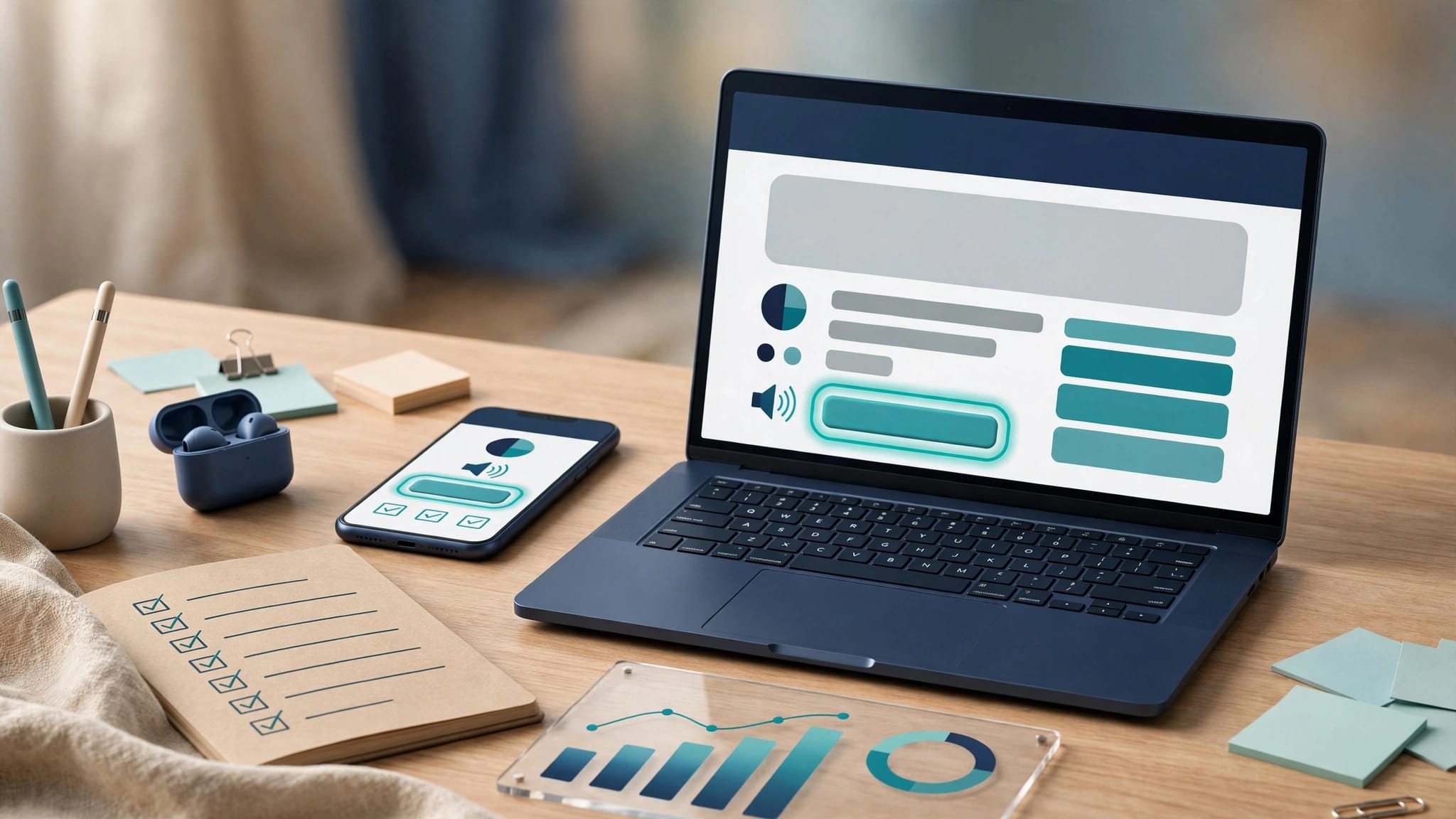
A website can pass an automated accessibility scan and still leave someone unable to complete a purchase. For small teams, I recommend AI accessibility auditing tools that produce actionable findings, alongside manual testing of important user journeys.
My shortlist starts with axe DevTools, WAVE, Lighthouse, and Accessibility Insights, although their AI capabilities differ substantially. These recommendations are based on product documentation and established capabilities, not firsthand benchmarking.
The useful starting point is separating AI assistance from the accessibility checks your team can depend on.
Key Takeaways
- I recommend axe DevTools for developer-led teams, with its paid AI-assisted features considered separately from the free scanner.
- WAVE helps editors and designers understand page-level problems. Lighthouse provides a convenient baseline, while Accessibility Insights adds guided manual evaluation.
- Budget for remediation and human review. A subscription, clean scan, or high accessibility score doesn’t establish WCAG conformance or ADA compliance.
What AI Accessibility Auditing Tools Actually Assess
Automated Rules Provide the Foundation
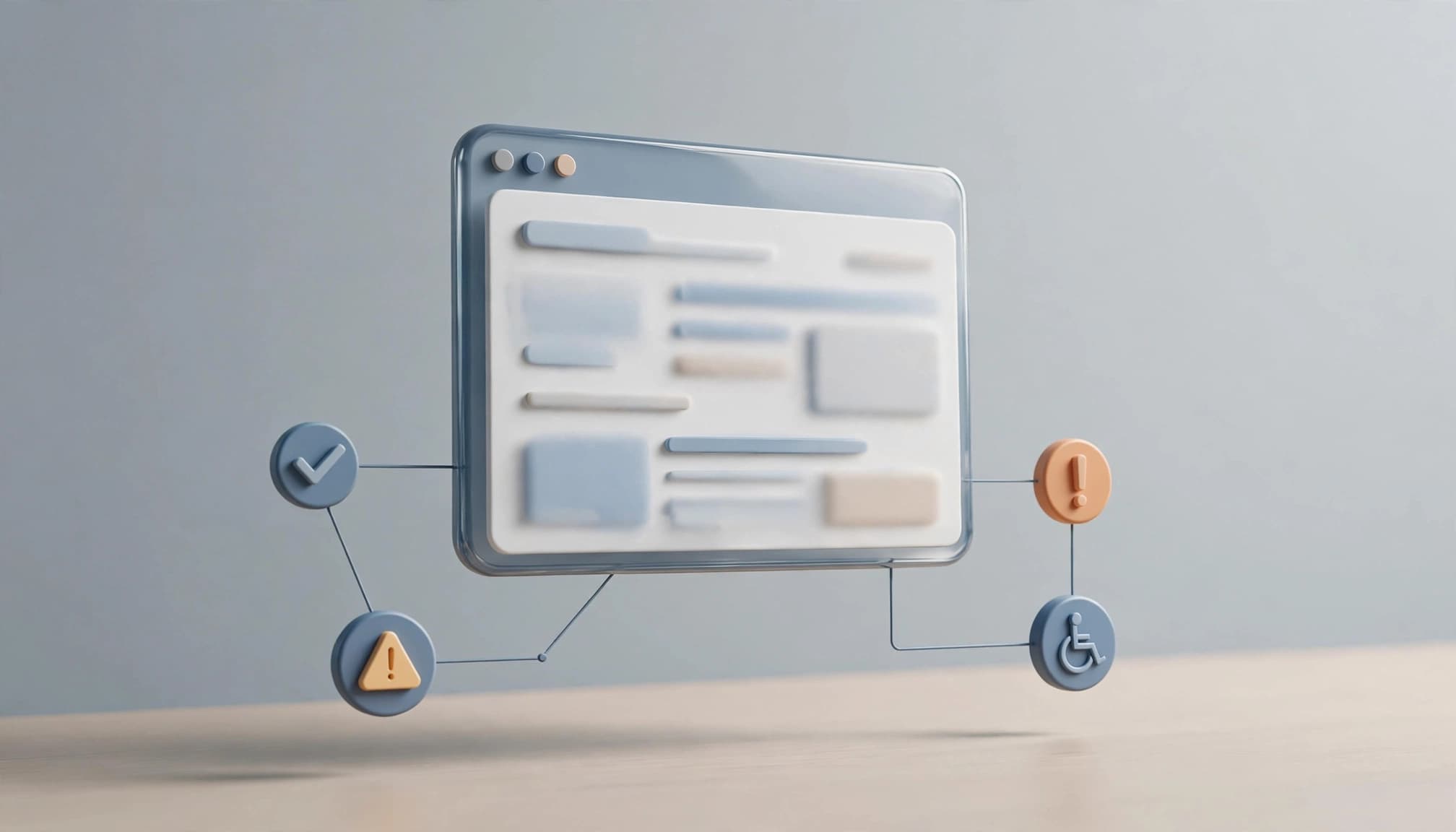
Most dependable accessibility scanning starts with rules, not generative AI. A scanner examines page markup, computed styles, and other programmatically available information.
It can flag missing accessible names, certain contrast failures, invalid ARIA attributes, and other detectable problems. Those findings are useful because developers can trace them to particular elements.
However, rule coverage has boundaries. Finding an image’s alternative text doesn’t establish whether that description communicates the image’s purpose. Detecting a button’s accessible name doesn’t establish whether the surrounding workflow makes sense.
AI Assistance Requires a Separate Judgment
AI can assist with explanations, guided testing, and proposed fixes. Deque describes AI-enhanced automation in its paid axe DevTools offering, distinct from basic axe-core scanning.
I evaluate that assistance by whether it helps someone resolve a documented problem correctly. More generated recommendations aren’t automatically more useful.
A chatbot explaining a violation also isn’t an agent that changes and validates your website. If software can execute changes, permissions, review, and rollback become purchasing criteria.
For comparison, the W3C evaluation tools directory covers multiple testing approaches. Inclusion isn’t a certification that a product can prove compliance.
Accessibility Audit Tools Compared
These options address different jobs rather than competing on one universal score.
| Tool | Best Fit | Automation Approach | Entry Cost |
|---|---|---|---|
| axe DevTools Free | Developers investigating page-level issues | Rule-based axe-core checks | Free |
| axe DevTools Pro | Teams needing guided testing and collaboration | Automated checks plus vendor-described AI assistance | $60 per user/month |
| WAVE | Editors and designers reviewing rendered pages | Automated checks with visual feedback | Free browser tools |
| Lighthouse | Developers needing a quick baseline | Automated accessibility audits | Free |
| Accessibility Insights for Web | Teams combining scanning with structured manual checks | Automated tests and guided evaluation | Free |
My default recommendation is a free scanner plus a repeatable manual review. Upgrade when a paid feature addresses a recurring bottleneck.
Axe DevTools: Best for Developer-Led Teams
Axe DevTools is my first recommendation when a developer will own remediation. Its browser extension puts findings near the page and code that need attention.
Start With the Free Extension
The free extension supports basic, page-by-page automated testing using axe-core. That makes it suitable for investigating templates, components, and individual application states.
Browser-based testing is also useful when a public URL scanner can’t reach a logged-in interface. You can inspect a page already open in your browser.
The limitation is scope. Testing one page doesn’t cover every state of a checkout, modal, or account workflow. Someone must open those states and include them deliberately.
I would start here before purchasing a broader platform.
Pay for Guided Testing When It Removes Friction
Deque lists axe DevTools Pro at $60 per user per month, with a 14-day trial. Published capabilities include component testing, user-flow testing, issue sharing, remediation guidance, and AI-enhanced automation.
For a small development team, guided testing and shareable findings are stronger reasons to pay than the AI label alone.
My buying threshold is practical: does Pro help the team investigate and resolve issues that the free workflow leaves unaddressed?
It still requires development capacity. Better guidance won’t fix a component when nobody has time or permission to change it.
WAVE: Best for Content and Design Reviews
WAVE is a strong starting point when the person reviewing accessibility isn’t comfortable reading developer-oriented reports.
Visual Feedback Makes Findings Easier to Discuss
WebAIM’s WAVE evaluation tools present accessibility information within the rendered page. That makes it easier to connect a finding with an image, form field, heading, or control.
I recommend this approach for collaboration between an editor, designer, and developer. Everyone can discuss the same page element instead of interpreting a detached error export.
WAVE also exposes information that requires judgment. An alert deserves investigation, but it isn’t necessarily a confirmed failure.
Its documentation describes automated evaluation, not a generative AI system. That’s a useful distinction when comparing products advertised as AI-powered.
Sitewide Reporting Is a Different Purchase
WebAIM’s Accessibility IMpact report lists a one-time price of $500 for a scan covering up to 20,000 pages. Each additional 20,000 pages costs $100.
That is different from using a free browser extension on selected pages. It can help a team understand recurring problems across a larger site.
I wouldn’t buy it solely because the page allowance looks generous. A smaller website may gain more from reviewing its important templates and complete transactions.
Treat sitewide output as prioritization evidence. It doesn’t demonstrate that every interaction works with assistive technology.
Lighthouse: Best for a Free Baseline
Lighthouse is convenient because developers can run it within browser developer tools without adding another paid service. Its accessibility audit is useful for catching common problems during development.
The weakness is how easily the score becomes a substitute for evaluation.
Google’s Lighthouse scoring documentation explains that the accessibility score is a weighted average of included audits. It isn’t a percentage of WCAG requirements satisfied.
I would use Lighthouse as an early warning and regression signal. I wouldn’t use a score of 100 as release approval.
When a score changes, investigate the underlying findings rather than celebrating or defending the number.
Keep accessibility separate from technical SEO reporting, too. Our comparison of AI SEO audit tools addresses crawling and search-related problems. Those reports can complement accessibility work, but they don’t establish whether someone can operate your interface.
Accessibility Insights: Best for Guided Manual Checks
Microsoft’s Accessibility Insights for Web is a free option for teams that need a more structured evaluation process.
Its FastPass workflow combines automated checks with a tab-stop review. Its Assessment workflow guides users through a broader set of accessibility checks.
I recommend it when scanning has become routine but manual evaluation remains inconsistent. A structured process helps reviewers record what they examined instead of relying on memory.
There is a trade-off: guided evaluation requires attention and accessibility knowledge. Instructions don’t make every judgment automatic.
It also shouldn’t be presented as generative AI auditing. Its value comes from combining automation with human evaluation.
For a small team, that can be more useful than buying AI-generated explanations of problems nobody has investigated. The person responsible for testing still needs a clear scope, reproducible findings, and access to the relevant application states.
When Sitewide Monitoring Makes Sense
Siteimprove and Silktide belong in a broader purchasing discussion: ongoing website accessibility monitoring and governance, rather than occasional checks of individual pages.
I would consider that category when many people publish content, multiple templates change regularly, or accessibility issues recur across several websites.
Continuous monitoring can reveal newly introduced, detectable problems. Its value depends on whether someone receives, prioritizes, and resolves those findings.
Siteimprove’s broader ecosystem also includes content strategy through MarketMuse. Our MarketMuse review covers that separate content-planning function.
For a small team, bundling becomes attractive only when those additional functions have assigned owners and regular use. Otherwise, a broad platform can add reporting overhead without increasing remediation capacity.
I wouldn’t reject enterprise-oriented monitoring automatically. Centralized ownership and repeated scanning can justify a larger platform. But a five-page site with one developer has a different problem than a distributed publishing operation.
Where Automated Accessibility Audits Miss Problems
Interactive States Need Deliberate Coverage
A scan sees the state presented to it. It may miss what happens after validation fails, a menu opens, or a dialog closes.
Keyboard navigation exposes problems that a static scan cannot fully judge. Focus order, visible focus, keyboard traps, and focus restoration affect whether someone can complete a task.
The University of Missouri’s accessibility testing guidance explains why automated evaluation needs complementary human review.
My priority would be complete transactions: submitting a contact form, signing in, changing account settings, or completing checkout.
Meaning Requires Human Review
AI-generated alternative text can describe visible objects while missing the image’s function. A chart needs its relevant message, not merely a description of colored bars.
Link wording, error instructions, captions, and heading structure also require contextual judgment.
Our guide to AI content audit tools covers broader content-review decisions. Accessibility review adds a different question: can someone understand and act on the information?
A scan’s coverage includes the pages and states it examined. It doesn’t automatically extend to the entire user journey.
That boundary should be visible in every audit report.
A Practical Audit Workflow for Small Teams
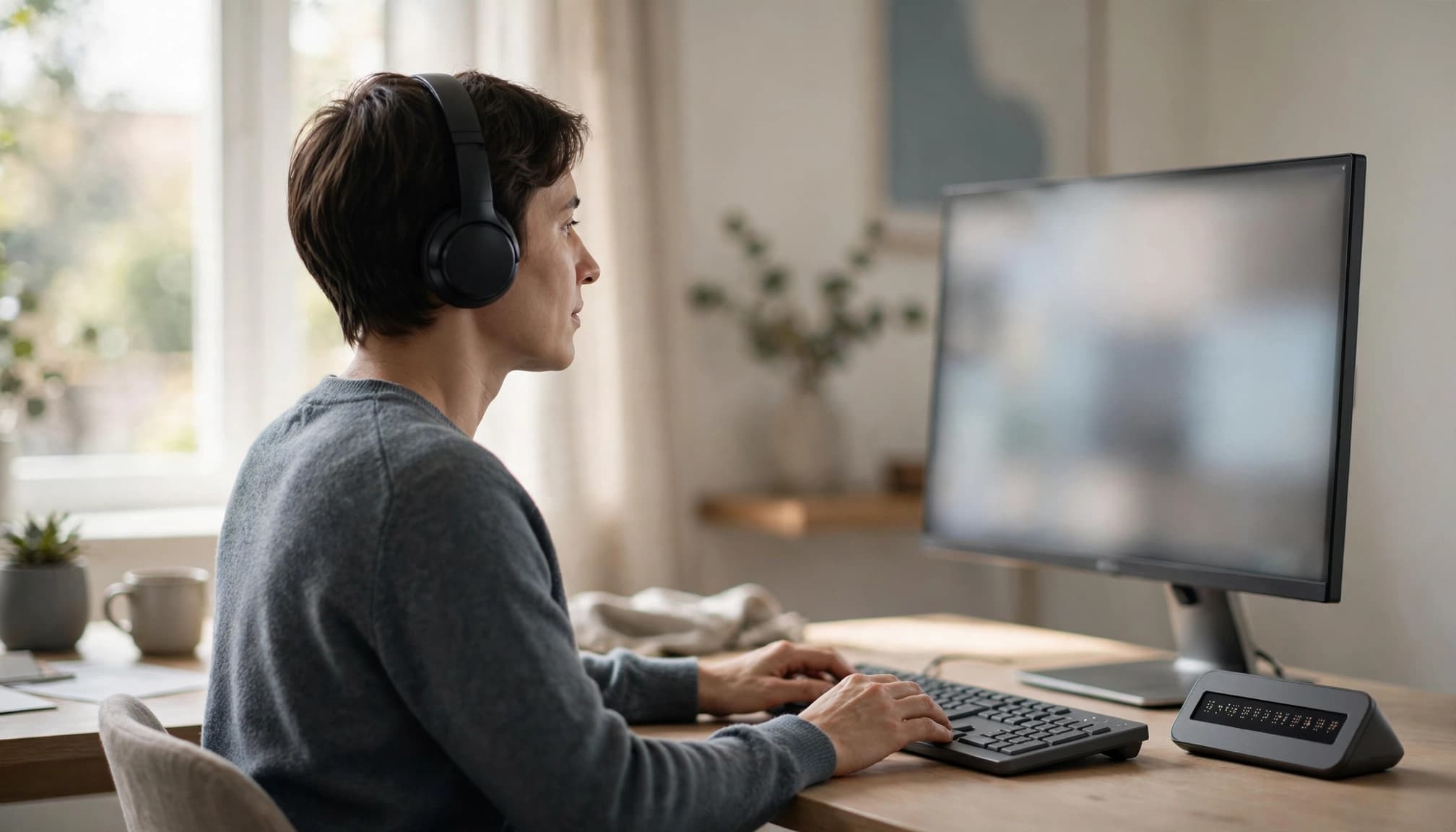
I recommend a small, repeatable workflow before investing in extensive automation.
- Define the scope. Include important templates, primary transactions, logged-in screens, and error states. Record what remains outside the review.
- Run automated checks. Use axe DevTools or WAVE on those pages and states. Consolidate repeated findings by shared component.
- Review complete journeys manually. Test keyboard operation, focus behavior, zoom, and relevant screen-reader interactions. Record the browser and assistive technology used.
- Assign reproducible issues. Include the affected element, reproduction steps, user impact, and expected behavior. Have a developer review AI-proposed code changes.
- Retest after remediation. Repeat the failing interaction and scan the changed component. Add regression coverage where the development workflow supports it.
Fix shared components before treating every affected URL as a separate project. One navigation defect can appear across hundreds of pages.
For authenticated testing, use dedicated accounts and synthetic data. Avoid exporting customer information into AI assistants or third-party reports without an approved data-handling process.
Record scan failures separately from clean results. If authentication expires or a page fails to load, that page remains unevaluated.
Save enough evidence to distinguish resolved issues from accepted limitations. A closed ticket should describe what changed and what was retested, not merely state that the scanner stopped reporting it.
Budget for Remediation, Not Just Software
Software cost is only one part of accessibility work. Investigation, design decisions, development, content changes, and retesting all consume capacity.
At $60 per user per month, one axe DevTools Pro seat costs $720 over 12 months. Two seats cost $1,440. Those are subscription calculations, not estimates of total project cost.
A free combination of axe DevTools, Lighthouse, and Accessibility Insights has no subscription cost for those tools. It still requires staff time and, where needed, qualified accessibility support.
WebAIM’s $500 AIM report is a one-time reporting purchase. It shouldn’t be compared with a recurring subscription as though both provide identical workflows.
I would allocate the budget according to the constraint. If problems remain unresolved, another scanner is unlikely to help. If reviewers cannot organize recurring findings, collaboration or monitoring features may justify spending.
The purchasing question is whether software helps your team complete remediation, not whether it generates a larger inventory of defects.
WCAG and ADA Rules Are Different Questions
WCAG is a technical accessibility standard. The ADA is a law. Tool vendors sometimes blur that distinction in compliance marketing.
The Department of Justice’s small-entity compliance guide identifies WCAG 2.1 Level AA as the technical standard in its rule for state and local government web content and mobile apps.
That rule shouldn’t be presented as a universal technical requirement for every private business.
WCAG 2.2 can be a sensible technical target for new work, but applicable legal and contractual obligations may differ.
I would reject any claim that an automated scan alone proves ADA compliance. Likewise, a runtime overlay that modifies a page is a different product category from an audit and source-code remediation workflow.
For contractual or legal compliance questions, qualified counsel and accessibility specialists can help establish the appropriate scope.
Choose a Tool Your Team Can Act On
My default shortlist is axe DevTools for developers, WAVE for visual review, and Accessibility Insights for structured manual evaluation. Lighthouse provides a convenient additional baseline.
Paid AI assistance deserves consideration when it removes an identified bottleneck. It shouldn’t displace human evaluation or the people responsible for fixes.
Choose the tool that helps your team document, resolve, and retest barriers. A clean report matters only within the coverage it can demonstrate.
Frequently Asked Questions
Which Accessibility Tool Is Best for a Small Team?
I recommend axe DevTools when developers own remediation. WAVE is useful for editors and designers, while Accessibility Insights helps structure manual evaluation. The strongest choice depends on who investigates and fixes findings.
Can AI Audit a Website Without Human Review?
AI and automated scanners can assist with detecting and explaining some barriers. They cannot reliably establish that every interaction, instruction, and content element is accessible. Human evaluation remains necessary.
Are Free Accessibility Tools Enough?
Free tools can support substantial accessibility work, especially on a small site. Paid software becomes useful when guided testing, collaboration, or recurring monitoring addresses a concrete gap. Neither option removes remediation work.
What Should a Small Team Learn Next?
Three useful follow-up topics are keyboard-only checkout testing, adding axe-core checks to Playwright tests, and reviewing AI-generated alternative text. Each addresses a separate weakness: interaction barriers, recurring defects, or descriptions that miss an image’s purpose.