
Blank-canvas time is expensive. When I’m designing a new flow, I don’t want “perfect.” I want direction fast, then I want control.
This Figma AI review focuses on that exact moment in the modern UI/UX design landscape: generating a first draft UI and usable copy, then turning it into something a product team can review, test, and hand off. In February 2026, the big shift is that Figma’s AI-powered tools aren’t just “ideas.” They’re starting points that stay editable, which is the only way they matter in real work.
What “First Draft” UI generation gets right (and what it’s really for)
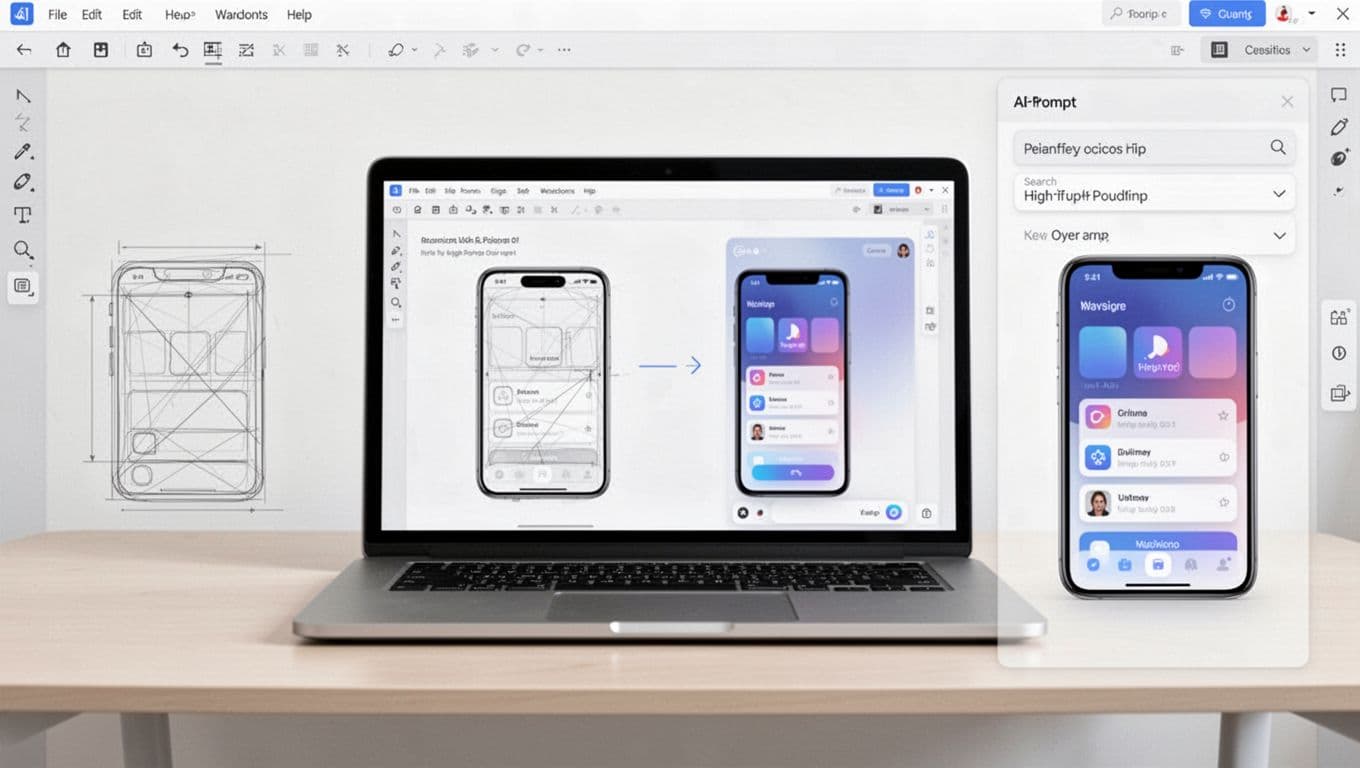
In practice, “First Draft” UI generation works best as a sophisticated wireframe generator for early-stage work when I already know the user story, but I don’t want to spend an hour placing rectangles. I treat it like hiring a junior designer to rough in a layout via prompt-to-design, not like a senior designer that understands my product.
The best outcomes happen when my natural language prompts include constraints that normally live in my head:
- Platform and layout rules for UI/UX design (iOS vs web dashboard, dense vs airy)
- The exact screens (login, OTP, plan selection, confirmation)
- Data types (empty states, loading states, error states)
- Component expectations (card list, sticky CTA, table, filters)
If you want the official boundaries and setup details, Figma’s own guide on using First Draft with Figma AI is the one link I’d trust before you roll it out to a team.
Where it saves me time is not “pixel pushing.” It’s composition decisions. I can react to a layout, delete half of it, and keep the parts that match the flow.
Draft quality checks I run before I let anyone see it
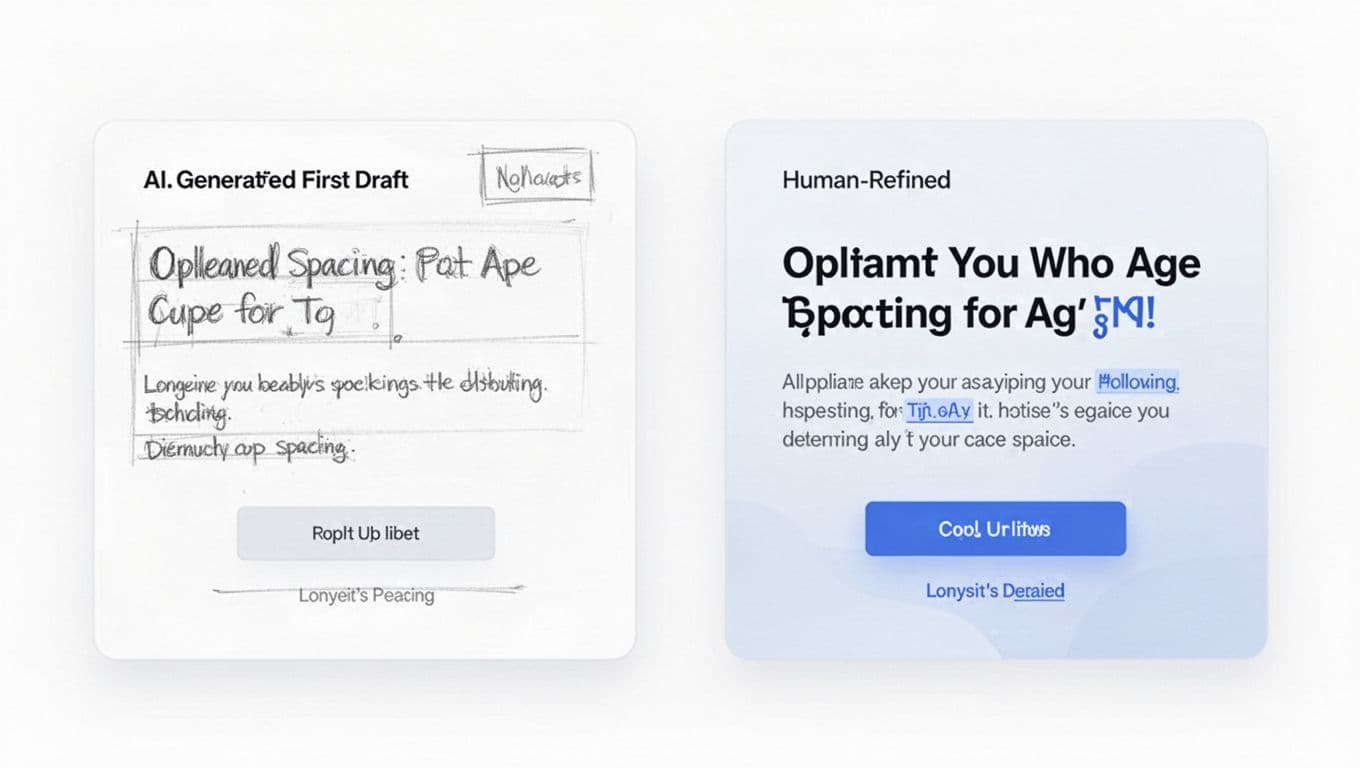
AI drafts tend to look “fine” at first glance. The problems show up when you zoom in and ask: would this survive a design review?
In my product design workflow, I run a fast pass on five things:
1) Layout logic
Do the sections follow how a user thinks, or how a template thinks? AI loves generic patterns, even when the product has a sharper story.
2) Component integrity
If your team has a design system, design system integration mismatch hurts. A draft that ignores your button sizes and spacing tokens creates cleanup work.
3) Edge states
Most drafts assume happy paths. I add error, empty, and long-content states right away because they change layout choices.
4) Accessibility basics
Color contrast, label clarity, focus order, and tap targets are easy to miss when the draft looks polished.
5) Copy realism
If the screen uses vague copy, I assume the whole draft needs stronger product thinking.
Here’s how I decide when AI-first drafting makes sense for editable UI layouts:
| Scenario | AI first draft is a good fit | What I still do manually |
|---|---|---|
| New feature flow with clear requirements | Establish screen structure fast | Add edge states, tighten hierarchy |
| Design spike for a PM review | Produce 2 to 3 layout options | Make it consistent with the design system |
| Early MVP for a US startup | Get to “clickable” high-fidelity outputs quickly | Fix accessibility and real data behavior |
| Mature product with strict UI standards | Only for exploration | Rebuild with components and tokens |
The takeaway: AI drafts reduce the cost of being wrong early, but they don’t remove the need for UI/UX design standards.
Copy generation inside the design workflow: helpful, but easy to misuse
UI copy is where teams lose time in weird ways. Someone writes a button label, another person changes it, then it drifts across screens.
Figma AI-style copy generation helps most when I treat it as variant generation, not brand voice. An AI writing assistant powered by text generation is strong for:
- CTA options that match intent (primary vs secondary)
- Error message drafts that aren’t hostile
- Empty state suggestions that explain next steps
- Microcopy rewrites that shorten without losing meaning
Where it breaks down is anything that needs deep context: pricing nuance, compliance language, security claims, or domain-specific terminology. In those cases, I’ll draft in a dedicated copy tool and bring the best version back into the UI file.
For example, if I need 20 landing-page headline variants for marketing websites to test against different audiences, I’d rather use a tool built for that job, then paste winners into the design. My own baseline for that category is covered in my Copy AI 2025 review, because UI copy and marketing copy aren’t the same problem.
My rule: if the text could create legal risk or revenue confusion, AI can draft, but it can’t decide.
The workflow I use to turn an AI draft into a shippable design
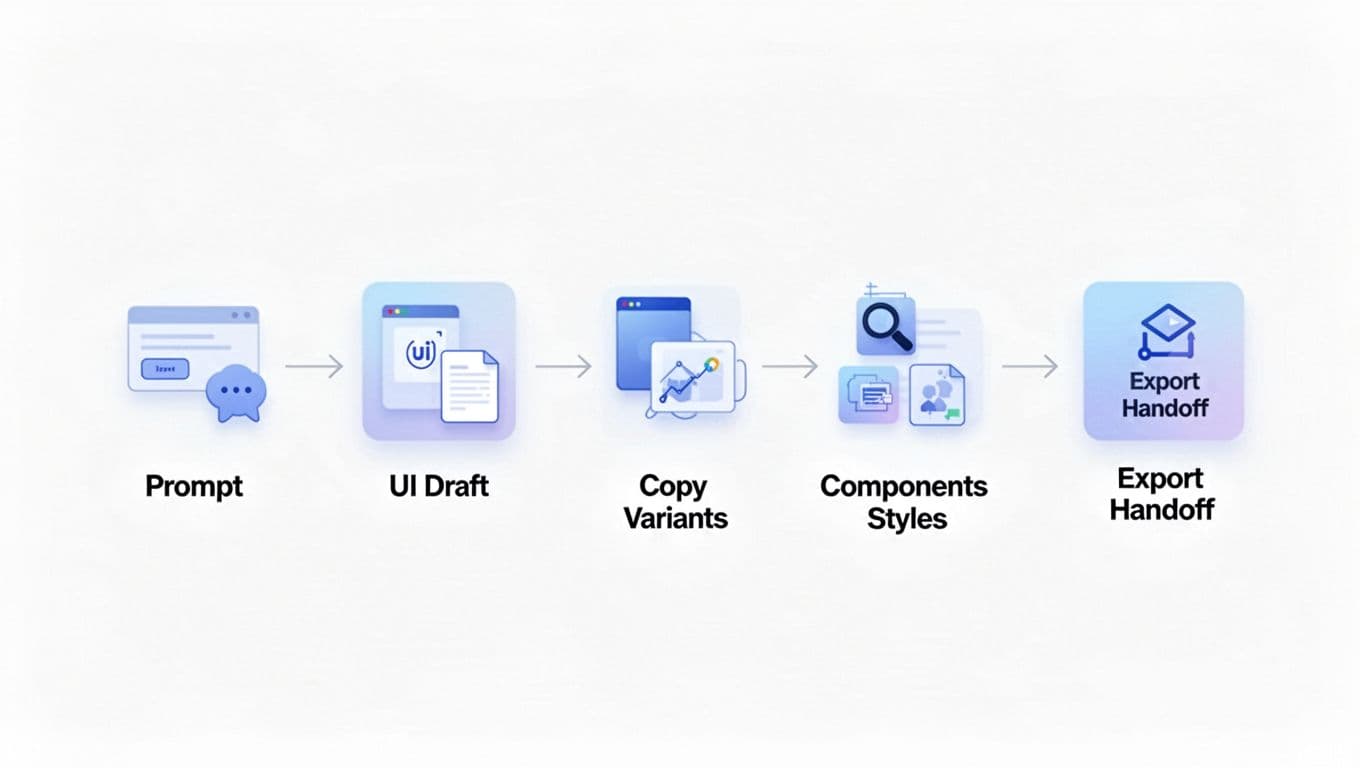
Speed comes from sequence, not shortcuts. This workflow enables rapid prototyping while keeping me moving without creating rework for engineering.
First, I generate the draft for structure only. I’m not judging typography yet. Next, I swap in real components and styles (buttons, inputs, headers) using auto layout, because that forces consistency fast. Then I replace placeholder copy with true microcopy, ideally tied to the product’s existing tone and terms.
After that, I do a “data stress test.” I paste ugly data into tables, long names into cards, and worst-case errors into banners. If the layout survives that, it’s ready for review.
Finally, I prep for handoff with layer renaming, visual assets search, basic annotations, and a quick check that the file doesn’t have weird one-off spacing. This sets it up for frontend code generation and design-to-code handoff.
If you also need supporting visuals for the draft, I’ll often generate rough imagery with image generation tools, refine selection later using utilities like background removal, and build toward interactive prototypes. For that workflow, I’ve had good results with faster image tools, and my notes are in the Seedream 4.0 review.
Where I land on Figma AI in early 2026
I like Figma AI, one of the top AI-powered tools available, best when it stays honest about what it is: a first draft engine. It’s not replacing design judgment. It’s compressing the time between “idea” and “something concrete.”
The main benefit is momentum. These AI-powered tools let me move from a prompt to a layout, helping define user flows more quickly, then spend my time on the parts AI still can’t do well in UI/UX design: product clarity, accessibility, and system consistency. The main risk is shipping template thinking, especially if the team accepts the first draft as “good enough.”
If you want a north star for quality, compare the AI draft to the human-refined standard you already expect. If the delta is big, keep AI in exploration mode, not production.
FAQ: Figma AI first draft UI and copy generation
How do I trigger Figma Make for UI generation?
Use Figma Make’s prompt-to-design feature. Enter a detailed prompt describing your screens, user flows, and goals to generate a first draft of UI and copy quickly.
Does Figma AI generate production-ready UI?
Not reliably. I treat the Figma Make first draft as a structured starting point. I still rebuild key areas with real components, tokens, and edge states.
Is the generated copy safe to use as-is?
Only for low-risk microcopy. For pricing, claims, or regulated language, I rewrite and review like any other draft.
What’s the best way to prompt for a better first draft?
Add constraints. Name the screens, the user goal, the platform, and the data states. Start with FigJam AI for early ideation, incorporate a sitemap builder for structure, and predictive heatmaps for UX research validation. Prompts that include edge cases produce drafts that need less rework.
When should I skip AI drafting entirely?
If your UI system is strict and your patterns are unique, manual work can be faster. AI drafts help most when you’re exploring options, not locking specs.
Related reading on AI Flow Review (next up)
These related reviews provide deeper insights into AI tools that complement AI Flow, especially for UI/UX design workflows.