
You can run local LLMs on Windows without a dedicated GPU using CPU inference in LM Studio or Ollama. The practical limits are available RAM and response time, so I recommend starting with a small, quantized chat model.
A model that loads successfully can still feel too slow for daily work. Start with one straightforward task, then increase model size only if the improvement justifies the wait.
Key Takeaways
- LM Studio offers a graphical setup; Ollama suits terminal-based workflows and application integrations.
- CPU-only inference works, but model size, context length, and memory pressure determine whether it’s useful.
- Quantized models reduce storage and memory demands, although quality can change.
- Local processing gives you more control over prompts, but backups, extensions, and exposed servers can still leak data.
What CPU-Only Local Inference Can Do
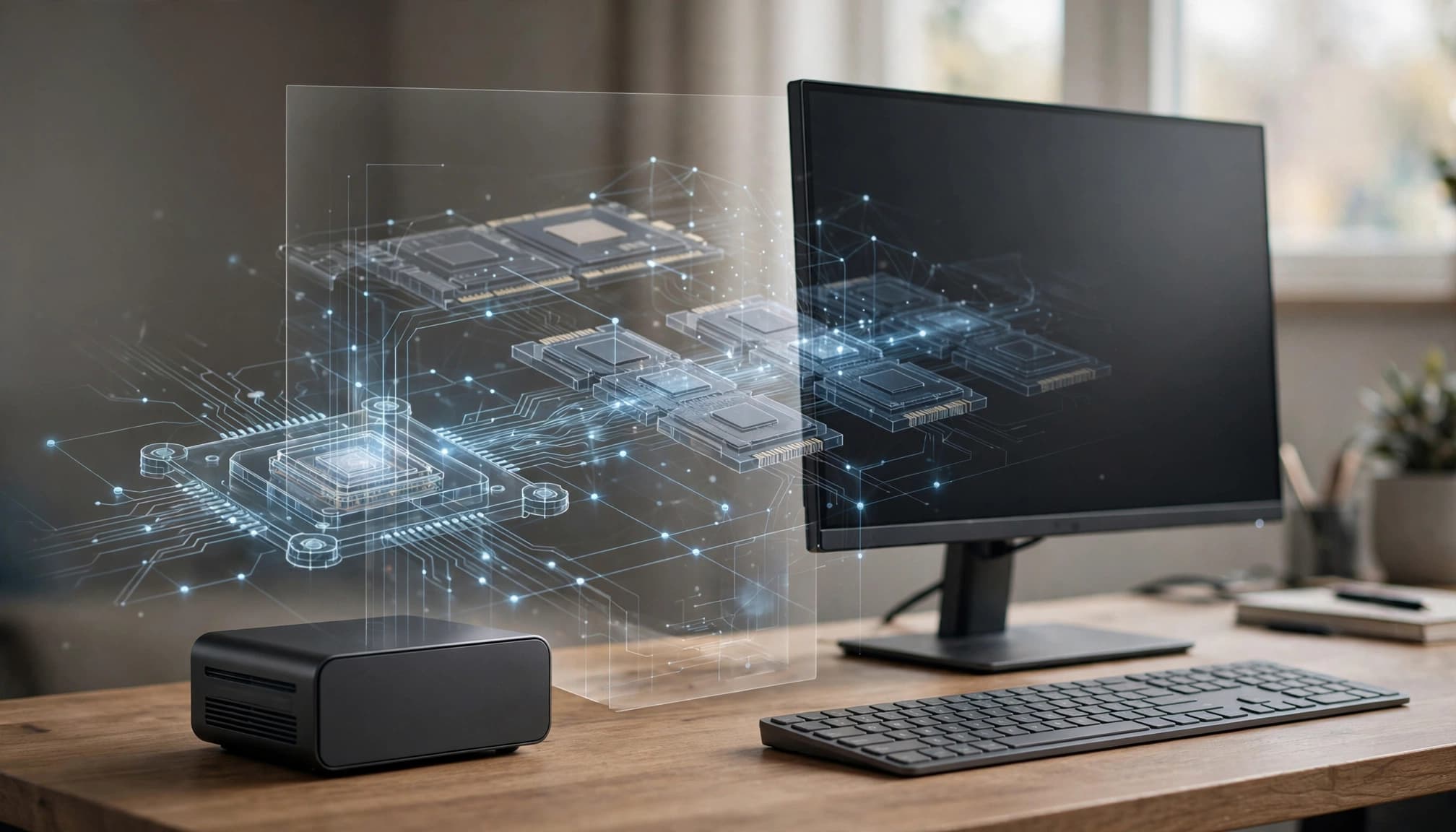
A GPU accelerates the calculations behind language-model inference. However, compatible software can perform those calculations on your CPU and hold the model in system RAM.
You don’t need an NVIDIA card, CUDA installation, or cloud account to run a downloaded model through a CPU-capable runtime.
This setup suits short rewriting tasks, explanations, structured extraction, and limited coding assistance. Long documents and extended reasoning place greater demands on both memory and processing time.
I wouldn’t treat a CPU-only laptop as a replacement for a high-throughput AI service. It can be a useful private drafting tool, but frequent delays can erase the benefit of avoiding an API bill.
Also, running inference doesn’t train the model or update its knowledge. A local model won’t gain current information unless you supply documents or connect additional tools.
Prepare Windows, Memory, and Storage
Operating System and CPU Compatibility
Ollama supports Windows 10 version 22H2 or newer, including Home and Pro. Its native installer doesn’t require Administrator privileges, according to the Ollama Windows documentation.
LM Studio supports Windows x64 and ARM systems, including Snapdragon X Elite. Its x64 version requires AVX2 instruction support.
That requirement matters on older computers. Having enough memory won’t compensate for a processor that lacks instructions the runtime requires. Also, choose the installer matching your processor architecture rather than assuming every Windows download is interchangeable.
RAM and Disk Headroom
LM Studio recommends at least 16 GB of RAM in its official system requirements. That recommendation doesn’t guarantee a particular model will fit.
Windows, browsers, and background applications consume memory before inference starts. The model also needs working memory beyond its downloaded weights.
Open Task Manager with Ctrl+Shift+Esc, then select Performance > Memory. Note the available memory, not just installed capacity.
For storage, Ollama’s installation requires at least 4 GB, with additional space for models. An SSD helps loading and reduces the pain of disk activity, but it doesn’t replace sufficient RAM.
I would close unnecessary applications before the first run. Otherwise, you’re measuring the entire system’s memory pressure rather than the model alone.
Choose Between LM Studio and Ollama
I recommend choosing one application first. Installing several runtimes immediately adds storage use and makes troubleshooting harder.
These options serve different workflows:
| Tool | Best Starting Point | Main Trade-Off |
|---|---|---|
| LM Studio | Graphical model discovery and chat | More settings than a beginner initially needs |
| Ollama | Terminal workflows and local integrations | Model names and commands require familiarity |
| llama.cpp | Direct runtime control | More setup and technical responsibility |
For most beginners, LM Studio provides the clearest path because you can download, load, and chat within one interface. Ollama makes sense when you want repeatable terminal commands or an application backend.
The llama.cpp project provides local inference across different hardware platforms. It’s useful when direct configuration matters, but I wouldn’t make it the default beginner route.
You also don’t need Windows Subsystem for Linux for either native Windows application. Adding WSL introduces another environment without solving the basic CPU performance constraint.
Choose a Small, Quantized Chat Model
Start With an Instruction-Tuned Model
For your first conversation, choose an instruction-tuned model rather than a base model. Instruction tuning prepares a model to respond to requests in a chat-style workflow.
Llama 3.2 1B Instruct is one concrete starting candidate named in LM Studio’s getting-started documentation. I would use it to establish that downloading, loading, and generation work before evaluating more demanding models.
The “1B” describes roughly one billion parameters. It doesn’t specify total RAM requirements, response speed, or answer quality.
For coding, match the model to your actual language and task. Our Python coding assistant comparison covers the broader workflow choices beyond simply running model weights.
Use Quantization to Reduce the Footprint
Quantization stores model weights at lower precision. The llama.cpp quantization documentation explains how this reduces model size and can improve inference speed.
For a compatible GGUF download, a four-bit option such as Q4_K_M is a reasonable starting point. Treat that as a practical compromise, not a promise of unchanged quality.
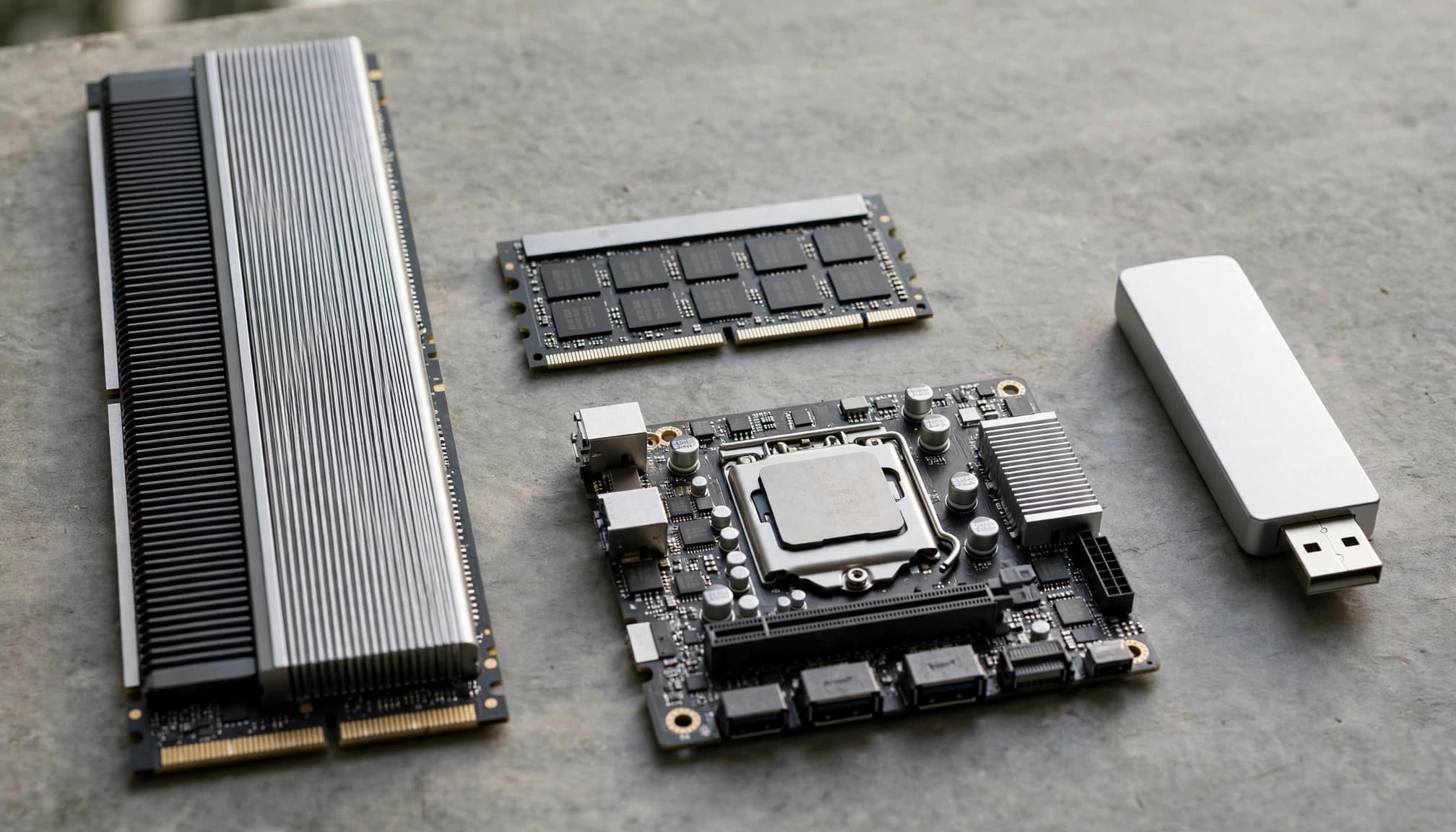
Avoid downloading every quantization. Start with one, evaluate your task, and change only when you have a clear reason.
Run a Model in LM Studio
LM Studio is my recommended starting route if you want to avoid terminal setup.
- Install the Windows application matching your processor architecture, then open it.
- Open Discover and search for a small instruction-tuned model, such as Llama 3.2 1B Instruct.
- Select a compatible GGUF quantization and download it. Keep the first download modest rather than choosing the largest available file.
- Open Chat, select the downloaded model, and open its loading settings. Set GPU offload to zero for a CPU-only run.
- Load the model and submit a short request. Ask it to rewrite a paragraph or explain a brief piece of code.
Keep the initial context setting modest, such as 2,048 tokens, if the model supports it. This is a starting configuration, not a universal optimum.
While it generates, watch CPU and memory activity in Task Manager. High CPU use is expected. Memory exhaustion and sustained disk activity suggest the configuration is too demanding.
After a successful response, repeat the task with a new chat. That separates basic functionality from problems caused by an accumulating conversation.
Download the application, required runtime components, and model before attempting offline use. Then disconnect the network and repeat the same simple task without plugins or external integrations.
Use Ollama for Terminal-Based Workflows
Install and Start a Model
Install Ollama for Windows, then open PowerShell or Windows Terminal. The native application runs in the background and makes the ollama command available.
Use ollama --version to establish that the command is accessible. If Windows doesn’t recognize it immediately after installation, close and reopen the terminal.
The basic command is ollama run followed by a model identifier from Ollama’s library. The first run downloads the selected model; later runs use the local copy.
Choose a local model entry rather than a cloud-hosted option. A cloud model accessed through the same application doesn’t become local merely because you launched it in PowerShell.
Confirm CPU Execution and Manage Storage
While a model is running, open another terminal and enter ollama ps. Ollama’s runtime and configuration FAQ explains the processor display, including 100% CPU for a model loaded entirely into system memory.
Use ollama list to display downloaded models and their exact names. Those names let you rerun or remove a particular model without guessing its identifier.
The management commands are ollama stop and ollama rm, each followed by the relevant model name. Stopping unloads it; removing deletes its downloaded files.
I prefer this explicit approach when managing several models. Otherwise, unused downloads can consume substantial storage without improving your workflow.
Improve CPU Performance Without Buying Hardware
Reduce Context and Output Before Changing Everything Else
Context includes instructions, pasted material, conversation history, and generated tokens. Longer contexts increase memory demands and can lengthen prompt processing.
Start new chats when the previous conversation isn’t relevant. Also, request concise answers rather than allowing long, open-ended generations.
If the interface separates prompt processing from generation speed, examine both. A model may begin responding slowly after receiving a large document even when its subsequent token generation looks acceptable.
I wouldn’t raise the context limit simply because a model advertises a large maximum. The supported limit describes capability, not comfortable performance on your computer.
Avoid Memory Pressure and Excessive Thread Counts
If memory fills and Windows starts relying heavily on its page file, generation can become painfully slow. Reduce model size or context before treating a larger page file as the solution.
Thread settings also deserve restraint. Start with the runtime default, then compare the same prompt after changing one setting.
More threads don’t guarantee more speed because memory bandwidth and processor architecture also matter. Aggressive settings can make your computer less responsive without providing a useful improvement.
On a laptop, use an appropriate plugged-in power mode and leave ventilation unobstructed. Sustained inference can expose thermal limits that short application launches never reveal.
Keep Local Prompts and Files Private
Separate Local Inference From Surrounding Services
Local inference means the model’s computation happens on your machine. It doesn’t establish that every component in the workflow stays offline.
Search integrations, remote embeddings, plugins, crash reports, and cloud-synced chat folders can create separate data paths. Disable unnecessary connections when your goal is offline processing.
Our analysis of cloud versus local coding privacy explains why the surrounding application matters as much as the model’s location.
For sensitive work, I would begin with plain local chat and add integrations individually. Each addition should have a clear purpose and a defined data boundary.
Protect Stored Chats and Local Servers
Downloaded models, chat histories, and document indexes remain files on your computer. Windows account security, disk encryption, and backup access still matter.
Keep a local API bound to loopback unless another device genuinely needs access. Exposing it to your network creates an additional service to secure.
Also, don’t equate “open weights” with unrestricted licensing or automatic regulatory compliance. Model permissions, organizational policy, and deployment controls are separate questions.
A solo developer can accept responsibilities that a regulated team cannot. Teams also need consistent versions, controlled access, and an update process.
Judge Whether CPU Inference Fits Your Work
I would evaluate a CPU-only setup against a small collection of tasks you already perform. Use the same inputs when comparing models so the comparison means something.
For rewriting, assess whether the output preserves meaning. For extraction, compare every returned field with the source. For code, run tests and inspect changes before using them.
Record time to first response, completion time, and the amount of correction required. A fast answer that needs extensive cleanup isn’t an efficient answer.
Also, separate small-model limitations from installation problems. Fluent but incorrect responses can indicate limited capability rather than a broken runtime.
The economics need the same discipline. Local inference can avoid provider token charges, but electricity, storage, setup, maintenance, and waiting time remain costs.
CPU-only inference makes sense when privacy or offline availability outweighs those costs. For frequent, demanding work, a managed service or better hardware can be the more practical choice.
Build on the Working Setup
Once basic chat works reliably, these three projects provide useful next steps:
- Build an offline document assistant with local embeddings and source citations. This adds retrieval, indexing, and evaluation beyond basic chat.
- Connect a local model to a coding editor with restricted file access. Keep command execution separate until you understand the permissions.
- Compare GGUF quantizations using identical prompts. Measure answer quality and latency before deciding which version to keep.
I would tackle one project at a time. Combining retrieval, agents, editor access, and a new model makes failures harder to diagnose.
Frequently Asked Questions
Can Local LLMs Run on Windows With No Dedicated GPU?
Yes. LM Studio and Ollama support CPU inference, so a dedicated graphics card isn’t necessary. Your processor handles computation, while system RAM holds the model and working data.
An integrated GPU doesn’t need to participate when you select CPU-only execution.
Is 16 GB of RAM Enough?
It’s a reasonable starting point and matches LM Studio’s recommendation. However, model size, quantization, context, and other applications determine whether a particular configuration fits.
I wouldn’t interpret 16 GB as permission to download any model labeled compatible with Windows.
Can Local Models Work Without an Internet Connection?
Yes, once you’ve downloaded the application, required runtime components, and model files. Plain local inference can then operate offline.
Features that depend on web search, remote APIs, or additional downloads won’t work without connectivity. Offline generation also doesn’t provide current facts automatically.
Are Local AI Chats Completely Private?
Local execution removes the need to send prompts to a remote inference provider, but it doesn’t protect every stored copy.
Our AI chat privacy guide covers risks around transcripts, backups, and surrounding software. Device security and application configuration still determine who can access your conversations.
Start Small and Keep the Trade-Offs Visible
You don’t need a GPU to make local AI useful on Windows. A CPU-capable runtime and a small quantized model provide a workable starting point.
I recommend judging that setup by completed tasks, not whether it loads an impressive model. Keep it when the privacy, offline access, and output quality justify the response time and maintenance.