DaVinci AI brings a range of image and video models into one creative workspace, making it easier to explore different ways of producing visual content. After trying image generation, image enhancement, an alternate camera angle, image-to-video with audio, and Music Generator, I found the platform most appealing as a convenient place to explore ideas and move between creative tasks.
What I particularly liked was how DaVinci highlights trending or recommended models. Those labels give creators a practical starting point when new models appear frequently, and make it easier to decide what to try first without researching every option individually.
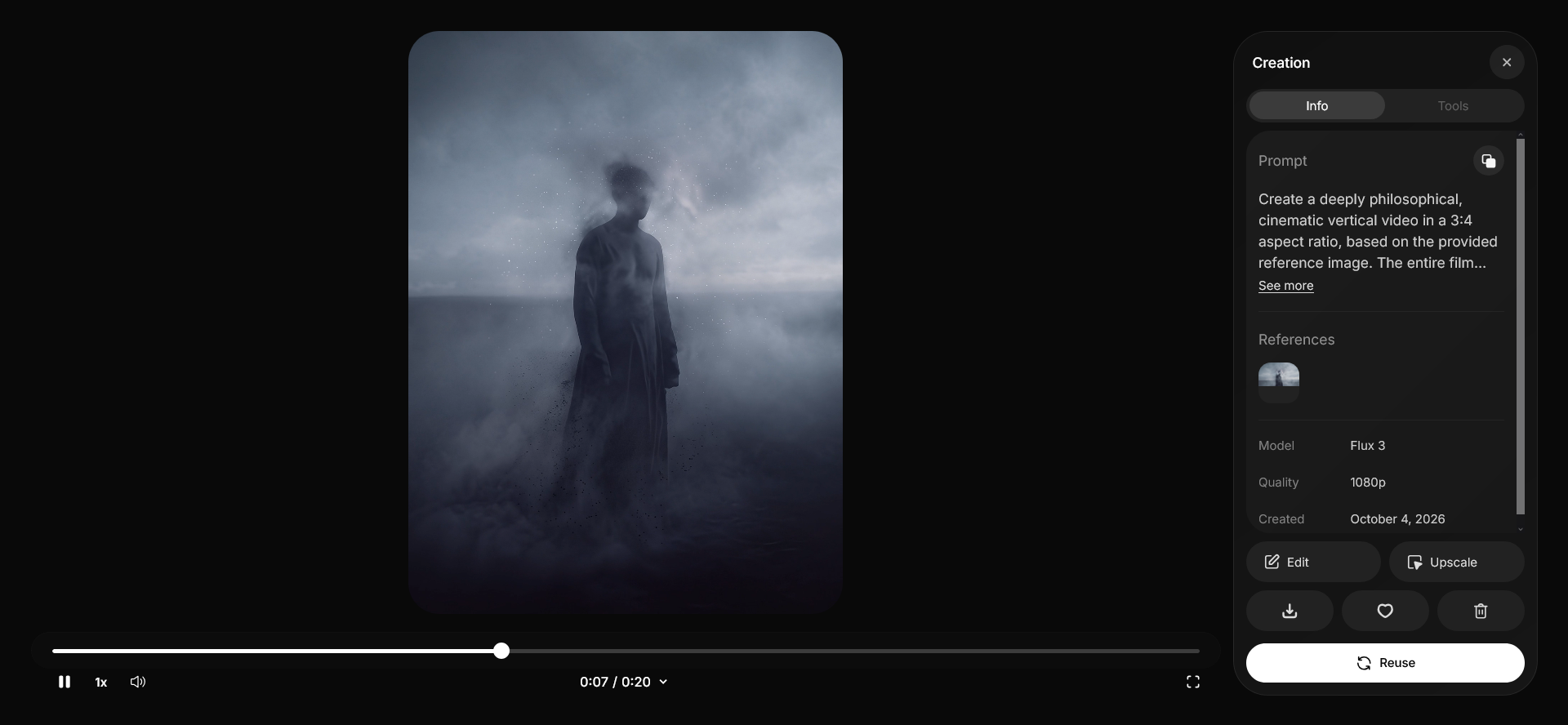
I also turned a still image made with Nano Banana Pro into a 20-second video with audio using Flux 3 at 1080p. Moving from a generated image to an animated clip in the same workspace was a useful example of how the platform can connect different stages of a creative idea.
Key Takeaways
- DaVinci AI brings a range of image and video models into one workspace, including options such as Nano Banana, Sora, Veo, Kling, and Seedance.
- Trending and recommended model labels are a useful discovery aid when you want a starting point without researching every model from scratch.
- The platform makes a familiar AI-creation workflow more convenient by bringing multiple models and creative tools together.
- The on-screen credit estimate provides a useful preview before you generate, making it easier to plan a creative session.
What Is DaVinci AI?
DaVinci AI is a creative platform that gives users access to multiple generative models and tools from one interface. Rather than building a workflow around only one image or video model, users can explore available options and choose the one that best fits a particular task. The product is separate from DaVinci Resolve, the established video-editing application.
That unified setup is especially useful when a creator wants to test several visual directions, animate a still image, or compare different approaches to a short video without moving between multiple services. The model guide provides a useful overview of the options currently listed by DaVinci.
For the current list, see the official DaVinci AI model guide. For background on the category, read AI Flow Review’s guide to AI video generators.
AI Image and Video Models in One Place
The official model guide groups available models by task. Image-generation examples include Nano Banana, Nano Banana Pro, Seedream, Flux, Grok Imagine, Kling for images, and DaVinci Ultra. The video list includes Sora, Veo, Kling, and Seedance. Model names and specific versions may change as the catalog is updated.
The value of this range is flexibility. Different models can interpret the same creative brief in different ways, giving users more room to explore a visual style, composition, or motion approach that fits their project.
Trending and Recommended Labels Make Model Discovery Easier
One feature I appreciated was the use of labels that identify models as trending or recommended. For anyone who does not want to keep track of every new release, these labels provide a practical starting point. They reduce the guesswork involved in choosing what to try first and can help users notice models they might otherwise overlook.
I found these labels useful as a first filter. They make the model list less overwhelming and help surface options worth trying; from there, users can choose according to the look or movement they want to create.
My Experience With Image, Video, and Music Generation
My hands-on experience felt familiar in the best sense: the platform lets you experiment with different models and creative tasks from one place, while the selected model and prompt shape the result. The convenience is in being able to move quickly between options, refine an idea, and see which direction works for the project.
Image generation
For image work, the main benefit is being able to choose among different image models within the same workflow. That can help when creating concept art, campaign visuals, social media assets, or early design directions. In my tests, I also explored two edits to an existing portrait: sharpening a visibly soft image and changing the camera angle. These tasks show how a workflow can move beyond generating a new image from a blank prompt, although the result still needs a visual check.
Image Enhancement: A Blurry Source and a Sharper Result
I tried enhancing a soft portrait rather than treating the source as a finished image. In the example below, the processed version looks noticeably clearer at a glance. It is a useful option when an image needs a cleanup pass or a more polished look; for detail-critical work, a quick comparison with the source remains worthwhile.

Exploring a Different Camera Angle
I also tried changing the camera angle on a portrait. The close-up and alternate view below show how an existing visual idea can be explored from a different composition, which is useful when developing a scene or exploring a new visual direction.

Text-to-video and image-to-video
DaVinci AI supports text-to-video and image-to-video workflows. Text-to-video is useful when starting from a scene description or creative brief; image-to-video gives you a visual starting point and asks the model to add motion. These approaches can support social clips, product concepts, storyboards, and early ad ideas, especially when a team wants to explore a few creative routes before investing more time in production.
For one test, I started with a still image made with Nano Banana Pro and turned it into a 20-second video with audio using Flux 3 at 1080p. It was convenient to move from image creation to animation without leaving the same workspace, and the creation panel made the selected model, resolution, and duration visible alongside the result.
Music generation
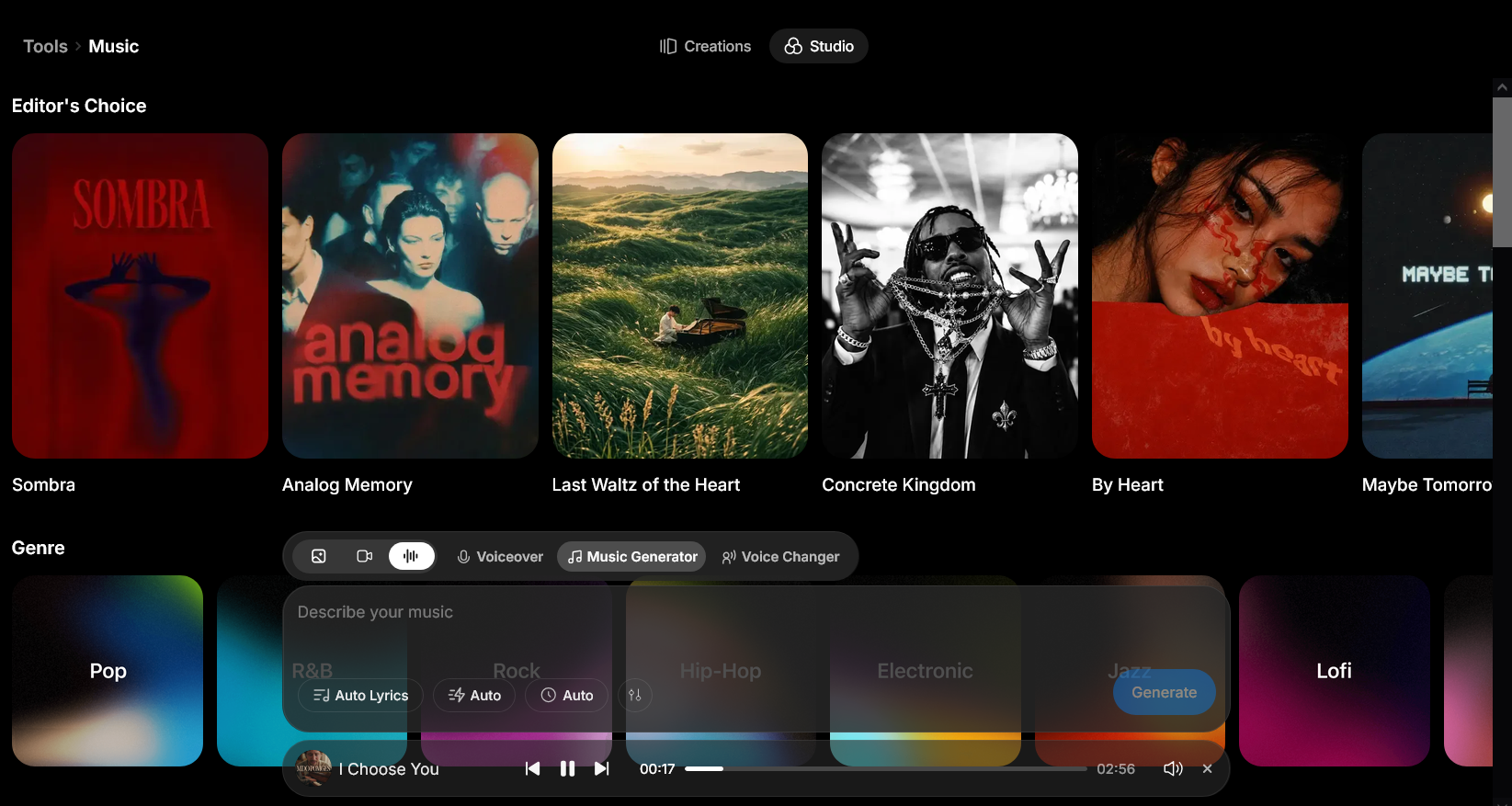
I was also able to access Music Generator in my account. The interface offered genre starting points such as Pop, R&B, Rock, Hip-Hop, Electronic, Jazz, and Lofi, with options including Auto Lyrics. The same workspace also displays Voiceover and Voice Changer tools. That gives users a few useful ways to shape an initial direction without starting entirely from scratch. Availability can differ across product surfaces or rollout stages, though, and the public website may not reflect the same access state as the account used for this review; readers should confirm availability in their own account.
Practical Use Cases for Creators and Businesses
The platform’s combined image and video tools can be useful across several creative workflows:
- Social media teams can draft visual concepts, test different creative directions, and animate an image for short-form content.
- Small businesses can explore product imagery or short promotional-video concepts before committing to a full production shoot.
- Designers and content creators can compare different model outputs as part of brainstorming, mood-board creation, or storyboarding.
- Marketing teams can use generated assets as starting points for campaigns, then refine and review them before publication.
The platform is especially useful when experimentation is part of the workflow: teams can explore a concept, compare creative directions, and carry promising ideas into their preferred editing and production tools.
Pricing, Credits, and Flexible Creative Workflows
DaVinci AI offers several subscription tiers and one-off credit packs, giving creators flexibility to choose an option that fits their workflow. Whether you’re experimenting with AI images, producing video concepts, or exploring different models, the platform’s credit system helps you compare available options before starting a generation.
The web pricing interface I checked on October 10, 2026, displayed the following annual-billing offers and renewal prices.
| Plan | Monthly Credits | Promotional Monthly Equivalent | Annual Renewal Price |
|---|---|---|---|
| Pro | 2,200 | $7.92/month | $159.99/year |
| Max | 5,000 | $15.83/month | $329.99/year |
| Ultimate | 15,000 | $39.58/month | $829.99/year |
| Creator | 40,000 | $79.17/month | $1,569.99/year |
The promotional equivalents were displayed with an annual-billing offer labelled “60% OFF.” The listed annual renewal prices are included to help readers compare the initial offer with the ongoing subscription cost. Pricing and promotions may change.
One-Off Credit Top-Ups
If you prefer to add credits as needed, DaVinci AI also offers one-off top-up packs that work across models. This provides another way to extend your creative workflow without immediately moving to a higher subscription tier.
The pricing interface captured on October 10, 2026, displayed these offers:
| Credits | Promotional Price | Nano Banana Image Estimate | Seedance 2.0 Fast Video Estimate |
|---|---|---|---|
| 15,000 | $89.99 (was $180) | Up to 1,153 images | Up to 163 videos |
| 25,000 | $149.99 (was $300) | Up to 1,923 images | Up to 271 videos |
| 40,000 | $169.99 (was $340) | Up to 3,076 images | Up to 434 videos |
The 40,000-credit pack was labelled “Best Value” and “Most Popular,” with the displayed offers marked 50% off their reference prices. Among these three options, it also offers the lowest displayed price per credit.
The image and video quantities are alternative estimates for the specified models, not combined outputs from the same pack. Actual generation counts depend on the selected model and settings.
Short-Term Access and Subscription Options
For users who want to explore the platform before committing to a longer subscription, the account paywall displayed a seven-day full-access offer for $1.99. After the trial, the subscription converts to $29.99 per month unless canceled through account settings.
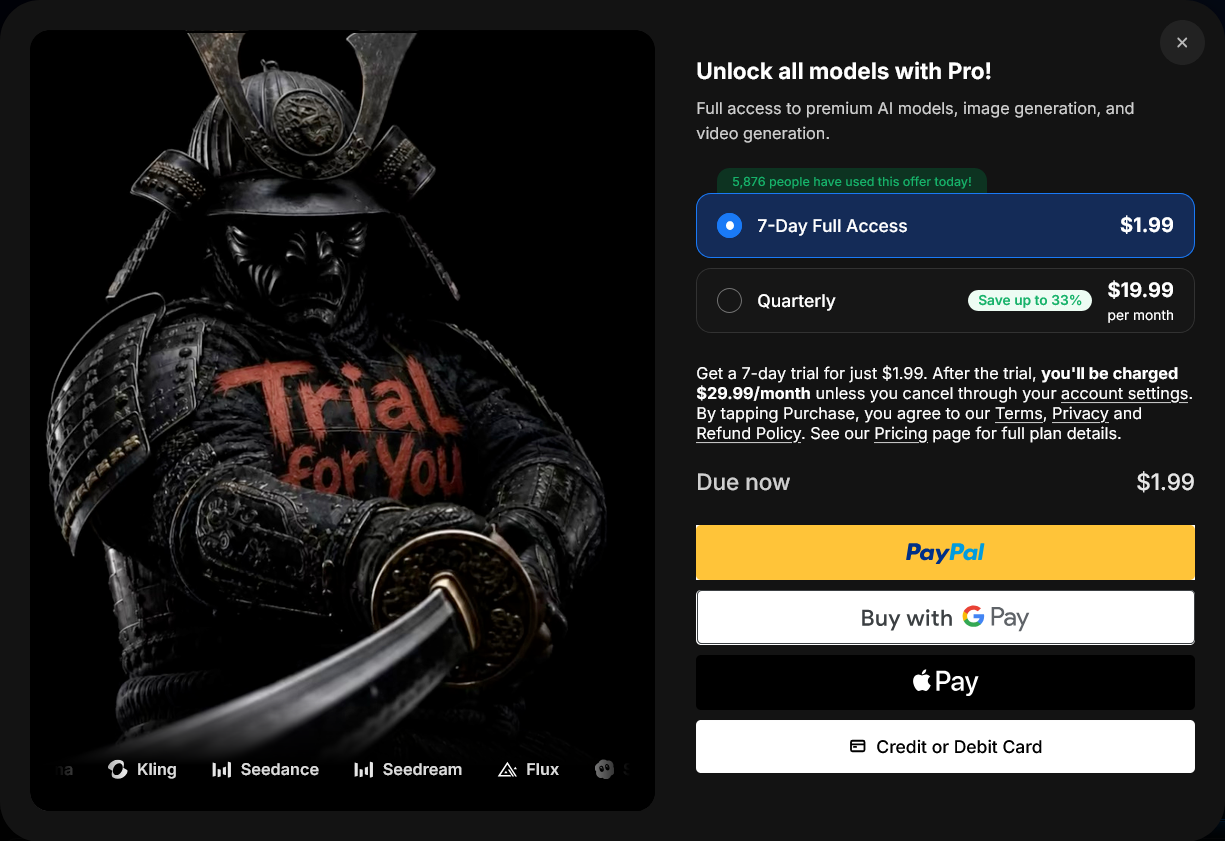
A separate Quarterly option was listed at $19.99 per month. Reviewing the billing terms before purchasing helps you select the plan that best matches your intended usage.
DaVinci AI also provides an optional auto-refill setting for credit top-ups. The pricing interface I checked showed this setting turned off, while the Auto-Refill Help Center guide provides further information about subscription and credit management.
Planning Your Next Generation
One feature I particularly appreciate is the credit estimate displayed before generation. It gives you a useful reference when comparing models, choosing video settings, or deciding which creative direction to explore next.
During my testing, I found this especially useful for video generation. A video of around 20 seconds with audio could use a substantial number of credits, so checking the estimate beforehand helps me plan the duration and approach before generating another variation.
For creators who regularly experiment with different AI models, having model selection, generation tools, and credit estimates in one interface makes it easier to plan a workflow around the type of content they want to create.
For current offers and plan details, visit the official DaVinci AI pricing page or credit top-up page.
What Customers Say About DaVinci AI
On October 9, 2026, DaVinci AI’s Trustpilot profile showed a rating of 4.5 out of 5 from 6,856 reviews. Ratings and review counts change, so the current profile should be checked again before publication.
Positive feedback frequently highlights ease of use, accessible creative workflows, image or video quality, and the convenience of having multiple models in one place. Those themes are consistent with the platform’s main appeal: it gives users several options to explore without requiring them to manage each workflow separately.
Some reviewers do raise concerns about billing, refunds, or support. Those comments are individual customer experiences rather than a complete picture of every subscriber, but they provide useful context alongside positive feedback.
See the DaVinci AI Trustpilot profile for the latest rating and recent customer feedback.
Key Strengths and Practical Notes
What stands out
- A broad selection of image and video models in a single workspace.
- Trending and recommended labels help users discover models and choose a starting point.
- Text-to-video and image-to-video workflows support different stages of creative development.
- Pre-generation credit estimates help with budgeting and comparing possible approaches.
A couple of things to know
- Results depend on the chosen model, prompt, and settings; one generation is not guaranteed to be the best fit.
- Model lists, versions, and feature availability can change; check what is currently enabled in your account.
Who Should Consider DaVinci AI?
DaVinci AI is particularly appealing to creators, social media managers, marketers, and small teams who want to try a range of image and video models from one workspace. The Trending and Recommended labels make it easier to discover models, while image editing, camera-angle exploration, image-to-video, and music tools create several ways to develop an idea.
I would recommend it most to people who value creative exploration and want a convenient way to compare models before choosing a direction. For highly specialized production pipelines, it can also serve as a starting point for concepts that are refined in other tools.
Frequently Asked Questions
Is DaVinci AI the same as DaVinci Resolve?
No. DaVinci AI is a separate AI creative platform for generating content, while DaVinci Resolve is a video-editing application.
Which AI models can I use on DaVinci AI?
The lineup changes over time. The official guide lists image models such as Nano Banana, Nano Banana Pro, Seedream, Flux, Grok Imagine, Kling for images, and DaVinci Ultra, plus video models such as Sora, Veo, Kling, and Seedance. Check the current list and the models enabled for your plan.
Does DaVinci AI support text-to-video and image-to-video?
Yes. The platform lists both workflows. Text-to-video starts with a written scene description; image-to-video starts from an existing image and generates motion from it. Available controls and limits depend on the selected model.
Can I generate music with DaVinci AI?
I was able to try music generation in my account. The public website may describe a different rollout status, so availability should be confirmed against the current account and plan.
Final Verdict
DaVinci AI’s strongest appeal is having model discovery and several creative tools in one workspace. I liked exploring Trending and Recommended models, enhancing a soft portrait, changing a camera angle, turning a generated still into a 20-second video with audio, and trying Music Generator—all without switching services.
Based on those tests, I recommend DaVinci AI to creators, marketers, and small teams who want an accessible way to experiment with current image and video models. Its discovery labels make model selection easier, and the range of tools supports creative work from an initial image to an animated clip. If you enjoy trying new AI models, it is well worth exploring.